Historical Buffer Evaluation
Use Historical Buffer Evaluation (17.2.13) to evaluate how effective your supermarkets are in maintaining an appropriate level of inventory, as well as to update supermarket and kanban loop data based on the evaluation. Ideally, appropriately sized supermarkets contain adequate inventory to avoid stock shortages under all but the most extreme circumstances, without holding excessive amounts of inventory.
You can set up warning and critical limit zones for a supermarket buffer in Kanban Master Maintenance. Historical Buffer Evaluation reports on the number of times, during the specified number of historical days, that the supermarket inventory level fell below the warning and critical levels. Based on whether inventory has fallen below these levels, the program output includes a recommended new buffer size for the supermarket. When you choose to update the kanban loop based on the new buffer size, the system displays action messages related to kanban sizing.
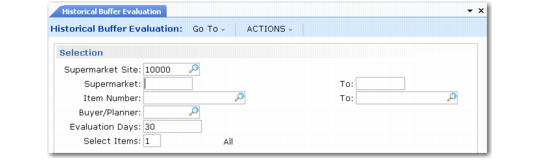
Historical Buffer Evaluation (17.2.13)
In the first frame, enter a supermarket site, as well as other optional criteria for selecting supermarket buffers for evaluation. Site is the only required field. Specify the number of historical days to be used in the analysis, and whether the output report should include all items or only those for which the system recommends changes in the supermarket buffer.
Historical Buffer Evaluation, Historical Data
The second frame displays historical buffer data for the selected items:
Below Warning
The number of times during the evaluation period that a kanban consume/post or fill transaction caused the supermarket inventory to fall below the warning percentage or quantity range.
Below Critical
The number of times during the evaluation period that a kanban consume/post or fill transaction caused the supermarket inventory to fall below the critical percentage or quantity range.
Exposure Quantity
The cumulative total difference between the supermarket inventory level and the critical limit for all the times during the specified period that inventory fell below the critical limit.
No Stock
The number of times during the evaluation period that the supermarket ran out of this item.
New Buffer
When Yes, the system has recommended a new buffer size for this item, displayed in the last frame.
Update
Indicates whether the supermarket buffer will be updated for this item. The system updates this field based on the value of the Update field in the next frame.
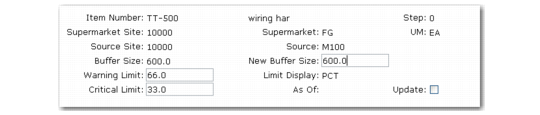
Historical Buffer Evaluation, Update Frame
The next frame displays the recommended maximum buffer size for the supermarket. Set Update to Yes to have the system automatically update the kanban loop quantity, as well as the warning and critical level values, based on the values shown in this frame. You can accept these default values or change them as needed. You also can adjust these three fields manually using Kanban Master Maintenance.
When you finish reviewing and updating data, click Back. The system redisplays all the selected items (see
Historical Buffer Evaluation, Historical Data) with Update set to Yes on items that will be updated. When you click Back again, the system prompts you to confirm the update. Respond Yes to update the database and generate a report on modified buffer sizes and kanban sizing recommendations. Respond No to exit without changing the database.
The system resizes the appropriate kanban loops to support the updated buffer size. Based on the setting of the Calc Cards/Qty field in Kanban Master Maintenance, the system updates either the number of cards or the kanban quantity. If the number of cards changes, the system displays messages regarding how many cards should be added or activated/inactivated using programs on the Kanban Card Management menu.
Note: These are similar to the updates made when you run Supermarket Workbench for a kanban loop.