Setting Up Analysis Codes
In best pricing, you classify customers and products using analysis codes.
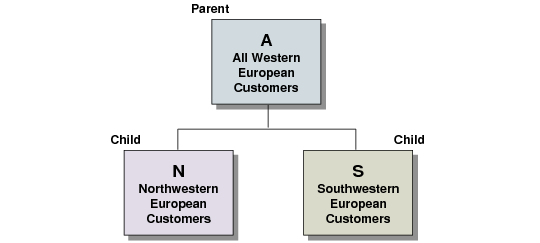
Analysis codes are based on characteristics, such as region, salesperson, or item number, and can be linked to form combinations or sets. For example, analysis codes can link regions, as shown in
Parent and Child Analysis Codes.
Parent and Child Analysis Codes
• Analysis Code N groups customers in Northwestern Europe.
• Analysis Code S groups customers in Southwestern Europe.
• Analysis Code A combines the two groups by linking codes N and S.
Code A is referred to as a parent code because Codes N and S are linked to it. Codes N and S are referred to as child codes.
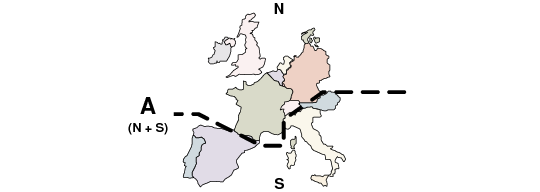
Map of Example Region Codes
Analysis code linking uses OR logic. For example, if code A links codes N and S, any customer meeting the code N or code S criteria is included in code A.
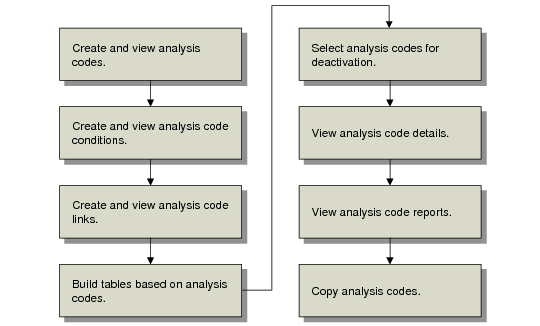
Analysis Code Workflow outlines commonly used procedures for setting up and managing analysis codes. Each procedure is discussed in detail in the sections that follow.
Analysis Code Workflow
Creating Analysis Codes
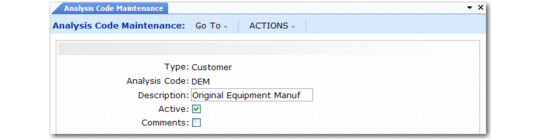
Create analysis codes for customers and items in Analysis Code Maintenance (1.8.1). Use Analysis Code Inquiry (1.8.2) to view analysis codes.
Analysis Code Maintenance (1.8.1)
Type
Valid values are item or customer.
Code
Enter an alphanumeric code identifying a group of customers or items.
Description
Enter a brief description of this particular code. This displays in inquiry screens.
Active
Enter Yes. If No, a warning displays when you create a price list with this analysis code.
Note: This setting has no impact on the active status of customer and item nodes associated with this analysis code. You can modify the active status of nodes in Analysis Code Detail Maintenance (1.8.13).
Comments
Enter Yes to review or update comments.
Use Analysis Code Report (1.8.17) to view details for a range of analysis codes. Enter the analysis code type, analysis code range, and analysis detail selections to be included on the report.
Creating Analysis Code Conditions
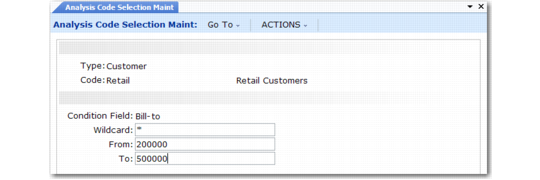
Use Analysis Code Selection Maintenance (1.8.4) to define how members are selected for inclusion in an analysis code group. Use Analysis Code Selection Inquiry (1.8.5) to review analysis codes and their condition fields and ranges.
Analysis Code Selection Maint (1.8.4)
Type
Valid values are item or customer.
Code
Enter an analysis code you created previously, considered the parent code.
Condition Field
Enter a characteristic or qualifier. You can apply more than one condition to an analysis code. If multiple qualifying conditions are selected, AND logic is used. For example, if Condition Field is set to Salesperson 1 and a second Condition Field is set to Salesperson 2, only records meeting both conditions are selected.
Valid Conditions
.
Customer Conditions | | Item Conditions |
Bill-to | Salesperson 2 | | Article | Item Number |
Class | Site | | Break Category | Product Line |
List Type | Sort Name | | Buyer/Planner | Site |
Number | Type | | Description 1 | Type |
Region | User Field 1 | | Description 2 | User Field 1 |
Salesperson 1 | User Field 2 | | Group | User Field 2 |
Wildcard
Enter one of the following wildcards:
• (.) period—a single position wildcard. For example, .2 indicates any selection with 2 in the second position.
• (*) asterisk—a multiple position wildcard. For example, *2 indicates any item with 2 in the last position.
From
For a condition, enter the beginning range to be included in the analysis code.
To
For a condition, enter the ending range to be included in the analysis code.
Linking Sets of Analysis Codes
By linking analysis codes, you can organize customers and items in a variety of ways. Item analysis codes can be linked only to other item codes, and customer codes only to other customer codes.
Analysis code linking uses OR logic. For example, if code ABC links A, B, and C, any customer meeting the criteria for A, B, or C is included in ABC.
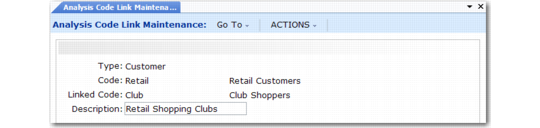
Link analysis codes in Analysis Code Link Maintenance (1.8.7).
Analysis Code Link Maintenance (1.8.7)
Type
Valid values are item or customer.
Code
Enter a valid analysis code. This code is considered the parent.
Linked Code
Enter the code you want to link to. This code is considered the child.
Description
Enter a brief description of this link.
You can view analysis code links in two ways.
• Use Analysis Code Link Inquiry (1.8.8) to view codes linked to a parent code.
• Use Analysis Code Where-Linked Inquiry (1.8.9) to view child analysis codes and the parent codes they are linked to.
Building Analysis Codes
Use Analysis Code Detail Build (1.8.19) to build a table of items or customers for each analysis code, based on analysis code rules and links previously defined. Build analysis codes whenever these rules or links are changed, when new codes are created, and when new items and customers are created.
When you execute this program, the system displays a message listing the number of nodes exploded and the execution start and stop time.
Note: Although builds can be run online, batch mode may be more efficient due to potentially long run times.
Pricing Control (1.10.1.24) gives you the option to automatically build analysis codes when you add new customers and items or make changes to existing customer and item records. However, if you change condition fields for an analysis code, you must still run the build program. This utility builds the data by analysis code type.
Warning Interrupting this utility can disable price lists that use analysis codes. This utility must be completed in its entirety.
As the build proceeds, the system displays:
• Process Started. Date and time the program was initiated.
• Nodes Exploded. Current number of items or customers processed.
• Elapsed Time. Time it took for the system to update each item or code.
• Process Stopped. Time the program completed.
At the end of the build, the system generates a summary report, listing the analysis code type, code value, active status, and each customer or item selected by the build.
Detailed Selection of Analysis Code Nodes
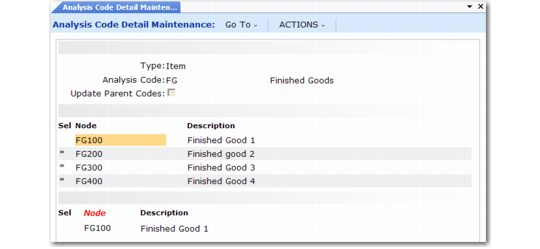
Use Analysis Code Detail Maintenance (1.8.13) to inactivate or reactivate individual items and customers selected for a code. An asterisk in the Sel field indicates an active node. Navigate to the item or customer you want to modify. Then press Enter to toggle its current state.
Analysis Code Detail Maintenance (1.8.13)
To select a node by name, click Next to access the update frame at the bottom of the screen. You can type the first character of the node name to go directly to its location in the list of nodes.
Note: A deselected node can only become active again by being selected in this program. Running Analysis Code Detail Build has no effect on its status.
Viewing Analysis Code Nodes
There are two inquiries for viewing analysis code nodes:
• Use Analysis Code Detail Inquiry (1.8.14) to view specified analysis codes and their nodes.
• Use Analysis Code Where-Used Inquiry (1.8.15) to view the analysis codes to which a specified node belongs.
Copying Analysis Codes
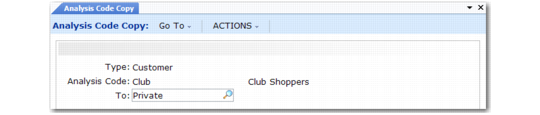
Use Analysis Code Copy (1.8.20) to copy an existing analysis code as a basis for creating a new one.
Analysis Code Copy (1.8.20)
Type
Enter Customer or Item.
Code
Enter the analysis code to be copied.
To
Enter the name of the new analysis code.