QAD 2017 Enterprise Edition
>
User Guides
>
Master Data
>
Pricing
>
Using Best Pricing
>
Creating and Maintaining Price Lists
Creating and Maintaining Price Lists
A price list defines all the information necessary to correctly price an item for a customer. A price list applies to the customer or item codes you assign to it as follows:
• A single item number
• A single customer number
• A group of customers belonging to an analysis code
• A group of items belonging to an analysis code
• All customers
The discount type, referred to as the amount type, defines the purpose of a price list. There are several discount types, and they can be combined. A price list also defines minimum quantities, effective dates, and other information you may want to extend to your customers.
When an order is entered, the system determines which price lists apply, examines those lists, and determines which of them yield the best price for the order. Applicable price lists may have been determined using the same or different criteria.
Discount Types
The Amount Type field determines the discount type assigned to a price list. Possible choices are:
• List Price. Used as the item list price. List prices also set allowable minimum and maximum prices, if selected for a given line item, even if the list price is manually overridden.
List prices are the foundation of pricing logic.The choice of exclusive, base, combinable, and base combinable as the Comb Type does not apply to list prices. They must be set up with a Comb Type of combinable.
• Discount%. Percentage subtracted from the item list price.
• Discount Amt. Amount subtracted from the item list price.
• Markup. Percentages added to item cost in a specified cost set. Must be either a base or exclusive combinable type.
• Net Price. Discounts resulting in a fixed price. Must be either a base or exclusive combinable type.
• Accrual. Similar to Discount%, except that a percentage of the net price accrues to a specified general ledger account, without reducing the net price, and independent of discount.
• Credit Terms. Specified for an order or quote, independent of other discount types.
• Freight List. Specified for an individual order or quote line item, independent of discount.
• Freight Terms. Specified for an order or quote, independent of discount.
Other Pricing Elements
The system processes pricing by line item. As a sales order or quote is entered, the system determines the following:
• Who the pricing customer is
• Which price lists combine with other price lists
• Which price lists are candidates for each line item
• Whether break category discounts apply
• Whether configured products are included, and whether pricing applies across the entire product or at the current level only
• Which price list yields the best overall price for the customer
Who Is the Pricing Customer?
When selecting price lists, the system determines who the pricing customer is as follows:
• When sales orders are entered, the system uses the customer number in the Ship-To field as the pricing customer if the ship-to customer is defined in the customer master.
• Otherwise, the system uses the customer number in the Sold-To field as the pricing customer.
Discount Combinability
The best possible new price of a line item is determined by considering multiple discounts and combining various discounts. Combination types instruct the system how price lists combine with other price lists for purposes of multiple discounts and best pricing calculations. The choices are:
• Base. The standard discount for customers that serves as the basis for additional discounts and can be combined with any non-exclusive price list. Base price lists are exclusive of other base price lists.
• Combinable. Incremental price lists intended to combine with base and other combinable price lists.
• Base-Combinable. Incremental price lists intended to combine base price lists only.
• Exclusive. Exclusive price lists that cannot be combined with any other price lists.
The best discount the system arrives at is one of the following: best base price plus all combinable discounts, best base price plus the best base combinable price list, and the best exclusive price list.
Markup and net price lists must be of combination type base or exclusive.
List price tables provide pricing history and set minimum/maximum prices. They are the foundation for the pricing logic. For pricing structures with an Amount Type of list price, the combination type does not apply. They must be set up with a Comb Type of combinable.
Price List Candidates
The system finds candidates by matching the customer number and the item number on a sales order with the customer code and the item code on the price lists. A match is found if all of the following conditions are true:
• Customer code on the price list equals:
• The customer entered on the order
• Any customer analysis code associated with this customer
• Blank, indicating the price list applies to all customers
• Item code on the price list equals:
• The item number entered on the order
• Any item analysis code associated with this item number
• Blank, indicating the price list applies to all items
• The order currency and price list currency are the same.
• The start and end dates are effective.
Break Categories and Price List Processing
As each line item is priced, the system determines if any lines need to be accumulated for price breaks. If so, the price calculated is based on the total quantity (or amount) on all qualifying line items.
A line qualifies if the item break category matches:
• The break category on a selected price list, and
• The break category of another line item on the same order.
Once all line items are completed, the system reviews them to ensure that proper discounts are calculated. For example, if line item 4 affects the quantity discount for a prior line, the system reviews that line and updates its pricing. There may be times when an item should receive a discount based on the quantity ordered on other line items, but should not add to the total break quantity.
Configured Products Pricing
The system determines in two stages whether price lists apply across an entire configured product line or at the current level only.
Factor contestants. Each component, including the parent item of the configured product, is priced independently and then totaled.
Best overall price. The system calculates the net price for the entire configured item, using the rolled-up list price, discounted by only those discounts that apply across the entire configuration.
The system then compares the net price with the best overall net price and chooses the better of the two.
Calculating Best Prices
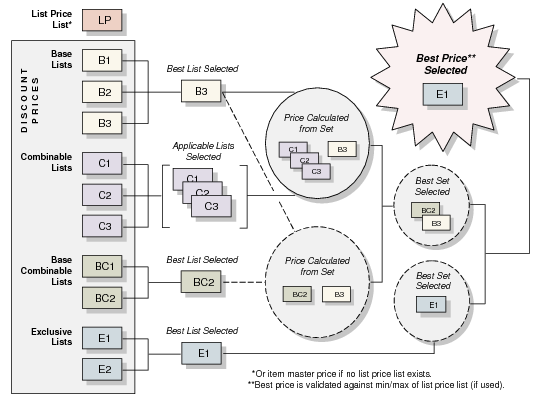
In best pricing, multiple discounts are considered and applicable discounts combined to determine the best possible net price for a line item, as illustrated in
How Best Pricing Works.
How Best Pricing Works
Multiple price lists may apply. The best discount is:
• The best base price plus all combinable discounts, or
• The best base price plus the best base-combinable price list, or
• The best exclusive price list
When the system has found all qualifying price lists, it then determines what combinations result in the best price. The rules for combining price lists are based on the Comb Type field in Price List Maintenance.
How Price Lists Are Used lists how the system uses price lists.
How Price Lists Are Used
System Function | What happens |
Building the Best List Price | The system evaluates each applicable List Price price list. If more than one is found, the lowest price is used. If no List Price list is found, the Price field from the Item Master Maintenance is used. The price is stored in the List Price field of the sales order or quote. |
Building the Best Net Price | The system accesses each applicable Discount%, Discount Amt, Markup, and Net Price price list. It then determines what combination yields the lowest price. The rules for combining price lists are based on the Com Type field in Price List Maintenance. The Discount and Net Price fields are then updated on the sales order or quote. |
Modifying Price for Minimum or Maximum | If the calculated Net Price on a sales order is above the maximum or below the minimum price (set on List Price price lists in Price List Maintenance), the Net Price on the sales order or quote is adjusted. |
Manually Overriding Calculated Prices | The calculated List Price, Discount, and Net Price can be manually changed on a sales order or quote (if you have security access to these fields). When this occurs, the system records a Manual discount, which is the difference between the system-generated price and the price entered. |
Example: A company offers a promotional discount to customers in a geographic area. For qualifying customer A, this discount is better than the standard discount. Qualifying customer B, however, qualifies for a better discount than the geographic discount. The system assigns the better discount, so customer B is not penalized for qualifying for the promotion.
Discount Sequences
When using combinable type discounts, the discounts can either be added together or multiplied/cascaded. Specify which calculation to use in Pricing Control for all orders and price lists.
Note: A discount is combinable when more than one price list is used to determine net price.
When the cascading calculation method is chosen and GL accounts are used to track discounts to individual price lists, the discount sequence number becomes important. This is because the individual discount amounts can differ depending on the order in which they are applied. The net price of the order is the same regardless of sequence numbering.
When the additive calculation method is used, discount sequence number is not significant. With this method, the calculation uses the best list price with each discount and adds the individual discount amounts to obtain the total discount.
Applying the Additive Method
In a sales order line with a best list price of $100, price lists A and B are used. Price list A has a sequence number of 100 with a 20% discount. Price list B has a sequence number of 200 with a 30% discount. Using the additive method, the system calculates the discounts as follows:
$100 * .20 = $20
$100 * .30 = $30
$20 + $30 = $50
A discount of $20 is recorded for price list A and $30 for B. The total discount is $50 and the net price is $50. It does not matter which discount is calculated first, because the best list price is used to calculate both individual discounts.
Applying the Cascading Method
Using the cascading method for the same example, the system first performs the calculations for price list A, since it has the lower sequence number:
$100 – [$100 x (1–.20)] = $20
$100 – $20 = $80
Calculations are then performed for price list B:
$80 – [$80 x (1–.30)] = $24
$80 – $24 = $56
The total discount for the order is $44 and the net price is $56. For this order line, a discount of $20 is posted in the general ledger for price list A, and $24 for B.
Note: If a manual price list is included in the pricing determination, the system assigns it sequence 999. This ensures that manual discounts are calculated last when the cascading method is used.
If the sequence numbers are reversed, calculations are first performed for price list B:
$100 – [$100 x (1–.30)] = $30
$100 – $30 = $70
Calculations are then performed for price list A:
$70 – [$70 x (1–.20)] = $14
$70 – $14 = $56
As before, the total discount is $44, and the net price is $56. But the discount posted for price list A has changed from $20 to $14; and the discount for price list B has changed from $24 to $30.
When Discount Sequence Numbers Are the Same
It is possible for two or more price lists to have the same sequence numbers. In this case, the discount is proportioned between the two lists according to the contribution of each. The calculation involved for each price list is as follows:
(1 – individual discount factor) / total additive discount x list price – (list price x total cascading factor)
The discount factor = 1 – discount percent. Following the previous example, the discount calculation for price list A would be:
Discount factor = 1 – .20 = .8
Discount = (1 – .8) / .5 x {$100 – [$100 x (.7 * .8)]} = $17.60
The individual discount for price list B would be:
Discount factor = 1 – .3 = .7
Discount = (1 – .7) / .5 * {$100 – [$100 x (.7 * .8)]} = $26.40
The discount calculation works the same with a negative discount.
Creating a Price List
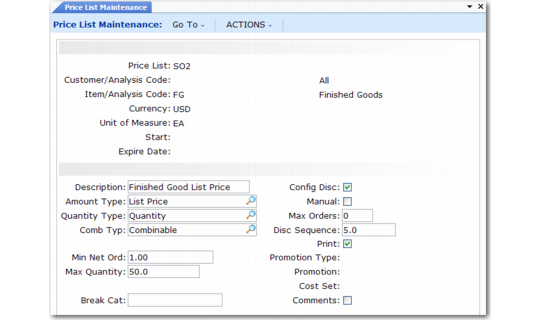
Use Price List Maintenance (1.10.1.1) to define item codes, customer codes, discounts, and other information pertaining to a price list. Create as many price lists as you need to satisfy your pricing requirements. If you do not use price lists, the system uses the Price field in the item master.
Price List Maintenance (1.10.1.1)
Price List
Enter a code identifying the price list.
Customer/Analysis Code
Enter a customer address code, analysis code, or leave blank for all customers.
Item/Analysis Code
Enter an item number, analysis code, or leave blank for all items.
Currency
Enter the code indicating the currency for this price list. The default is the base currency.
Unit of Measure
Enter a unit of measure or leave blank for all units of measure.
Start
Enter the first date this price list is effective. If left blank, the price list is effective for any date prior to the expiration date.
When determining which price list to use, the system selects price lists with undefined start dates before price lists with defined start dates.
Expire Date
Enter the last day this price list is effective. The date must be greater than or equal to the start date. Blank implies there is no expiration date.
When determining which price list to use, the system selects price lists with undefined start/expiration dates before price lists with defined start/expiration dates.
Proceed to the next frame.
Description
The description of your price list (optional).
Amount Type
The choices are Accrual, Credit Terms, Discount%, Discount Amt, Freight List, Freight Terms, List Price, Markup, and Net Price. The amount type of the list affects which fields display in the following frames. See
Discount Types.
Quantity Type
Specify the type of quantity to be used in determining quantity breaks in the price list detail, as well as the way the system uses the value in the Minimum Order field.
• Quantity: the price breaks are determined by the number of items ordered. If the cumulative order quantity for an item is less than Minimum Order, the order entry program displays a warning message following line-item entry.
• Amount: the price breaks are determined by the total extended list price of items ordered, measured in the price list currency. If the total order amount is less than Minimum Order, the order entry program displays a warning message at the trailer.
Note: When using price lists with quantity type amount and the minimum amount is greater than zero, the best list price for the item must also be greater than zero. If the best list price for the item is equal to zero, the price list will not be selected for the order line item.
Set list prices for items in Item Master Maintenance or Price List Maintenance.
Comb Type
This field describes how price lists combine with other price lists for multiple discount and best pricing calculations. Valid values are:
Note: Markup and net price lists must be of combination type base or exclusive.
• Exclusive. Cannot combine with any other price list.
• Base. Can combine with any price list that is not exclusive or another base.
• Combinable. Identifies an incremental price list that is intended to combine with other combinable and base price lists. List price tables must be combinable.
• Base-Combinable. Identifies an incremental price list that is intended to combine only with base price lists.
Minimum Order
Specify a minimum quantity or currency amount to be enforced during order entry when this price list is selected. Use of this field depends on the value of Quantity Type.
• Quantity: Specify the minimum order quantity that should be allowed on an order that selects this price list. When you enter an order, the system compares the cumulative line quantity of each item with this field. If the order quantity is less, a warning displays. Additionally, in Sales Order Maintenance only, if you choose to continue ordering a below-minimum quantity, the system may prompt you to enter a reason code. This occurs when Keep Booking History is Yes in Sales Order Control.
• Amount: Specify the minimum currency amount that needs to be on an order to use this price list. If a price list is selected for an order, this amount is compared with the total order amount. If the Minimum Order value is greater, a warning displays at the order trailer.
Note: Even when a warning displays, the price list is still applied to the order. The warning lets you know that minimum requirements have not been met. You can then decide if this appropriate for your needs.
Max Quantity
In conjunction with Quantity Type specified, either the maximum order item quantity or maximum order currency amount allowed for price list; default is 0 (zero).
Break Cat
In conjunction with specified Min Net Ord value, an additional category by which item quantities or currency amounts can accumulate for required price list minimum. Enter blank if you aren’t using break categories. Otherwise, enter the item master break category code associated with the item being priced or the break category code assigned to another item. The default is blank.
Config Disc
Either Yes or No. Applicable to configured products. If Yes, the price list applies to everything in a configured product, when pricing a configured item (otherwise ignored). If No, it only applies to the specific item.
Manual
Enter Yes if this price list should only be considered during line item pricing when it is specified in the Manual price list field. Enter No if this price list should be considered anytime it applies to the customer or item.
Max Orders
Defines the maximum number of orders that can be priced using this list for a given customer. This field is for reference only. It is normally used with manual price lists, which might, for example, apply only once for a new customer.
Disc Sequence
In conjunction with Comb Type specified, a numerical value indicating the order in which the system applies price list discounts relative to other price list discounts with which it can be combined; default is 10.0. A discount sequence can be decimal. The system applies lower numbers first.
Print
Enter Yes if the price list should be shown on associated sales order documents and invoices; otherwise, enter No. The default is Yes.
Promotion Type, Promotion
These fields are not currently used.
Cost Set
Applicable cost basis for markup price lists only. Either blank if standard cost or the current cost set associated with the item being priced; default is blank.
Comments
Enter Yes to review or update remarks related to this price list.
Depending on the amount type of the price list you are editing, the system displays a different frame.
Price List Maintenance (1.10.1.1), Min Qty and Credit Terms Fields illustrates the frame that displays when the amount type is Credit Terms, Freight List, or Freight Terms.
Price List Maintenance (1.10.1.1), Min Qty and Credit Terms Fields
Min Qty
Enter a quantity or amount. The Min Qty field changes to Min Amt if the Qty Type field is set to amount.
Credit Terms
Choose a credit term. The Credit Terms label changes to Frt Terms or Freight List, depending on your selection in the Amount Type field.
Continue entering values for each quantity or amount break.
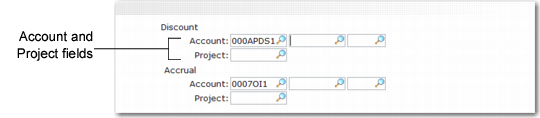
Price List Maintenance (1.10.1.1), Discount and Accrual Account Fields
Discount Acct, Sub-Acct, CC, and Project
For Discount%, Discount Amt, Markup, or Net Price price lists, enter an account code for tracking discount amounts. Sub-account, cost center, and project are optional. This must be a valid, active account of type Standard.
If you do not associate accounts with price lists, discounts are posted to the Sales Discount account specified in the order maintenance program.
For accrual price lists, the label of this field changes to Expense. A percentage of the net price accrues to the account specified in the Accrual Acct field. The Expense account is required and used to balance the credit posted to the Accrual account.
Accrual Acct, Sub-Acct, CC, and Project
These fields apply to accrual price lists only. The account you enter is used to track the accrual amounts in the general ledger. This must be a valid, active account of type Standard.
Proceed to the next frame.
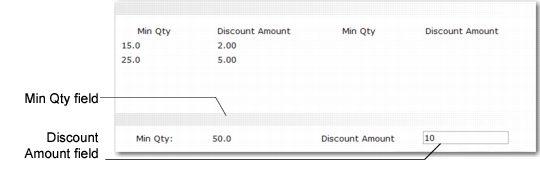
Min Qty
A quantity or amount. The Min Qty field changes to Min Amt if the Qty Type field is set to Amount.
Discount Amount
A discount percentage. The Discount Amount label changes to Markup%, Net Price, or Disc Amt, depending on your selection in the Amount Type field.
Price List Maintenance (1.10.1.1), Min Qty and Discount Amount Fields
Continue specifying values for each quantity or amount break.
List Price
Enter the list price for this price list.
Minimum Price
Enter the lowest allowable price for this price list. If a lower price is entered on a sales order, this price is used instead.
Maximum Price
Enter the highest allowable price for this price list. If a higher price is entered on a sales order, this price is used instead.
When you create a List Price price list, the following fields are ignored: Qty Type, Comb Type, Min Net Ord, Max Qty, Break Cat, Config Disc, Max Orders, Disc Sequence, Print, and Cost Set.
Price List Maintenance (1.10.1.1), List Price, Minimum and Maximum Price Fields
Reviewing Price Lists
To review price lists, use one of the following programs:
• Use Price List Inquiry (1.10.1.2) to review names and summary information on price lists.
• Use Price List Report (1.10.1.3) to review pricing details for each price list.
• Use Price Lists by Customer Inquiry (1.10.1.5) to review price lists sorted by customer code.
• Use Price Lists by Item Inquiry (1.10.1.6) to review price list detail sorted by item code.
Copying a Price List
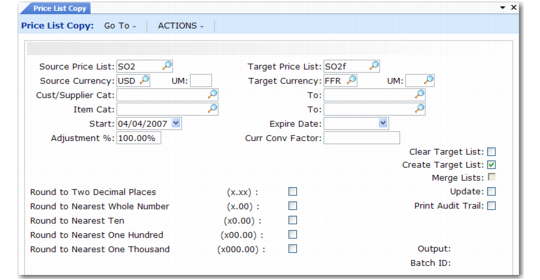
Use Price List Copy (1.10.1.8) to quickly create new price lists based on existing ones. You can copy a price list into any currency or adjust existing price lists with increased or decreased prices.
The system makes a copy of the source price list under the target price list code with a start date of today. Specific prices (Amount Type List Price or Net Price) are multiplied by the Adjustment Percent and the Cur Conv Factor, then rounded to the specified number of decimal places. Discount and markup percentages are copied as they are in the source price list.
Price List Copy (1.10.1.8)
Source Price List
Enter the code identifying the price list from which the information is copied.
Source Currency
Currency code used by the source price list.
Target Price List
Enter a code identifying the price list to which the information is copied. The target and source price list can be the same. In this case, an ending effective date is added to the source list and a starting effective date to the target list. If the target list is not the same as the source and does not exist, it can be created. If it does exist, it can be either cleared or added to.
Target Currency
Enter the currency for the system to use on the target prices. The source and target currency can be the same—leave blank for the system to default to the source currency. If you are copying from one currency to another, the system calculates and displays a default Cur Conv Factor using the exchange rates effective on the price list start date. The system adjusts prices on the target list using the conversion factor you specify.
UM
Either an item unit of measure to which price list applies or blank if the price list applies for all units of measure; default is blank.
Cust/Supplier Cat
Either the customer code or the customer analysis code for which price list applies, or blank if price list applies to all customers; default is blank.
Item Cat
Either the item code or the item analysis code for which price list applies, or blank if price list applies for all items; default is blank.
To
Either the last value within a range or blank if range is not specified; default is blank.
Start
Start date defaults to today’s date and defines the start date for the new pricing structure created by the copy. This field is applied differently by the system in different situations:
• If the source and target codes and currency are the same and the date entered matches the start date currently on the source price list, a new price list is not created. Instead, the existing price list is modified according to any adjustment percentage entered.
• In other cases when the source and target codes and currency are the same, the system uses the start date as the start effective date on the target list and adds an ending effective date on the source list (day before target’s start date).
• If the source and target codes are different, the start date is used on the target and the source list is not affected.
Expire Date
Either the last date (MM/DD/YY) target price list is effective or blank if price list is effective any date on or after start date; default is blank.
Adjustment%
Percent (up or down) target price list amounts are to be adjusted relative to source price list amounts. Enter 100.0 for no adjustment or a numerical value indicating percent adjustment is needed. For example, 90 adjusts target price list down 10%; 110 adjusts target price list up 10%, The default is 100.0.
Curr Conv Factor
Enter a conversion factor to use when the source and target price list currencies are not the same. The system calculates and displays a default conversion factor using the exchange rate in effect on the price list start date. If effective exchange rates are not found, Curr Conv Factor defaults to 1. You can modify the conversion factor, if needed. However, the value cannot be 0.
Clear Target List
Enter Yes to delete all other target price lists having same name and attributes or No to not delete other target price lists; default is No.
Create Target List
Enter Yes (the default) to create a new list if one does not exist. When No, a list is not created. If Create Target List is Yes and the list exists, the value of Clear Target List determines if the list is cleared before the copy, or if an end effective date is added to the old prices.
Update
Enter No (the default) and set Print Audit Trail to Yes to print a report of potential changes before they are made. Specify Yes to update price lists based on the parameters specified.
Print Audit Trail
Enter Yes (the default) to print an audit report showing the effect of applying the copy parameters to the target price list. If No, a report does not print.
Output
Enter an output destination for the audit report.
Batch ID
Assign a Batch ID to process the transaction off line.
Generating Pricing Reports
Three pricing reports display information about how the system calculates prices for order lines:
• Pricing What-If Inquiry (1.10.1.13) displays prices based on user-specified input parameters.
• Customer Orders by Price List Inquiry (1.10.1.15) displays the price lists used to price a customer’s orders.
• Sales Order Price Inquiry (1.10.1.17) displays pricing details for selected order lines.
• Use Sales Order Pricing Report (7.15.7) to view pricing history records created for each change to an order line’s pricing. See
Pricing History.
Pricing What-If Inquiry
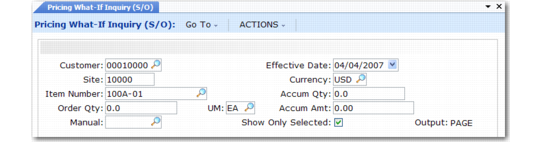
Use Pricing What-If Inquiry (1.10.1.13) to review what-if pricing scenarios. This inquiry does not apply to configured products with optionally configured components.
Pricing What-If Inquiry (1.10.1.13)
Customer
Enter the customer address code or customer analysis code for price calculation. Leave blank to calculate prices regardless of customer.
Site
Enter the site code for price calculation. Leave blank to calculate prices regardless of site.
Item Number
Enter the item code or item analysis code for price calculation. Leave blank to calculate prices regardless of item.
Order Qty
Enter the number of line items ordered.
UM
Enter the item unit of measure for price calculation or leave blank if price list applies to all units of measure.
Manual
Enter a code identifying a manual price list or leave blank.
Effective Date
Enter the pricing effective date in MM/DD/YY format. The default is the system date.
Currency
Enter the applicable currency for price list calculations and display. The default is the base currency.
Accum Qty
If price list Qty Type is Quantity, enter the number of items for this order. Either Ord Qty value or Break Qty value; default is Ord Qty.
Accum Amt
If price list Qty Type is Amount, the currency amount accumulated for this order. Either Ord Qty * List Price value or Accum Qty * List Price value; default is Ord Qty * List Price.
Show Only Selected
Choose Yes to have the system show only price lists that are selected for use in determining list and net prices. Choose No to have the system show all price lists considered for evaluation of the list and net prices. In either case, a Yes or No appears in the Sel column indicating the system selection process.The default is Yes.
The system calculates the price for the item and customer you selected for each price list that matches the selected item and customer combination.
Viewing Orders by Price List
Use Customer Orders by Price List Inquiry (1.10.1.15) to ensure that a customer does not exceed the maximum number of orders or to see how a price list is used.
Customer Orders by Price List Inquiry (1.10.1.15)
Customer
Enter a customer number.
Price List
Enter a price list that applies to this customer. If you want to see all orders for this customer, leave blank.
Open SOs Only
Yes if you want to see open sales orders only. Choose No if you do not want to limit the inquiry.
Viewing Sales Order Discounts
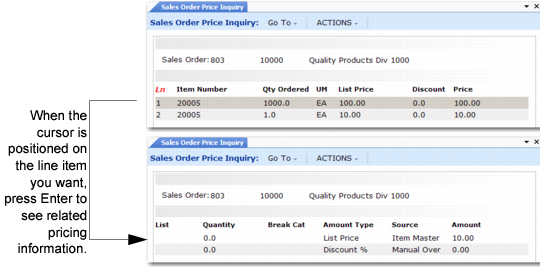
The system calculates and displays price lists, discount factors, net prices, line item amounts, and order amounts online. After line items have been processed, the system recalculates previous lines based upon quantity breaks if subsequent lines result in a different total accumulated order quantity. To view this information, use Sales Order Price Inquiry (1.10.1.17).
Sales Order Price Inquiry (1.10.1.17)
Sales Order
Enter a sales order number, then scroll through the inquiry to display lines on the order. Press Enter on a selected line to see pricing details.