Changing Price List Classification
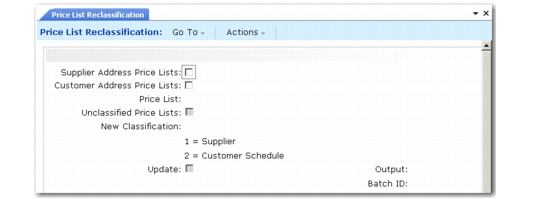
Use Price List Reclassification (1.10.24) to assign or change a price list
Use this utility carefully if you need to retain historical price list information. You should assign menu-level security to the utility. Reclassifying a price list name reclassifies all instances of that name; for example, if you have price lists by month for a single price list name, the system reclassifies all instances of the price list, even those with past dates. The system does not check for price lists on open orders before reclassifying.
You can optionally indicate whether you want to classify price lists assigned to customer or supplier addresses. You cannot reclassify a price list that is assigned to both a customer and a supplier address. If the system finds a price list that is assigned to both a customer and supplier address record, all instances of that price list remain unclassified, and the system displays a message that indicates a dual duty price list.
You cannot reclassify a type L supplier price list as a customer price list. If you try, the system reports an error.
To assign a classification to a single price list, specify the name in Price List and the classification in New Classification.
If you set Unclassified Price List to Yes, the system assigns the new classification to any price list not assigned to a customer or supplier address. Use the Unclassified Price List field with the Price List field to narrow your selection criteria.
You can run the utility with Update set to No to preview price list changes, then set Update to Yes to make the changes. The system reports price lists that it cannot change; for example when a list is assigned to both customers or suppliers.
Price List Reclassification (1.10.24)
Supplier Address Price List
Indicate Yes or No to change classification for all price lists assigned to a supplier address.
No: The system does not select price lists assigned to supplier addresses.
Yes: The system selects all price lists assigned to supplier addresses and reclassifies them as customer schedule price lists. When Yes, you cannot enter a name in Price List.
Customer Address Price List
Indicate Yes or No to change classification for all price lists assigned to a customer address.
No: The system does not select price lists assigned to customer addresses.
Yes: The system selects all price lists assigned to customer addresses and reclassifies them as supplier price lists. When Yes, you cannot enter a name in Price List.
Price List
Optionally specify a price list name to reclassify only that price list. The system assigns the classification to all price lists of that name. If the price list is currently classified, the system looks for price lists with the opposite classification specified in New Classification.
Unclassified Price List
Optionally select only price lists that have no current classification. If either Customer Address Price List or Supplier Address Price List is Yes, you cannot access this field.
No (the default): The system ignores unclassified price lists.
Yes: The system assigns the new classification to only unclassified price lists. If you specified a price list by name, the system looks for unclassified lists by that name.
New Classification
Specify the price list classification to apply to the price lists that meet the selection criteria:
1: Supplier
2: Customer Schedule
Update
Indicate whether to update the price lists that meet the selection criteria to the classification specified in New Classification.
No: The system generates a simulation report of the price list records that would be updated when you run the utility.
Yes: The system updates the price lists records to the new classification and prints a report showing the changes and any exceptions.