Loading Work Center Rates or Cost Adjustments from XML
Currently, Periodic Costing uses the end results of accounting—which includes allocations for the production cost centers— to prorate for the labor and burden to absorb. Since PC uses the results of allocation, you manually collect the allocation numbers to send to Periodic Costing.
You can also upload WO component or operation adjustments to Periodic Costing using the method described in this section.
This information can be defined by department or by work center/machine using a specific rate or by defining the total amount to be applied to run times and/or setup times. For each cost calculation period, the work center rates on labor or burden can be calculated based on the amount of work assigned to a particular work center divided by the total hours of operation for that work center.
There should be an itemized account and sub-account for each type of cost—setup, labor, burden, and burden machine— and there may be more than one account or no account for each type of cost. The system checks the cost type against the language detail. Cost type can be:
• SET - Setup
• LBR - Labor
• LBD - Burden of Labor
• MBD - Burden Machine
Based on the product cost center setup, the system verifies all GL transactions of these cost centers, with the exception of the WO postings. You can generate a report to review before confirming that data be uploaded to Periodic Costing. The system uploads all the costs per cost type (LBR, BDN, and so on) and cost center data to Periodic Costing. The value related to add currencies (other than base currency) is converted based on the exchange rate of the period end date automatically.
To upload the data, you build a spreadsheet, then attach XML schema to the spreadsheet to upload the data to Periodic Costing. You find the rate or total for each cost center, then upload the actuals for labor and burden for each individual work center.
Once you upload the labor, burden, and other expenses data; Periodic Costing takes the totals from the accounts, locates the departments associated with centers and accounts, then via the transactions, determines the actual hours and costs. Totals, though, come from GL integration and the setup. From the totals, Periodic Costing then determines the details of the allocation.
Creating the Spreadsheet
You can use the example shown in
Sample Spreadsheet to build a spreadsheet. Once you do, you collect the data for the spreadsheet, then attach an XML file with schema to the spreadsheet.
Sample Spreadsheet
Using XML Schema
The following code depicts the schema in an XML file that you attach to the spreadsheet.
Sample Spreadsheet shows the spreadsheet. The spreadsheet contains the actual data that you save in Microsoft Excel as a XML type document. This file is then the file that is uploaded.
Schema code to attach to the spreadsheet:
<?xml version="1.0" encoding="ISO-8859-1" ?>
<xs:schema xmlns:xs="http://www.w3.org/2001/XMLSchema"
elementFormDefault="qualified">
<xs:element name="dsPcUnitCost">
<xs:complexType>
<xs:sequence>
<xs:element name="ttPcUnitCost" minOccurs="1" maxOccurs="unbounded">
<xs:complexType>
<xs:sequence>
<xs:element name="seq_no" type="xs:integer" minOccurs="1"/>
<xs:element name="site" type="xs:string" minOccurs="1"/>
<xs:element name="item" type="xs:string" minOccurs="1"/>
<xs:element name="effective_date" type="xs:date" minOccurs="1"/>
<xs:element name="pc_calc_period_start_date" type="xs:date"/>
<xs:element name="element" type="xs:string" minOccurs="1"/>
<xs:element name="element_cost" type="xs:decimal" minOccurs="1"/>
<xs:element name="acct" type="xs:string" minOccurs="1"/>
<xs:element name="sub" type="xs:string" minOccurs="1"/>
<xs:element name="cc" type="xs:string" minOccurs="1"/>
</xs:sequence>
</xs:complexType>
</xs:element>
</xs:sequence>
</xs:complexType>
</xs:element>
</xs:schema>
Export/Import PC Work Center Rates
You can maintain the work center rate data in batch using the Import/Export File option on PC Work Center Rate Maintenance (30.5.3.1). The rate data is exported to an XML file that the system builds. You can modify the XML file in Microsoft Excel and import it back into QAD Enterprise Edition to finish the maintenance at one time for mass amounts of data.
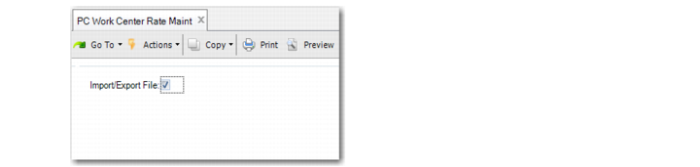
1 Select the Import/Export File option to enable the export and import function and Click Next.
Import/Export File Option
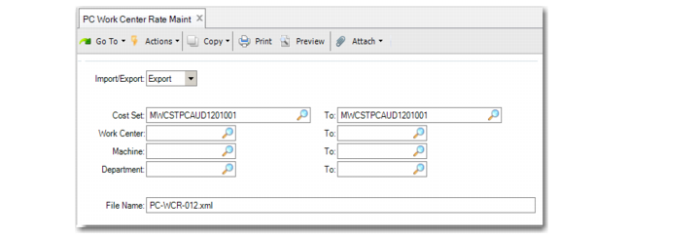
2 Select Export in the Import/Export field and specify the range for the data that you want to export, using the Cost Set, Work Center, Machine, or Department field.
Export Data
Note: If you do not specify the data range, the export routine exports all records with an element of labor and burden for every combination of cost set, work center, and machine in the system. To avoid making the exported records a large document, ensure that you set the data range before exporting.
3 In the File Name field, specify a name for the exported XML file and click Next.
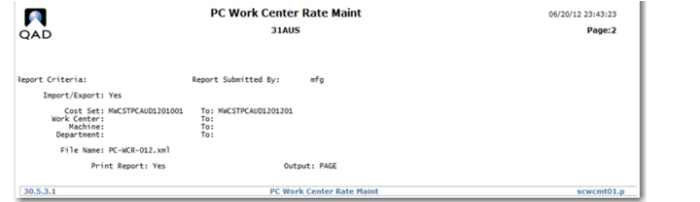
4 When prompted, select the Print report option to generate a report for the export process.
The report contains the status of the export, the directory of the output XML file, and the selection criteria of the exported data.
5 Click Next to start exporting.
The report displays when the export is done.
An Example Report
Editing the Exported Data
In the exported XML file, you can edit and delete the existing records and add records. All the changes are not validated until you import the file into QAD Enterprise Edition.
To edit the exported data:
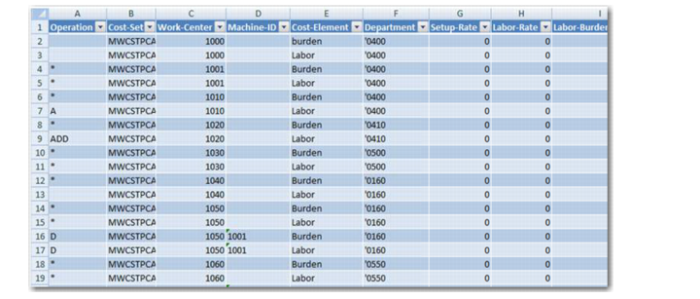
1 Open the XML file with Microsoft Excel or another XML editor. When prompted, select As an XML table and click OK.
2 Edit the records in the worksheet.
Important: Do not edit row 1 in the XML file. The values in row 1 are used for data mapping when you import the file into QAD Enterprise Edition.
Editing the Output XML File
Operation
The values in the Operation column indicate how the system handles the corresponding records during the file import. The valid values are:
• Blank: If you want the system to update this record during file import, leave this field empty.
• A or ADD: Input A or ADD if the record is new and you want to import it into QAD EE. If the same record exists in the QAD EE, the system updates this record during import.
• D, DELETE, R, or REMOVE: If you want to delete the records from the QAD EE database, mark the records with any of the four options.
• *: If you want to leave the records as is during import, mark them with an asterisk.
Cost-Set
This is a mandatory field. Ensure that the cost set exists in the QAD EE database.
Work-Center
This is a mandatory field. Ensure that the work center exists in the QAD EE database.
Machine-ID
This is an optional field. If specified, ensure that the machine ID exists in the QAD EE database.
Department
This field is for reference only. It displays the department in association with the work center or the machine ID.
Rates
How the system handles the rates during import depends on the setting of Calculate Work Center Rate in Periodic Costing Control (30.5.24).
• With the Calculate Work Center Rate option checked, the system updates
• Setup-Rate when Cost-Element = Labor
• Labor-Rate when Cost-Element = Labor
• Labor-Burden-Rate when Cost-Element = Burden
• Labor-Burden-Percent when Cost-Element = Burden
• Machine-Burden-Rate when Cost-Element = Burden
• With the Calculate Work Center Rate option unchecked, the system updates
• Setup-Total when Cost-Element = Labor
• Labor-Total when Cost-Element = Labor
• Labor-Burden-Total when Cost-Element = Burden
• Machine-Burden-Total when Cost-Element = Burden
Total-Hours
This field is for reference only. It displays the total hours of setup and runs reported for the work center or the machine.
Total-Setup-Hours
This field is for reference only. It displays the total setup hours reported for the work center or the machine.
Total-Run-Hours
This field is for reference only. It displays the total run hours reported for the work center or the machine.
Cost Set Domain
This field is for reference only. It indicates the domain that the data was extracted from.
3 Save the file as an XML file when you finish editing.
If you saved the file as an Excel Workbook during editing, ensure that you convert it to an XML file before you import it into QAD EE. To convert it to an XML file, click Export on the Developer tab.
Importing Work Center Rate Data to QAD EE
Use the following procedure to import work center rates.
1 Check the Import/Export File option to enable the export and import function and Click Next.
Import/Export File Option
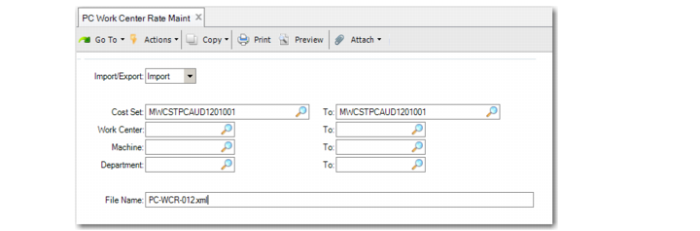
2 Select Import in the Import/Export field and specify the range for the data that you want to import, using the Cost Set, Work Center, Machine, or Department field.
Import Data
3 In the File Name field, specify the XML file to be imported and click Next.
4 When prompted, select the Print report option to generate a report for the import process.
The report contains the status of the import, the directory of the imported XML file, and the selection criteria of the imported data.
5 Click Next to start importing.
The report displays when the import is done.