PC Browse Collections
You can use the following Periodic Costing .NET UI browse collections as one-stop programs to view data. You can select a record in the top-level browse and drill down into the browse collection’s supporting browses that display additional information about the record you selected. Periodic Costing browse collections include the following:
The following topics provide more information.
Transaction PC Cost Browse Collection
This browse collection contains a list of inventory transactions by number and type, effective date, item number and description, order number, site and location, and quantity changed. It also shows the transaction price, standard amount, PC unit cost, and amount for each transaction, as well as the entity, address, shipper number, ID, and operation.
When you run PC calculation, you can determine which transactions are not processed by PC calculation. Use Transaction PC Cost Browse to select records by using the condition “Sequence contains 000000000” to select all transactions that were not processed by PC calculation.
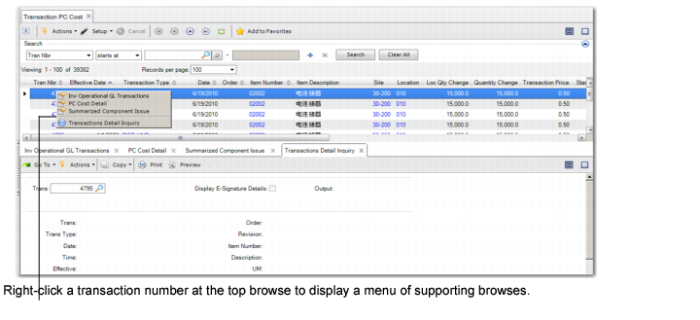
To access supporting browses, you right-click the blue data in the top-level browse. When you do, a button displays. Click the button and the supporting browse of the same name displays below the top-level browse; see
Transaction PC Cost.
The top-level browse lets you right-click the following to display a supporting browse:
Transactions PC Cost Supporting Browses
|
Field to Click
|
Button/Browse that Displays
|
|
Tran Nbr
|
• Inv Operational GL Transactions
• PC Cost Detail
• Summarized Component Issue
• Transaction Detail Inquiry
|
|
Transaction Type
|
Code Master
|
|
Order
|
Transaction Numbers
|
|
Item Number
|
Item Master
|
|
Site
|
Sites
|
|
Location
|
Location Master
|
When you right-click a transaction number, the system displays a menu that lets you choose the supporting browse you want to see. Some supporting browses for the transaction number let you drill down into other browses or more data.
You can use the browse collection to view WO issue history transactions with the related ISS-WO to help you reconcile GL. The system creates a new PCISSWOT history transaction to post accounting while it stores PC amounts to individual WO issues. In the browse, you can drill down to the supporting Summarized Component Issue browse and view reconciled summarized WO issues or labor transactions. The system displays the ISS-WO with the same WO, ID, Operation, item, site, and location. WO issues are summarized to process by group.
You can view PC cost detail for the unit cost in the PC Cost Detail supporting browse.
Transaction PC Cost
Inv Operational GL Transactions Browse Collection
This browse collection lists all operational GL transactions for the inventory transactions. The top-level browse lists the transaction number, GL reference and reference ID, GL transaction type, account, sub-account, cost center (CC), project, base currency debit and credit, document, order, date, item number and description.
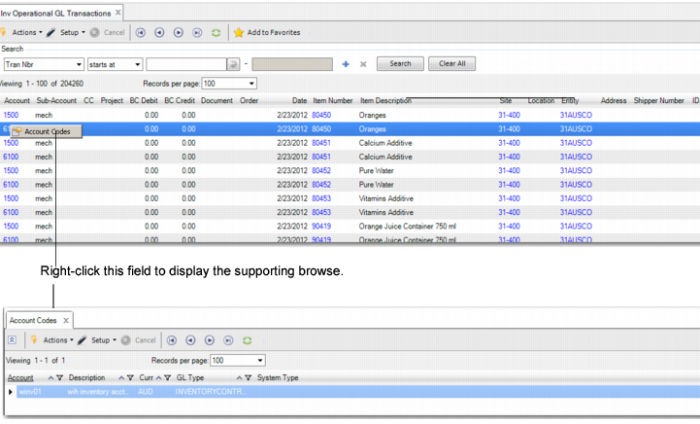
To access supporting browses, you right-click the blue data in the top-level browse. When you do, a button displays. Click the button and the supporting browse of the same name displays below the top-level browse. For example, right-click the transaction number in the top-level browse and the system displays the supporting Transaction PC Cost browse, or right-click the account code and the system displays another supporting browse that shows the account codes; see
Inv Operational GL Transactions.
Inv Operational GL Transactions Supporting Browses
Field to Click | Button/Browse that Displays |
Tran Nbr | Transaction PC Cost |
Account | Account Codes |
Item Number | Item Master |
Sites | Sites |
Entity | Entity Codes |
By selecting a single record in the top-level browse, then drilling down, you can easily see which accounts are debited and credited for every inventory operational GL transaction.
Inv Operational GL Transactions
Operation History Browse Collection
This browse collection provides a consolidated view of all transaction information for a work order. The top-level browse lists items by item number, ID, operation and description, the work center, the machine, quantity ordered, and completed.
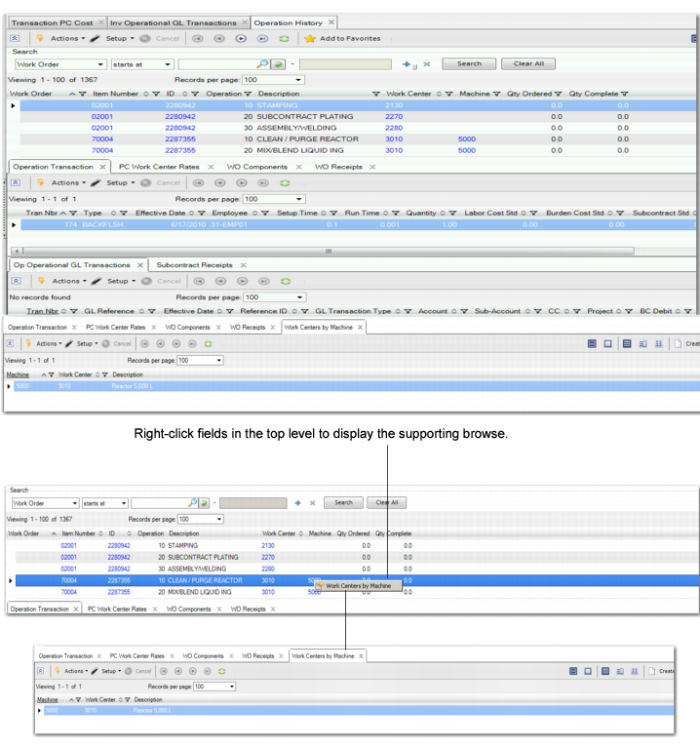
Supporting browses include the Operation Transaction, PC Work Center Rates, WO Components (which also shows the cost adjustments transactions), WO Receipts (and shows the WO reject and accounting close), OP Operational GL Transactions, and Subcontract Receipts (and shows the inventory transactions for the receipts); see
Operation History.
You can view data in Qty Completed, Qty Reject, Qty Scrap, and Qty Rework columns in the Operation History Browse Collection’s top-level browse.
To access even more supporting browses, right-click the blue data in the top-level browse. When you do, a button displays. Click the button and the supporting browse of the same name displays below the top-level browse.
Operation History Supporting Browses
Field to Click | Button/Browse that Displays |
Item Number | Item Master |
ID | Work Order Routings and Work Order Routings Maintenance |
Work Center | Work Centers |
Machine | Work Centers by Machine |
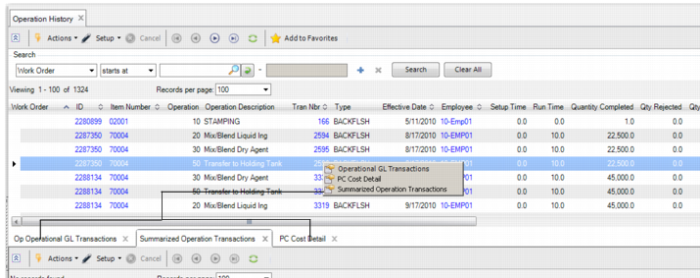
Trans Nbr | Operational GL Transactions PC Cost Detail Summarized Operation Transactions |
You can use a Department field in the Operation Transactions supporting browse of the Operation History Browse Collection to view or search by department for each operation transaction and search operation transactions by department.
Operation History
In the Summarized Operation Transactions supporting browse, the system displays the PCLABORT operation transactions of the same WO, ID, operation, department, work center, and machine.
Operation History Transaction Data