Displaying Product Structure Levels
When customers increase demand for an end item with an immediate due date, the demand change causes an increase in the schedule. Schedulers may have to increase one or more lower assembly schedules to meet this short-term demand; however, there may not be enough sub-assemblies to produce the item.
Previously, to make changes across all product structure levels, schedulers typically had to go through all multi-level planning cycles to make updates. When a product has a bill of materials (BOM) that is two or more levels deep, schedulers had no way to:
• Schedule the increase right away for the parent.
• Quickly determine the demand impact on the dependent lower levels.
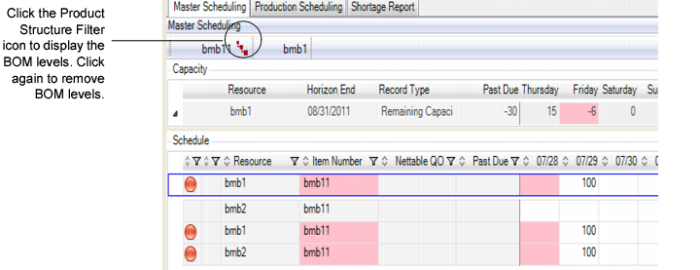
Schedulers can use the Product Structure Filter to gauge the impact of the change immediately for all levels of the BOM. The MSW Schedule Grid includes the Product Structure Filter (see
Schedule Grid Product Structure Filter).
With a single click, schedulers can render all levels of an item—both up and down—within the Schedule Grid. When you click the Product Structure Filter, the filter turns red and the MSW Schedule Grid provides immediate visibility to the QOH as well as the PQOH for each component across the BOM for the scheduled production order, letting you quickly gauge the impact of the change for lower levels. When you click the Product Structure Filter again, the BOM levels are removed from the Schedule Grid.
Schedule Grid Product Structure Filter
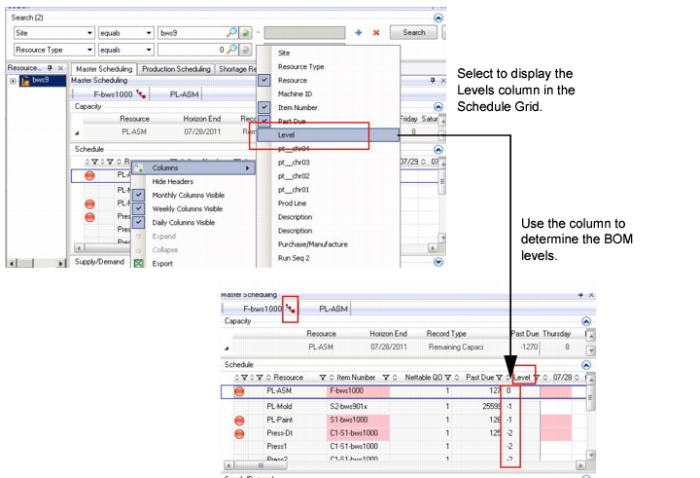
To determine BOM levels, you select to display the Levels column in the Schedule Grid by right-clicking on any column header in the Schedule Grid, then selecting Columns, and Levels. When levels display in the grid, you can determine the product hierarchy. A level 0 (zero) is the main item, while a 1 is one upper level, a 2 is two upper levels, and -1 is one lower level, -2 is two lower levels, and so on.
Product Structure Filter Levels
Levels and Search Results
The search process may result in only a subset of BOM components and levels. So, for example, if you search for a finished item and a component item that is five levels down the BOM, you may only see two items that display in the Schedule Grid.
This is because your original search criteria did not include all components and the product structure filter can only display components that are available, based on the criteria you set for the search.