Creating Production Orders
You may need to create a new production order from within MSW. For example, for repetitive scheduling, MRP may create a planned order to cover weeks’ worth of requirements; however, you may need to level the supply by entering daily production quantities. For a discrete environment, sales representatives can enter new sales orders into the system, and if the current demand for the sales order exceeds supply, MSW displays a visual indicator depicting the shortage. Since MRP has not run yet, there is no planned production order to firm and so you can decide to create a new order.
Use the following procedure:
1 In the Schedule Grid, for the work center/machine/production line selected, enter a scheduled quantity for an existing item where no production order currently exists.
The system:
• Determines the order ID
• Obtains the default BOM/routing
• Sets the order status to F for a discrete order and E for a repetitive order.
• Calculates operation load
Note: The actual scheduling of operation due and start dates occurs after you save the order, while planned orders already have calculated operation load and due/start dates.
• Updates the workbench calculations
• Updates Production Order Maintenance within the workbenches with new data.
2 Use Production Order Maintenance within MSW to complete other fields for the new production order.
3 Click the Save button to save your changes.
You cannot create a production order from the work center resource on the Schedule Grid. The system does not backward calculate work order dates, so the operation date for that work center is the date you specify. For example, if you enter a quantity for date1 on the MSW Schedule Grid, the system creates a work order with a start date of (date1 – x) where x is the number of days for the preceding operations that need to complete. The order would have the operation for that work center on date1.
Calculating Dates for New Orders
When you create a new production order, the system needs to calculate the projected release and due dates of the production order and the operations.
You can select an item/date and enter a new quantity in the Schedule Grid. When you do, the system:
• Sets the due date to a date entered on the Schedule Grid
• Calculates the operation due date of all operations
• Calculates the order release date, which is based on MRP lead time days
• Updates the workbench with the resulting calculation
When you change the due date, the normal duration calculation rules apply. Normal duration is the default setting (MF-LT) for the duration calculation method that you set in the Scheduling tab of user preferences in the workbenches; refer to
Projected Duration.
Setting Dates Prior to Horizon Dates
When you create a production order where the production order release date is calculated prior to the History Horizon dates, the system calculates the release dates.
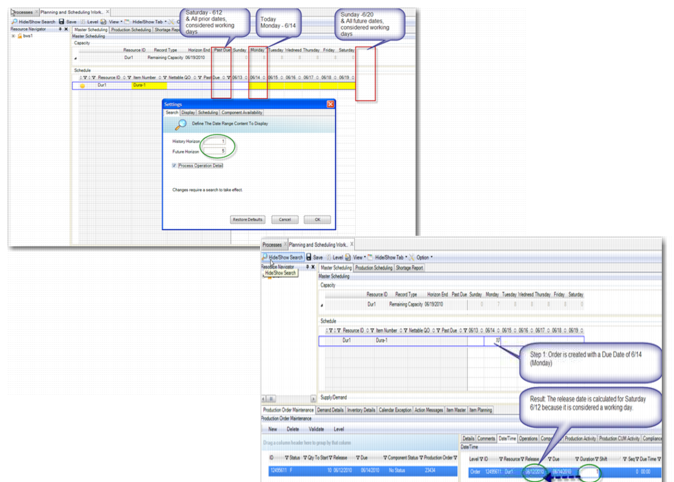
Example: Today is Monday 6/14. You set the History Horizon field for one day and the Future Horizon field for five days, then create an order with a due date of 6/14 for an item with a manufacturing lead time of 1 day. The system calculates the release date for Saturday 6/12 because it is considered a working day.
When determining dates in the past, MSW considers working days in the past; however, if you set a date that is beyond the history horizon, MSW treats every day beyond the history horizon as a working day. This also is true for dates beyond the future horizon. The Schedule Grid shows all dates between the start of the history horizon and the end of the future horizon, including working and non-working days.
Example Dates Prior to Horizon Date
Scheduling Discrete Production Orders on a Production Line
You can use Work Order Maintenance (16.1) in QAD SE or the Production Order Maintenance function that displays inside the MSW to schedule and view discrete work orders on a production line. You can also view open over-completed discrete orders.
To report production, you should use the normal discrete shop floor production reporting programs in the Shop Floor Control menu (16.20). A production order is defined as discrete or repetitive by:
• Discrete order: Type is blank or standard.
• Repetitive order: Type is S(cheduled).
If the item you specify on the order is line scheduled (Pur/Mfg is L) in Item Master Maintenance, Item Planning Maintenance, or Item-Site Planning Maintenance, and the status of the order is not Released or Closed, then the system automatically changes the:
• Production order type to S
• Status to E
Otherwise, for a discrete order the Type is blank, and the Status is F. This occurs when Pur/Mfg code is blank or M(anufactured) for the item.