Working with Order Detail Records
When you click a cell in the daily supply grid, the system lists production orders for the associated item.
Field explanations are organized by tabs in the Order Detail portion on Production Order Maintenance, starting with the Details tab and ending with the Accounting Data tab.
To quickly add items to production lines while scheduling, use the Production Order Detail tab where resource is a field to view all applicable resources for an item in the drop down.
Currently, only shows ones that came in through Search. Maybe show the ones not pulled in by Search, but applicable in a different color.
You can dynamically add items to a line and have the system update production line maintenance with the new item.
Details Tab
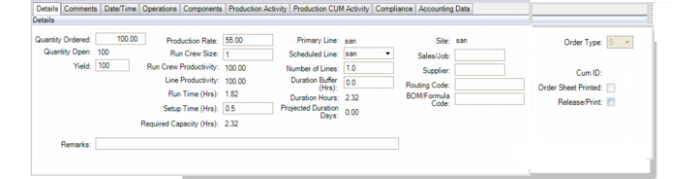
The following topics discuss fields in the Details tab. Field explanations are summarized. For full field explanations, refer to the field help for Work Order Maintenance (16.1) for QAD EE.
Production Order Maintenance, Detail Window
Quantity Ordered
The quantity to be produced on this production order, expressed in the item unit of measure.
Quantity Open
This field is display only and shows the scheduled order quantity that the system uses to calculate the duration of a production order. The system uses this quantity to calculate run time.
Yield
Enter the percentage of the number of items built on this production order expected to be in usable condition. Yield defaults from item-site or item planning data.
Primary Line
This field displays whether the line is the primary production line. You set up a primary production line in Production Line Maintenance (18.22.1.1). You can use Production Line Item Update (18.22.1.21) to view primary production lines. You can also update a production line and make it the primary line with Production Line Item Update (18.22.1.21).
Site
The site associated with this production order.
Order Type
This field is display only and depicts the type of order. For most production orders it is blank. In addition to the blank type, other production order types include the following:
• R(ework). No routing. The only item in the bill is the item being reworked. To calculate variances, manually enter bill and routing standards.
• E(xpense). No routing or bill. As with rework orders, enter a bill and routing to calculate variances.
• F(inal Assembly). Generated from sales orders. The standard item-site routing is used. The bill matches the sales order bill.
• S(cheduled). Generated by Schedule Maintenance (18.22.2.1). Not normally processed using Work Order Maintenance (16.1), but they can be changed to standard production orders by changing the status from Exploded to Allocated or to Released. After you do this, the system changes the type to blank. Also, the system updates the repetitive schedule to exclude it.
• C(umulative). Generated by repetitive feedback transactions to collect costs. Not accessed by production order functions.
• W(ork Flow). Generated by Flow Schedule Maintenance when you enter a flow scheduled order that does not reference an existing production order. Not accessed by production order functions.
Scheduled Line
Enter the scheduled line for the order. You can use the drop-down list to select a scheduled line.
Sales/Job
This is an optional code associating this order with a specific sales/production order. For a new order, the default is blank.
Production Rate
Enter the standard run rate for the production line. When you update the value here, the system recalculates the production order run time.
Supplier
The supplier associated with this order.
CUM ID
This field is display only and shows the system cumulative identifier.
Run Time (Hrs)
This field informs you of the amount of run time that is required to produce the production order. When you update the production rate, the system recalculates the run time. It calculates the new required capacity (run time + setup time).
The calculation for run time is:
(Open quantity / Run Rate) * Production Line Productivity% * Run Crew Productivity%
Where:
Run Crew Productivity% = 1 + ((WO run crew size – PL run crew size) / PL run crew size) * 100
Note: The system only calculates this if the Run Crew Enabled field is Yes on the production line header record; otherwise, the value is always 100%.
Production Line Productivity% = Shift productivity % if the order is assigned to a shift, otherwise it is a calculated weighted average %.
Run Crew Size
Enter a number that reflects the size of the run crew. The number affects the order run time if you set Run Crew Enabled to Yes on the production line header record. When you update the run crew size, the system recalculates run crew productivity, run time, and required capacity of the production order. The standard run rate is based on a run crew of two people as the standard.
When you change Run Crew Size in Production Line Maintenance, it only affects orders created after that change has been made—not existing orders.
Number of Lines
Enter the number of lines/machines the system uses to process the production order. The default is 1 (one). The system uses it to calculate the production order duration by dividing the production run time by the number of lines/machines the production line represents. Changes to this field recalculate duration hours and duration days.
Run Crew Productivity
This field is display only and depicts the percentage of productivity for the run crew.
Duration Buffer (Hrs)
Enter the number of hours for the duration buffer. This field also exists in Production Line Maintenance (18.1.1). Changes to this field recalculate duration hours and duration days. You can use this field to add miscellaneous time required to a production order.
Projected Duration Hours
This field is display only and represents the number of hours required to produce a production order. The workbenches calculate projected duration hours as:
(Required Capacity / Number Of Lines) + Duration Buffer
The system overrides the standard duration calculation with projected duration when you enable projected duration in the workbenches User Preferences or when you apply it to an order. The standard duration calculation is as follows:
Defaults = ML-LT for planned orders
The system calculates this planned capacity per delta of order release/due dates for non-planned orders when the orders are pulled into the workbench.
Projected Duration (Days)
This field is display only and represents the number of days required to produce a production order. If you apply projected duration, the system determines a new order release/due date. When you update any of the following fields, the system recalculates the projected duration:
• Number of Lines
• Duration Buffer (Hrs)
• Run Crew
• Qty Ordered
• Production Rate
• Setup Time
Applying the projected duration in days helps you monitor production activity against the scheduled due date. As the production order is processed and you report against the order (daily), the quantity open is reduced; therefore, the required capacity is reduce. The Projected Duration reflects the current required capacity for the order, providing a projected remaining days the order requires to complete. You can then compare this value to the scheduled due date to validate that the order is on schedule.
Routing Code
This field depicts the routing code associated with the production order. BOM/routing codes default as they do in QAD EE programs.
Order Sheet Printed
Indicate Yes if you want to print the order sheet for this order.
Setup Time (Hrs)
Enter the standard time in decimal hours required to prepare the work center to carry out the operation, independent of order quantity.
BOM/Formula Code
The identifier for the BOM/formula. Each BOM/formula consists of a parent and component. BOM/formula identifies the parent, usually an item number that has been predefined in Item Master Maintenance.
Release/Print
Indicate Yes to release or print this order; see
Releasing and Printing Production Orders.
Required Capacity (Hrs)
Identifies the capacity required or the total required capacity required to fully produce this production order.
Production Rate, Run Crew Size, and Required Capacity
When you change the Production Rate (run rate) or the Run Crew Size fields in the Production Order Maintenance Details tab in the workbenches, the system recalculates the production order required capacity.
The calculation for required capacity is:
Run Time + Setup Time
When you modify the Run Crew Size field, the system recalculates the Run Crew Productivity field value, Run Time field value, and the required capacity of the production order.
The calculation logic is as follows:
• The system verifies whether the field is set to activate the run crew size relationship to the run rate. If No, the run crew productivity remains a constant 100%.
• If Yes, the system calculates the run crew productivity by calculating the difference between the production line standard run crew size and the modified order run crew size and then dividing by the production line standard run crew size to get the percentage value.
Projected Duration
In the workbenches, you have two ways to apply the projected duration to the production order:
• Automatically
The system applies order duration automatically when you modify any field on the work order that recalculates an order’s required capacity and/or projected duration hours. This includes such fields as Quantity Ordered, Production Rate, Run Crew Size, Setup Time, Number of Lines, and Duration Buffer in the Details tab of Production Order Maintenance in the workbenches as well as in Production Line Maintenance.
• Per user action in the workbenches grid
The system applies order duration when you change production order status from P(lanned) to any other status.
• When you right-click on a production order in the grid, and the system displays options to Calculate Release Date or Calculate Due Date from the pull-down menu
When the system calculates the order release and due date, the calculations are based on actual, not planned, input values for each production order. These calculations are only applicable within the workbenches and do not apply to planning/scheduling QAD EE functions outside of the workbenches.
The system calculates the production order dates based on User Preference settings:
• When User Preferences indicate to calculate the release date, the following rules apply:
• From the order due date, working backward, the system determines the required release date by taking the projected duration hours and factoring in the available capacity hours in each working day until projected duration hours are met.
• When the calculated release date pushes the release date in the past, the system sets the release date to today.
• When the order release is in the past, the system sets the order release date to today and instead recalculates the due date of the order.
• When User Preferences indicate to calculate the due date, the following rules apply:
• From the order release date, working forward, the system determines the required due date by taking the projected duration hours and factors in the available capacity hours in each working day until projected duration hours are met.
• When the system calculates the order due date to a date beyond the future horizon, it sets the order due date equal to last day of the future horizon.
The system uses the method you specify to use for calculations through the Scheduling tab of the Preferences window; see
Select the Method for Date Calculations.
Date/Time Tab
The following topics discuss fields in the Date/Time window.
Production Order Maintenance, Date/Time Window
Level
This field displays either the order or operation.
ID
The routing operation number from the QAD EE production order routing detail record. If you create a new production order, the system determines the operation based on the routing. In addition to operation number, it can also refer to the production order number at the order level row.
Resource
The work center or production line identifier.
Release
The date this routing operation is scheduled for the item release. It can also refer to the production order release date when at the order level row.
Due
The date this routing operation is scheduled to complete work on this order. It can also refer to the production order release date when at the order level row.
The system validates that this date falls within the overall scheduling horizon defined by Historical Schedule Days and Future Schedule days in the site Configuration record.
Duration Days
The time, in days, between the release date and due date. Duration is calculated only at the order level and takes into account working and non-working days in its calculation. This is a decimal field that you can update.
Shift
This field depicts the shift defined for the resource. Shift schedules define how many days a week and how many hours the work center or production line is run. When you change the shift, it may change the production productivity percentage, which in turn may change the production order required capacity, and ultimately, change the projected duration days and hours.
Seq
This is the production sequence for the order. This fields tells the system in which order to process orders as part of the production schedule that you create in PSW. You can set the Sequence value here manually, set it within PSW manually, or use the drag-and-drop method in PSW to set it.
Due Time
Optionally enter the time of day that this order should be completed.
Enter the time in HH:MM:SS format based on a 24-hour clock. For example, enter 1:30 pm as 13:30:00.
This field is for reference. It appears on some reports and inquiries, and can be used to introduce a greater level of detail into the sequence of activities on a production line.
Operations Tab
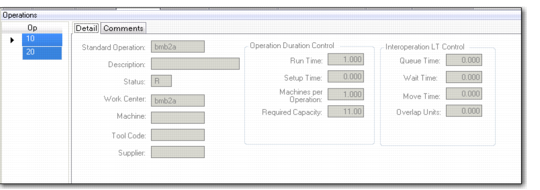
The following topics discuss fields in the Operations window. Only those fields not previously described for other MSW windows are described. You cannot change values in the Operations fields.
Production Order Maintenance, Operations Window
Op
The number identifying the operation in the routing or process.
Standard Operation
The valid standard operation code that identifies a process operation common to several products or applicable to different routings in different sequences.
Status
This field displays the production order status codes correspond to stages in the order’s life cycle:
• Planned
• Firm planned
• Batch
• Exploded
• Allocated
• Released
• Closed
The status of an order determines how much control you have over its bill, routing, inventory allocations, inventory transactions, and labor feedback. An order progresses from one status code to the next and, unless prematurely released, does not return to an earlier status.
Work Center/Machine
A valid work center identifier for an individual machine, group of similar machines, or subcontract supplier. Work center and machine code work together to identify a work center, which is a basic production unit used in manufacturing and control.
Tool Code
Optionally, enter the code for a tool normally used during this operation. This is for reference only. To standardize tool codes, set them up in Generalized Codes Maintenance (36.2.13) for field ro_tool.
Setup, Run, and Move Time
Enter the standard times, in decimal hours, to process items during this operation. Run time is per unit; setup and move time are independent of order size.
Machines per Operation
The number of machines per operation. As the number of machines increases, work center capacity and the number of hours a work center is available for work also increase. The number of machines per operation is also used for calculating the lead time and machine burden cost for an operation.
Queue Time
The standard time, in decimal hours, a production order normally spends waiting at this work center before it is set up and processed.
Wait Time
The standard time in decimal hours that a production order normally spends waiting at this work center after processing has completed.
Overlap Units
The number of units that must be completed at this operation before work can begin at the next operation.
Components Tab
When you click the Components tab, you can view a summary list of components for the order, then view supply/demand summary, supply/demand detail, and inventory detail by site data.
Note: The components you view only go one level down in the BOM, except for phantom items where the system displays components in the BOM until it finds a non-phantom component.
This information is useful when you use the Component Availability features; for more information, see
Component Availability.
Production Activity Tab
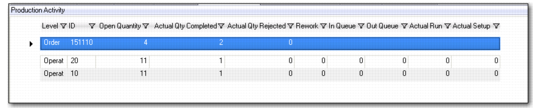
Use the Production Activity window to track production order activity. For an order, you can view the operation and description, open completed, rejected, and reworked quantity; the actual run time; and the actual setup time. The actual time shows the time required to manufacture a single unit. Run time for an operation is a function of total run time, work center or shop calendar hours, and the machines per operation. Run time is expressed in terms of an hourly production rate.
This time is differentiated expected run time. The actual time is the time required to set up a resource.
Production Order Maintenance, Production Activity Window
Production CUM Activity Tab
Use the Production CUM Activity window to track cumulative order activity. For an order, you can view the CUM ID, the quantity processed, rejected, or in the reject queue; the number scrapped, reworked, and the number in and out of the queue. You can also see the actual run time and the actual setup time.
Production Order Maintenance, Production Cum Activity Window
Compliance Tab
Some features of production orders are affected when you use the Regulatory Attributes module. When you set the Compliance Active field to Yes in Regulatory Attributes Control (1.22.24), you can assign batch numbers, restrict items issued to an order, restrict items received, and enforce stricter lot/serial control rules. The Compliance window of the workbenches lets you view Regulatory Attributes data.
Note: You should have the Compliance module installed and enabled. When you do not, you can still update the values in the Compliance Tab fields; however, your changes do not impact system processing. The system does store the updated values on the work order master table.
The following topics discuss fields in the Compliance window. Only those fields not previously described for other MSW windows are described.
Assay Percentage
The presence, absence, or quantity of one or more components, usually expressed as a percentage.
Grade
Identifies the quality or physical properties of an inventory quantity. Graded products include raw materials, intermediates, and finished goods.
Expire Date
The expiration date for items that eventually spoil, and for pharmaceuticals that lose potency over time.
Receipt Status
The default receipt status for the order.
Active
Indicates whether the inventory status code entered in Receipt Status should override status assigned in item, site, and location data.
Batch
An arbitrary number for tracking a quantity scheduled to be produced or in production.
Single Lot
Determines whether each receipt from a production order should be assigned to a single lot. This is a default setting you can change at receipt.
Lot Number
The lot number for this production order. Enter a lot number in this field.
Accounting Data Tab
The following topics discuss fields in the Accounting window. Only those fields not previously described for other MSW windows are described.
WIP Account
The general ledger account code used to track work in progress (WIP) inventory values for the order.
Material Usage Var
Material usage variance is calculated as the difference between the actual and expected quantities issued, extended by the cumulative order operation component cost. The expected issue quantity is the cumulative order operation standard quantity required per unit multiplied by the quantity processed at the operation.
Material Rate Var
When you issue components to a production order, material costs post to WIP as the quantity issued and multiplied by the GL cost of the material. Rate variance is calculated as the difference between the GL cost of materials used and the GL cost of materials required.
Subcontract Usage Var
Usage variance is an efficiency variance, calculated as the difference between the subcontracted quantity received and the standard subcontract quantity needed to make this order quantity complete.
Subcontract Rate Var
Rate variance is calculated as the difference between the order cost and the standard subcontract cost.
Mix Variance Acct
Mix variance is calculated as the difference between the standard or expected quantity and the actual quantity received, multiplied by the GL cost of the item.
Floor Stock Account
The GL account code used to track WIP stock adjustments for bulk issue items on this order.