QAD ERP Setup
EAM data is retrieved by calling an EAM instance’s AppServer. Therefore, you have to set up the workbenches server-side software so that it can call the EAM AppServer. You can do this at any time. The EAM Integration functionality remains inactive until you set it up.
To define this, use the following procedure:
• Define the EAM AppServer in QAD ERP by creating an entry using AppServer Service Maintenance (36.19.1).
• Define the AppServer Service Name to be used for calling the EAM AppServer by using Workbench Control File (22.20.24).
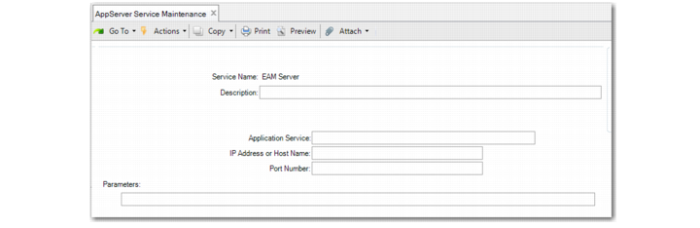
AppServer Service Maintenance
To set up an entry in AppServer Service Maintenance, use the following procedure:
1 Enter the internal name of the application server connection in the Service Name field.
2 In the Application Service field, enter the Progress application service name supplied as the AppServer parameter when connecting to the application server. This is the EAM instance AppServer name.
3 In the IP Address or Host Name field, enter the value supplied as the -H parameter when connecting to this application server. This is the host name or IP address of the machine on which the application server is running.
4 In the Port Number field, enter the port number supplied as the -S parameter when connecting to this application server. This is the port number of the Progress named server that is hosting the application server.
5 Enter any additional parameters required in the Parameters field.
AppServer Service Maintenance (36.19.1)
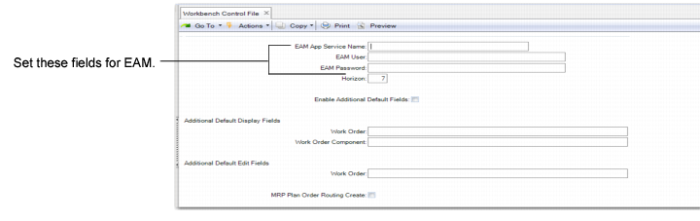
Workbench Control File
To set up the Workbench Control File, use the following procedure:
1 In QAD ERP, access Workbench Control File (22.20.24).
2 Enter the name of the AppServer service name entered in AppServer Service Maintenance (36.19.1) in the EAM AppService Name field.
Note: If the entry created in AppServer Service Maintenance has wrong values or there are other technical problems encountered in trying to connect to or make calls to the EAM AppServer, the system generates AppShell exceptions. The exception data contains information about the operation being attempted and the failure reasons.
3 Enter a user ID in the EAM User field.
This is used to authenticate with the EAM API.
4 Enter a password in the EAM Password field.
This is used to authenticate with the EAM API.
All other fields are for workbenches defaults. Refer to
Set Up Workbenches Controls in the MSW chapter.
Workbench Control File (22.20.24)