Configuring Control Program Settings
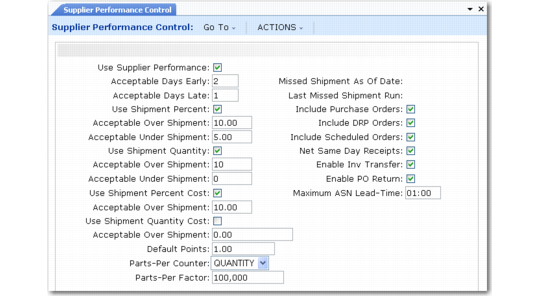
To set up the supplier performance system, you must first activate it and define default information in Supplier Performance Control (5.15.24).
Supplier Performance Control (5.15.24)
Use the following field descriptions to guide you through the control program setup.
Use Supplier Performance
Enter Yes or No (the default) to indicate whether Supplier Performance is enabled.
When disabled, information related to supplier performance is not captured by the system. This field overrides all other Supplier Performance fields.
Acceptable Days Early
Enter the acceptable number of days a shipment can be early without generating an early shipment event.
This value sets the default for the same field in Registration Maintenance (5.15.10).
Acceptable Days Late
Enter the acceptable number of days a shipment can be late without generating a late shipment event.
This value sets the default for the same field in Registration Maintenance.
Use Shipment Percent
Specify whether the system should evaluate the incoming receipts against a user-specified value.
No: Evaluation does not occur. The values in the corresponding Acceptable Over Shipment and Acceptable Under Shipment fields are not used.
Yes: The system evaluates whether incoming receipts are over or under a user-specified percentage value. The evaluation is based on a comparison of quantity received to quantity expected.
This value sets the default for the same field in Registration Maintenance.
Acceptable Over Shipment
When Use Shipment Percent is Yes, enter the maximum percentage by which an incoming shipment can be over the expected quantity without generating an overshipment event.
This value sets the default for the same field in Registration Maintenance.
Acceptable Under Shipment
When Use Shipment Percent is Yes, enter the maximum percentage by which an incoming shipment can be under the expected quantity without generating an undershipment event.
This value sets the default for the same field in Registration Maintenance.
Use Shipment Quantity
Specify whether to use the shipment quantity to calculate supplier performance.
No: Evaluation does not occur. The values in the corresponding Acceptable Over Shipment and Acceptable Under Shipment fields are not used.
Yes: The system evaluates whether incoming receipts are over or under the user-specified quantity.
This value sets the default for the same field in Registration Maintenance.
Acceptable Over Shipment
When Use Shipment Quantity is Yes, enter the maximum quantity by which an incoming shipment can be over the expected quantity without generating an overshipment event.
This value sets the default for the same field in Registration Maintenance.
Acceptable Under Shipment
When Use Shipment Quantity is Yes, enter the maximum quantity by which an incoming shipment can be under the expected quantity without generating an undershipment event.
This value sets the default for the same field in Registration Maintenance.
Use Shipment Percent Cost
Specify whether the system should evaluate the incoming receipts based on the percentage of item cost.
No: Evaluation does not occur. The value in the corresponding Acceptable Over Shipment field is not used.
Yes: The system evaluates whether incoming receipts are over or under the specified percentage value. The evaluation is based on a comparison of quantity received to quantity expected.
Example: An item might cost $1,000 each, and you receive 12 instead of 10. The overshipment based on quantity might not generate a supplier performance event, but if the percent of cost is 10%, then an overshipment is recorded.
This value sets the default for the same field in Registration Maintenance.
Acceptable Over Shipment
When Use Shipment Percent Cost is Yes, enter the maximum cost by which an incoming shipment can be over the expected cost based on a percentage.
This value sets the default for the same field in Registration Maintenance.
Use Shipment Quantity Cost
Specify whether to use the total value of the shipment quantity to calculate supplier performance.
No: Evaluation does not occur. The value in the corresponding Acceptable Over Shipment field is not used.
Yes: The system evaluates whether incoming receipts are over a specified cost based on quantity. The evaluation is based on a comparison of the cost of the quantity received and the cost of the quantity expected.
This value sets the default for the same field in Registration Maintenance.
Acceptable Over Shipment
When Use Shipment Quantity Cost is Yes, enter the maximum cost by which an incoming shipment can be over the expected cost based on quantity.
This value sets the default for the same field in Registration Maintenance.
Default Points
Enter the default point value to use when creating events in Performance Event Maintenance (5.15.5).
This value sets the default for the Points field in Performance Event Maintenance.
Parts-Per Counter
Enter the parts-per calculation method:
Quantity: The parts-per calculation is based on the total quantity ordered.
Events: The calculation is based on the number of events a receipt has generated.
This value sets the default for the same field in Performance Category Maintenance (5.15.1).
Parts-Per Factor
Enter the factor used to calculate supplier performance rank when the parts-per rating method is used. The default is 1,000,000.
This value sets the default for the same field in Performance Category Maintenance.
Missed Shipment As Of Date
This field displays the date entered for the same field in the Missed Shipment Event Generator (5.15.17) when that program was last executed. This is the beginning date the system uses when searching for missed shipments. This field is for reference only and is not editable.
Last Missed Shipment Run
This field displays the last date the Missed Shipment Event Generator was run. This field is for reference only and is set by the system each time Missed Shipment Event Generator is run.
Include Purchase Orders
Enter Yes or No to specify whether the Missed Shipment Event Generator should consider purchase orders. This value sets the default for the same field in Missed Shipment Event Generator.
Include DRP Orders
Enter Yes or No to specify whether the Missed Shipment Event Generator should consider distribution orders. This value sets the default for the same field in Missed Shipment Event Generator.
Include Scheduled Orders
Enter Yes or No to specify whether the Missed Shipment Event Generator should consider scheduled orders. This value sets the default for the same field in Missed Shipment Event Generator.
Net Same Day Receipts
Specify whether multiple same-day receipts should be netted as one receipt when calculating the supplier’s overall report card score.
Note: This setting applies only to over- or under-quantity performance events. It has no effect on events related to early or late receipt dates.
No (the default): Supplier Performance considers each individual receipt that does not equal the open quantity to be an under- or overshipment, and generates the related performance event.
Yes: Total receipts for the day are compared against what is expected. If the supplier delivers the expected quantity during the day, no events are generated. Otherwise, the system generates a single under- or overshipment event for the day, as appropriate.
Enable Inv Transfer
Enter Yes or No (the default) to specify whether the system should prompt the user for supplier performance data during inventory transfers.
Yes: A supplier performance data pop-up appears in the inventory transfer programs when transferring material from the inspection location.
Transfer programs are:
• Transfer–Single Item (3.4.1)
• Transfer–Multi Item (3.4.2)
• Transfer with Lot/Serial Change (3.4.3)
• Batchload Transfer with Lot/Serial Change (3.4.4)
Enable PO Return
Enter Yes or No (the default) to specify whether the system should prompt the user for supplier performance data during purchase order returns.
Yes: A supplier performance data pop-up appears in Purchase Order Returns (5.13.7) and RTS Shipments (11.7.3.16).
Maximum ASN Lead-Time
Enter the maximum lead time for advance ship notices (ASN).You must use the standard hour and minute time format (HH:MM).
This field determines the amount of time allowed between the time a shipment leaves the supplier’s dock and the time the ASN for that shipment is created and sent to the customer. This field also controls the RTS pop-up.
Example: The maximum ASN lead time is 00:20. If a shipment leaves the supplier’s dock at 9:00 AM, the supplier must create and send the ASN for that shipment before 9:20. If the supplier sends the ASN after 9:20, the lead time has been exceeded and a late-ASN event is recorded.
This value sets the default for the same field in Registration Maintenance.
Defining Supplier Interval Ratings
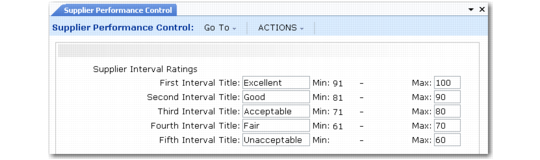
Use the Supplier Interval Ratings frame to create a reference table that appears on the supplier’s performance report card. The table shows performance levels and is used as a guide for interpreting supplier ratings.
Supplier Performance Control, Supplier Interval Ratings Frame
To set up the interval ratings table, enter the interval titles with their corresponding maximum score. The system generates the appropriate minimum score numbers for each level and displays the results in descending order.