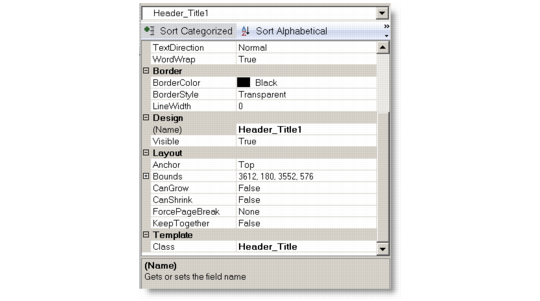
Properties Window
The Properties window allows you to edit properties for the objects that are selected in the Designer.
Properties Window
The object drop-down list always displays the currently selected object on the report. If no report object is selected, the box displays the current report definition type.
To select an object, either click on it on the report in the design pane, or select the name of the object from the object drop-down list.
The Properties window’s toolbar lets you change the way properties are displayed and revert a property’s value to the default.
Properties Window Toolbar
Button | Name | Description |
| Sort by Category | Groups properties under categories, which vary according to the type of the selected object. You can expand or collapse a category to show or hide the properties under it. This is the default display mode. |
| Sort Alphabetically | Sorts properties in alphabetical order. |
| Use Default Value | Reverts a selected property value to the default. If a template is specified for the report, this button will be greyed if the property value has not been changed from the value inherited from the template. Otherwise, the button will be enabled and if clicked will revert the property value to the value from the template, and re-couple the property to the template such that any future changes to the property in the template will be inherited by this selected object. |
The main area of the Properties window displays all the properties of the selected object. They change as the selected object changes.
The property value displays to the right of the property name. To edit a property value, click on the value field and it turns into a text field, drop-down box, or combo box, depending on the type of the value; specify the value you want.