QAD 2017 Enterprise Edition
>
User Guides
>
Reporting Framework
>
Administering Reports
>
Report Bursting with Dynamic Output Routing
Report Bursting with Dynamic Output Routing
Starting with the QAD 2012 Enterprise Edition, the Reporting Framework includes an infrastructure to facilitate the mass-running and distribution of reports: report bursting. A report burst is a special way that a report can be run that involves the following aspects:
• A report burst can be configured to automatically split a report into many smaller reports, relieving end users of the burden of manually running numerous reports. Any field in the top-level table of the report’s data set can be chosen as the split field (for example, a report could be split to output one report per customer ID, or one report per item number).
• A report burst can be configured to dynamically route each of the split output reports to different e-mail, file, and printer destinations. The logic can be based on data values (for example, the customer ID in each of the output reports could be mapped to an e-mail address for that customer to send the report to).
The report bursting mechanism is a general capability that can be used with any report developed using the QAD Reporting Framework, but not for any other type of report. In addition to dynamic setting of output destination, the infrastructure allows for most of the report settings to be set dynamically based on the data; this includes such settings as language for translated labels, date and number formats for internationalization, output file type (PDF, Excel, RTF, and so on) and layout type (for example, different form layouts of the same data for different countries).
Report bursts internally schedule each of the split output reports to be asynchronously (but immediately) run by a report server using the QAD Reporting Framework Service (see
Service Mode). This leverages the many benefits of the report server architecture such as robustness, scalability, and failover.
Although the new bursting capability is included in the QAD Enterprise Applications 2012 – Enterprise Edition release, this release does not contain any QAD application programs that take advantage of it. You can, however, set up your own desired scenarios for bursting using the following mechanisms:
• The Scheduled Report API can be used to write programs to schedule report bursts to be run on the server at desired times. Special burst settings are used to configure the burst run. These programs can be written in the Progress or .NET languages. They could be either simple script-like utility programs for administrators to run, or could be fronted with user-interface logic to expose the functionality to end users if desired.
• The .NET Run-Report API can be used to write programs to initiate report bursts immediately within a QAD .NET UI process. The programs could be fronted with user-interface logic to expose the functionality to end users if desired.
• Administrators can use a new Burst Settings tool button from the report viewer program to run an immediate ad-hoc burst of that report, and also to choose settings and then schedule the report to be run as a burst in batch on a report server.
The logic that controls the dynamic routing settings is completely configurable. However, the QAD Enterprise Applications 2012 – Enterprise Edition release contains no default routing logic. If dynamic routing is desired, it is necessary to first codify the needed rules using the Progress programming language in a special dynamic-routing program that can be invoked during report bursts. (See
Developing Rules for Dynamic Report Burst Settings.)
If you want help with creating report burst programs or setting up the desired routing rules, please consult QAD Services.
Understanding Report Bursting Technology
Prior to the introduction of QAD report bursting technology, third-party solutions were required. Those products typically process a plain text report output file, parse it, split it into multiple files, transform it to alternate output formats, and route the output files to destinations such as document storage and e-mail. They typically allow dynamic routing logic to be configured based on the data in the document.
The introduction of the QAD Reporting Framework posed new challenges as well as new possibilities for such report bursting approaches. Its ability to output rich, graphical reports in binary formats such as PDF eliminate the need for third-party post-rendering, and also create a more challenging file format to feed into those products that cannot be parsed as easily as plain text.
The QAD report bursting capability now provided with the QAD Reporting Framework solves these challenges in an out-of-the-box manner that eliminates the need for third-party technology. It uses a fundamentally different approach that does not involve post-processing of report output files. Instead, report bursting is implemented internally as the report is run. It is important to understand the basic process used in order to be able to configure and administer report bursts.
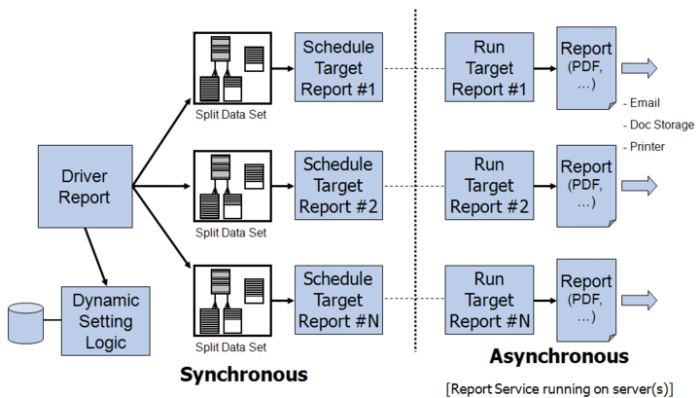
When a report is run in burst mode, it operates as a driver report, which, during its processing, spawns one or more target reports, each of which performs the rendering of the final output documents. The driver report first queries the dataset for the overall burst and splits this into a smaller dataset for each target report. The target reports are not directly run in the driver report process but instead are scheduled to be run in the QADSVC batch that is processed continuously by the QAD Reporting Framework service running on one or more report server machines. This provides benefits including robustness, scalability, and increased throughput. It also records a permanent record of the report burst results, which can be viewed using Scheduled Report History Browse.
The following diagram illustrates the driver and target reports in a report burst scenario.
The report bursting process depicted in the above diagram involves the following steps:
1 When the report burst run is initiated, the driver report is run in burst mode. It is configured with several report settings that specify the report burst parameters. It also contains the normal report settings that need to be applied to each target report (such as language and output file type).
2 The driver report burst queries the report business dataset from the server. If the option to split the report has been specified, the driver report groups the data records into groups containing the same value for the field specified to split by.
3 The driver report creates a dataset for each target report. If splitting was specified, each group of data records is included in these datasets. Otherwise, the entire dataset is used for the target report.
4 If dynamic routing has been specified, the driver report makes a call to the dynamic setting repository. It passes input information to the repository about the report being run, the value of the split field, and the first data record in the current group of data being processed. The repository returns a collection of report settings that are then applied on top of the initial set of settings. These settings can include file, printer, and e-mail routing destinations, language, and so on.
5 The driver report schedules the target report to be run in the QADSVC batch. The dataset and report settings from steps 3 and 4 are used to specify the behavior of the scheduled report.
6 When the driver report finishes scheduling all the target reports, its output consists of a list of each target report that was scheduled, including the scheduled report ID assigned to the scheduled target report. This ID provides a reference that can be used to monitor the status and results of the scheduled report run. Every target report is also assigned a group ID that is the same for all target reports in that burst. This group ID is the same as the scheduled report ID of the first target report.
7 At this stage, the driver report run is completed and the target reports are then run on one or more report server machines. It is necessary to have the QAD Reporting Framework service running on the report servers since the target reports are scheduled to the immediate QADSVC batch that is processed by this service. The progress and history of the target report runs can be monitored using Scheduled Report Browse and Scheduled Report History Browse.
Note: When the target reports are run, no data query is performed against the database; instead, the dataset created by the driver report is used.
Running a Report Burst
Running a report burst involves configuring some burst report settings for the burst driver report and then running the driver report. There are two ways this can be done:
1 Using the Reporting Framework API to run the burst from a software program
2 Using the burst settings form to run a burst manually from the QAD .NET UI
Because report bursts can result in many report output files being created and possibly e-mailed outside the corporate firewall, be sure to carefully review all settings before running a burst. You can also stop or pause the QAD Reporting Framework service running on report servers before running a test burst and then use Scheduled Report Browse to inspect the scheduled target reports and their report parameters to make sure that they are correct. If they are correct, then the Reporting Framework service can be resumed to initiate the running of the target reports.
One benefit of using the API approach to bursting is that once the programs have been developed and tested, they can be run with a high degree of confidence. On the other hand, using the burst settings form to manually enter burst settings is potentially more error prone (due to human data entry) and should be undertaken with care. For this reason, the burst settings form is hidden by default and an administrator must configure the system to expose it. When this is done, a burst settings button appears on the report viewer for all reports but only when run by users that belong to the rptAdmin role. If you want to have non-administrative users run report bursts, applications must be written for them that call the Reporting API.
Report Burst Settings
The following report settings are used to configure the parameters for a report burst. When using the API technique to initiate a burst, these settings should be configured in the API call. When using the burst settings form to manually run a burst, the settings get set based on the data entered into the form.
Note: When using the Reporting API to configure report bursts, you can use the Run-Report API (.NET only) to run the burst driver report immediately, or you can use the Scheduled Report API to schedule the burst driver report to be run at a later time or at periodic intervals (for example, once per month).
sys_burst_description
An optional and arbitrary description of the burst. It can be seen in burst driver report output as well as in the description of each scheduled target report.
sys_burst_driver_report_email
A comma-separated list of e-mail addresses to which the output of the burst driver report is sent.
sys_burst_driver_report_inbox
A comma-separated list of QAD user IDs to whose QAD .NET UI InBox the output of the burst driver report is sent.
sys_burst_parameter_repository
If dynamic report settings are desired for this burst run, then this parameter should be set to a value of ProgressReportParameterRepository; otherwise, this should be left blank, in which case no dynamic setting lookup is attempted.
sys_burst_split_by_field_name
If report splitting is desired for the burst, this setting should be set to the data field name in the report data set that is desired to split by. For example, if a report data set contains one record per sales order line, and the split field is chosen to be the sales order number, then the burst splits the data such that one target report per sales order is created.
Note: The split field must exist in the data table associated with the top-level report (as opposed to a table associated with a sub-report). When specifying the field name, do not prefix it with the table name (for example, so_nbr).
sys_burst_target_report_attach_to_email
If set to true, will cause target report output files to be attached to target report e-mails. If set to false, then no e-mail attachments are created. If dynamic settings are being used for this burst, then this setting is ignored.
sys_burst_target_report_email
A comma-separated list of e-mail addresses to which the output of the burst target reports are sent. If dynamic settings are being used for this burst, then this setting is ignored.
sys_burst_target_report_inbox
A comma-separated list of QAD user IDs to whose QAD .NET UI InBox the output of the burst target reports is sent. If dynamic settings are being used for this burst, then this setting is ignored.
sys_burst_target_report_link_to_email
If set to true, causes a link to the target report output file to be included in each target report e-mail. If set to false, then no links are included. If dynamic settings are being used for this burst, then this setting is ignored.
Note: If links are desired, then the sys_burst_target_report_save_output parameter must be set to true so that the output file is saved in a location that can be linked to.
sys_burst_target_report_printer
Should be set to a UNC printer name visible on the report servers if it is desired to print the target reports. If dynamic settings are being used for this burst, then this setting is ignored.
Note: Since bursts can create a large volume of report output, use caution when specifying printers.
sys_burst_target_report_save_output
If set to true, then the output of each target report is saved as a file in the report servers document storage. It is recommended to set this to true if you wish to preserve the target report output, which can be viewed using Scheduled Report History Browse. If dynamic settings are being used for this burst, then this setting is ignored.
sys_run_as_burst
If set to true, triggers this report to be run as a burst. Otherwise, the report is run as a normal single report run and all other burst settings are ignored.
Running a Report Burst Manually Using the Burst Settings Form
The burst settings form is launched from the report viewer by invoking the burst settings button at the top of the form. This button is only visible to administrators (users who belong to the rptAdmin role). Furthermore, the button is hidden by default unless an administrator enables it.
To enable the burst settings button, put the following entry into the client-session.xml file on the QAD .NET UI home server:
<ReportViewer>
<EnableBurstSettings>true</EnableBurstSettings>
</ReportViewer>
Before running a report burst using the burst settings form, first configure any regular report settings that are desired for the burst, such as filter conditions, data and number formats, and output file type. It is recommended to invoke the run button to do a regular (non-burst) run of this report to confirm that the settings are all proper.
Next, invoke the Burst Settings button to launch the burst settings form. This form allows you to enter various settings that correspond to the burst settings described in the previous section. Once the settings have been entered, you can take one of the following actions:
1 Invoke the large Run Report Burst button, which runs the report burst and then pops up a message box when it finishes showing the status of the burst. Note that only the burst driver report has completed at this point; the burst target reports are scheduled and will begin running soon on the report servers.
2 Invoke the Save button, which does not run the burst, but saves the burst settings in memory and closes the burst settings form. At this point, other report settings can be adjusted and optionally the complete set of settings (including burst settings) can be saved using the Save As button for easy recall in future report runs.
3 Invoke the Cancel button, which does not run the burst or save any changes made to the burst settings.
Note: To schedule the burst driver report to run at a later time or periodic intervals (for example, once per month), configure the burst settings, making sure that the Run As Burst When Scheduled check box is selected. Next, invoke the Save button on the Burst Settings form, and then invoke the Schedule|New button to open the new schedule report form and choose the desired batch ID to which to schedule the burst driver report.
Note: If burst settings have been configured in the Report Burst Settings form and saved, and later the normal report Run button is invoked, the report is run in normal mode, not as a burst.
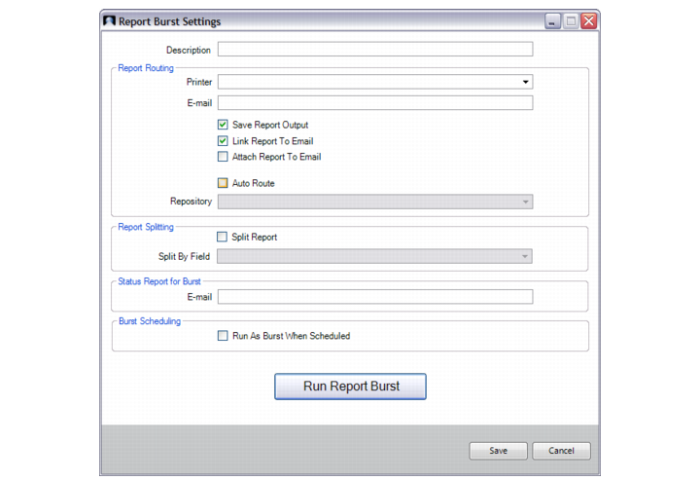
The Report Burst Settings form is shown and described below:
Description
An optional description of the burst. The description is included in burst driver report output as well as in the description of each scheduled target report.
Report Routing
Printer
A UNC printer name visible on the report servers if it is desired to print the target reports. If Auto Route is selected, dynamic settings are used for this burst and this setting is ignored.
Note: Since bursts can create a large volume of report output, use caution when specifying printers.
E-mail
A comma-separated list of e-mail addresses to which the output of the burst target reports is sent. If Auto Route is selected, dynamic settings are being used for this burst and this setting is ignored.
Save Report Output
If selected, the output of each target report is saved as a file in the report servers document storage. It is recommended to select this if you want to preserve the target report output, which can be viewed using Scheduled Report History Browse. If Auto Route is selected, dynamic settings are being used for this burst and this setting is ignored.
Link Report to E-mail
If selected, causes a link to the target report output file to be included in each target report e-mail. If not checked, then no links are included. If Auto Route is selected, dynamic settings are being used for this burst and this setting is ignored.
Note: If linking is desired, then the Save Report Output check box must be selected so that the output file is saved in a location that can be linked to.
Attach Report to E-mail
If selected, causes target report output files to be attached to target report e-mails. If not selected, then no e-mail attachments are created. If Auto Route is selected, dynamic settings are being used for this burst and this setting is ignored.
Auto Route
If selected, then dynamic report settings are used.
Repository
Specifies the repository to use for dynamic report burst settings. Currently only Progress Repository is supported. This field is only enabled if the Auto Route check box is selected. If no dynamic setting lookup is to be attempted, clear the Auto Route check box.
Report Splitting
Split Report
Specifies whether to perform report splitting.
Split By Field
If report splitting is selected in Split Report, set Split By Field to the data field name in the report data set that is desired to split by. For example, if a report data set contains one record per sales order line, and the split field is chosen to be the sales order number, then the burst splits the data such that one target report per sales order is created.
Note: The split field must exist in the data table associated with the top-level report (as opposed to a table associated with a sub-report).
Status Report for Burst
Email
A comma-separated list of e-mail addresses to which the output of the burst driver report is sent.
Burst Scheduling
Run As Burst When Scheduled
If selected, triggers this report to be run as a scheduled burst if the report is scheduled (using the Schedule|New tool in the report viewer). This setting has no effect if the Run Report Burst button is invoked to run an immediate burst, and also has no effect (nor will the other burst settings) if the regular Run button is invoked to run the report in regular non-burst fashion.
Run Report Burst
Click Run Report Burst to run the report burst as specified.
Administering Report Burst Results
Several tools are available for administrators to monitor the status of a report burst. The first is the output of the burst driver report itself. This consists of a list detailing information about each target report that was scheduled in the burst. This information includes the destination of each target report (printer, e-mail, InBox), the status of the scheduling (success, failure, scheduled report ID), and—if splitting was specified for the burst—the split-field’s value is also listed. In addition to the scheduled report ID, each target report is also assigned a group ID. Although the scheduled report ID is different for each target report, the group ID is the same for all target reports in the same burst run. The group ID is chosen to be the same as the scheduled report ID of the first target report in the burst.
It is important to understand that since the burst driver report only schedules the target reports (and does not actually run them), the driver report output does not give any indication of the success or failure of the actual running of the target reports. To monitor the results running the target reports, you can use Scheduled Report Browse and Scheduled Report History Browse.
Scheduled Report Browse displays one record for each report scheduled to be run. Since report bursts have their target reports scheduled to the QADSVC batch for immediate processing, you should see any un-run target reports listed for this batch ID. Once each target report has been run, its record is deleted from the batch and no longer appears in Scheduled Report Browse (unless the run failed, in which case the record remains with a status of ERROR). It is convenient to search on the group ID field to filter the browse results to show just those target reports for a specific burst run.
Scheduled Report History Browse displays the results of each scheduled report for which a run has been attempted. Once a burst is complete, this browse should show a record for each target report of the burst, including information about its success or failure. It is convenient to search on the group ID field to filter the browse results to show just those target reports for a specific burst run.
If any of the target reports encountered an error, each of the above browses indicates a status of ERROR for that report. If the error was due to a transient problem, such as a network glitch, it may complete successfully if a rerun is attempted. It is possible to rerun a single target report without rerunning the entire burst. To do this, use Scheduled Report Maintenance to change the status of the scheduled target report from ERROR to NEW, which causes the QAD Reporting Framework Service to initiate another run. It is convenient to right-click on the ID value in Scheduled Report Browse and drill directly to the corresponding record in Scheduled Report Maintenance.
Note: If a burst run is initiated, and the target reports do not get run (no records for them appear in Scheduled Report History Browse), check to see whether the QAD Reporting Framework Service is running on at least one report server machine. If the service is running, check its log files for error messages.
Developing Rules for Dynamic Report Burst Settings
The dynamic parameter-setting logic for report bursts must be specified in Progress code logic in the following file located in the .NET UI Progress application server tier:
<desktop source code directory>/com/qad/shell/report/
ReportParameterRepository.p
The program is invoked during a report burst, once for each target report, and is given input data containing information about the report being run as well as some of its data, and it returns a set of report settings which are then applied to the target report run. A skeletal version of this file is shipped with the 2012 EE release. It performs no setting of parameters, but contains the framework to facilitate the custom development of dynamic parameter logic.
This file is only called if the burst is configured to use dynamic parameters, as specified by setting the sys_burst_parameter_repository parameter to a value of ProgressReportParameterRepository. Otherwise, no dynamic settings are attempted, and any target-report routing must be specified in the following settings (described in more detail above):
sys_burst_target_report_email
sys_burst_target_report_inbox
sys_burst_target_report_printer
sys_burst_target_report_link_to_email
sys_burst_target_report_attach_to_email
sys_burst_target_report_save_output
These settings apply to all target reports. However if dynamic parameters are being used for the burst, the above parameters are completely ignored even if they are set.
This file is called during the running of the burst driver report. If report splitting is turned off for the burst, then this procedure is called once before the single target report is scheduled. If splitting is configured (by setting a split field name in the sys_burst_split_by_field_name parameter) then the ReportParameterRepository.p is called many times, before each target report is scheduled.
The input to the ReportParameterRepository.p program contains information about the report being run, the split field name and current value (if splitting is enabled), and the current row of data being processed. Any of these input data values can be used in the programming logic to determine the dynamic settings. Because the program is executed on the QAD .NET UI Progress application server tier, it also can query data from any connected database to use for determining dynamic settings. Since the routine is called only once per group of data rows containing the same split-field value, only the first row of this group of rows is input to the program. Developers should take care not to base logic on data values that may vary over the rest of that group of records.
The output of the program is a set of report parameter settings. Most settings are single-valued (name = value), but some may allow operators other than equals and may allow specifying two values forming a range. Thus the output dataset has a temp table with a structure that allows for all of these possibilities. The include file ParameterConstants.i contains many helpful preprocessor directives to assist developers with specifying the parameter names, operators, and certain values.
When building records in the output data set (one record per parameter being set), it is important to keep in mind that these parameters override any pre-set parameters of the same name that may already be set in the report context prior to the launching of the target reports. For example, if a driver report for a burst was launched from the UI of the Burst Settings Form, any user-entered number and date format settings (for example, the number of digits after the decimal point to display, set using the sys_ci_decimal_digits parameter name) that may have been set in the Settings form prior to invoking the burst are set in each target report unless overridden by being returned by ReportParameterRepository.p.
An example of a simple set of routing rules is given below:
/* ReportParameterRepository.p - Progress 4GL bursting repository */
/* Copyright 1986-2012 QAD Inc., Santa Barbara, CA, USA. */
/* All rights reserved worldwide. This is an unpublished work. */
/* $Id:: $: */
/* */
/* */
/*NOTE:
Any report being burst with the parameter "sys_burst_parameter_repository" set
to "ProgressReportParameterRepository" will call this Progress program
once for each group of split data. If the report is not being split then
this program will be called once for the entire report.
The ttDataRowPair temp-table will contain name-value pairs representing the
fields and values of the FIRST row of data in each split group.
*/
{com/qad/shell/report/ParameterConstants.i}
/*Data structures for the request*/
define temp-table ttReposRequest no-undo
field reportCode as character
field groupField as character
field dataValue as character.
define temp-table ttDataRowPair no-undo
field fieldName as character
field fieldValue as character
index prim-key fieldName ascending.
define dataset dsReposRequest
for ttReposRequest, ttDataRowPair.
/*Data structures for the results*/
define temp-table ttReposResults no-undo
field name as character
field operator as character
field firstValue as character
field valueType as character
field secondValue as character
field secondValueType as character.
define dataset dsReposResults
for ttReposResults.
define input parameter dataset for dsReposRequest.
define output parameter dataset-handle phReposResults.
define var cust as char no-undo initial "".
for first ttReposRequest no-lock:
end.
if not available ttReposRequest then return.
/*It is important to limit processing by Report Code because more than one report
can use this repository.*/
if ttReposRequest.reportCode = "QAD_SORpt" then do:
/*If the report is being split by so_nbr then we assign different
values to various settings based on the report data.
*/
if ttReposRequest.groupField = "so_nbr" then do:
/*Base some settings on the value of so_cust.*/
for first ttDataRowPair no-lock where fieldName = "so_cust":
cust = ttDataRowPair.fieldValue.
/* Set the number of decimal digits based on the value of so_cust */
if cust = "10C1000" then
run createParameter({&SYS_CI_DECIMAL_DIGITS}, "4").
else if cust = "10-100" then
run createParameter({&SYS_CI_DECIMAL_DIGITS}, "3").
else
run createParameter({&SYS_CI_DECIMAL_DIGITS}, "2").
/*Here, for a specific value of so_cust, we do the following:
- send an email (commented out)
- give it a custom email template
- change the render type to be an "RTF" (Rich Text Format) file
- output a copy to a local printer (commented out)
- send a message to a QAD Enterprise Applications user (commented out)
*/
if cust = "10-100" then do:
/*run createParameter({&SYS_EMAIL}, "
[email protected]").*/ /*REPLACE WITH YOUR VALUE*/
run createCustomEmailTemplate.
run createParameter({&SYS_RENDER_AS}, {&RENDER_RTF}).
/*run createParameter({&SYS_PRINTER}, "~\~\cont23~\copr62").*/ /*REPLACE WITH YOUR VALUE*/
/*run createParameter({&SYS_INBOX}, "mfg").*/ /*REPLACE WITH YOUR VALUE*/
end.
end.
end.
end.
/* Creates a record in the result temp-table that represents
* a report parameter.
*/
PROCEDURE createParameter:
define input parameter pName as character no-undo.
define input parameter pValue as character no-undo.
create ttReposResults.
assign
ttReposResults.name = pName
ttReposResults.operator = {&PARAMETER_OPERATOR_EQUALS}
ttReposResults.firstValue = pValue
ttReposResults.valueType = {&PARAMETER_VALUETYPE_CONSTANT}
ttReposResults.secondValue = ""
ttReposResults.secondValueType = {&PARAMETER_VALUETYPE_CONSTANT}.
END PROCEDURE.
PROCEDURE createCustomEmailTemplate:
define variable templateText as longchar no-undo.
templateText =
"[SUBJECT]" + chr(13) +
"Scheduled Report Completed for customer 10-100: ~{$RRO_DESC~}" + chr(13) +
"[BODY]" + chr(13) +
"A scheduled report from QAD Enterprise Applications has completed:" + chr(13) +
" Report: ~{$RRO_DESC~} (~{$RRO_CODE~})" + chr(13) +
" Description: ~{$SR_DESC~}" + chr(13) +
"Link to Report: ~{$REPORT_FILE_LINK~}" + chr(13) + chr(13) + chr(13).
run createArrayParameter({&SYS_EMAIL_TEMPLATE},templateText).
END PROCEDURE.
/* Creates a default e-mail template. Modify this as required for
* your processing.
*/
PROCEDURE createEmailTemplate:
define variable templateText as longchar no-undo.
templateText =
"[SUBJECT]" + chr(13) +
"Scheduled Report Completed: ~{$RRO_DESC~}" + chr(13) +
"[BODY]" + chr(13) +
"A scheduled report from QAD Enterprise Applications has completed:" + chr(13) +
" Report: ~{$RRO_DESC~} (~{$RRO_CODE~})" + chr(13) +
" Description: ~{$SR_DESC~}" + chr(13) +
"Link to Report: ~{$REPORT_FILE_LINK~}" + chr(13) + chr(13) + chr(13).
run createArrayParameter({&SYS_EMAIL_TEMPLATE},templateText).
END PROCEDURE.
/* Creates records in the result temp-table that represent
* an array report parameter.
*/
PROCEDURE createArrayParameter:
define input parameter pName as character no-undo.
define input parameter pValue as longchar no-undo.
define variable paramCounter as integer initial 1 no-undo.
define variable maxParamLength as integer initial 255 no-undo.
define variable templatePart as character no-undo.
define variable currentPos as integer no-undo.
define variable lengthOfValue as integer no-undo.
lengthOfValue = length(pValue,"CHARACTER").
if lengthOfValue <= maxParamLength then do:
run createParameter(pName + "1", pValue).
end.
else do:
currentPos = 1.
paramCounter = 1.
do while true:
templatePart = substring(pValue,currentPos,maxParamLength,"CHARACTER").
run createParameter(pName + string(paramCounter),templatePart).
currentPos = currentPos + maxParamLength.
paramCounter = paramCounter + 1.
if currentPos > lengthOfValue then leave.
end.
end.
END PROCEDURE.
phReposResults = dataset dsReposResults:handle.
delete object phReposResults no-error.
In the above Progress program, the input dataset is dsReposRequest, which consists of two tables:
1 ttReposRequest contains a single record with the reportCode for the report being burst, the name of the split-by field (called groupField), and the current data value of this field for the burst target report being processed (dataValue).
2 ttDataRowPair contains a record of data for each field in the current business data row being processed in the burst. Each temp table record has a field name and field value, which can be used by dynamic logic if necessary to base settings on.
For example, if a Sales Order report is being split by Sales Order Number (ttReposRequest.groupField) but dynamic settings need to be set based on the Sold-To customer ID, then the customer ID must be looked up from the corresponding record in the ttDataRowPair table.
The output data set is called dsReposResults and consists of a single table that must be populated with one record per report parameter that is set dynamically by your logic: ttReposResults is to be populated with one record for each parameter being set for the target report. The parameter types in this output table should be set to &PARAMETER_VALUETYPE_CONSTANT to represent that they are literal values that are being set in your program. The ParameterConstants.i include file contains many useful preprocessor directives that can be used to indicate the parameter names and operators.
The logic in the main block of the program is as follows:
• If the report code for the report being burst is QAD_SORpt, then apply the parameter-setting logic, else do nothing. More similar else if statements can be handled to set parameters for other report types.
• If the report is being burst in split mode and is being split by the groupField so_nbr, then apply the setting logic, else do nothing. You may want to modify this type of logic to handle settings regardless of the splitting of the burst.
• Look up the data value of the customer field so_cust for the current target report being processed, and use its value to determine various settings. Examples are given for setting the number of decimal digits ({&SYS_CI_DECIMAL_DIGITS}), the target report e-mail destination ({&SYS_EMAIL}), printer ({&SYS_PRINTER}), InBox ({&SYS_INBOX}), and sets the target report render type to RTF. The helper procedure createParameter is used to create the corresponding parameter records in the output ttReposResults temp table.
Note: Some of these createParameter calls are commented out since they contain dummy settings for things like e-mail and printer names. These can be uncommented and replaced with real values. Such values can either be hard-coded or looked up from the database if the desired content is available there.
Note: A custom e-mail template is used for customer ID 10-100. E-mail templates are specified with the {&SYS_EMAIL_TEMPLATE} parameter, which due to its potentially long length is implemented as an array parameter. Array parameters must be encoded as multiple parameters each having the same name prefix, and ending with a unique sequential number. The helper method createArrayParameter is a convenient way to convert a single string of e-mail template content (typed as a longchar) into an array parameter.