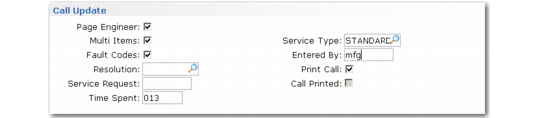
Call Update Frame
The Call Update frame always displays.
Call Update Frame
Page Engineer
Indicate if the Engineer Paging frame should display to initiate paging. This field defaults to Yes for a new call when three conditions are true:
• An engineer has been assigned to the call.
• The Dispatcher field in Call Management Control is Yes.
• The selected engineer is a field engineer in Engineer Maintenance.
Multi-Items
Indicate whether the Call Items frame should display. Set this field to Yes if problems for more than one item are being reported on this call, or if you want to view the detail for the first item specified on the call header.
Fault Codes
Defaults from Use Fault Code in Call Management Control. Setting Fault Codes to Yes displays a frame where you can enter various fault, problem, cause, and resolved codes for the first line item on the call. The title of the Fault Code frame displays as Fault Codes for Call Line x, so it is clear which line the codes are associated with.
Note: To standardize usage, set up values for these codes in Generalized Codes Maintenance.
Resolution
An optional code you define that identifies how the problem is going to be resolved. When you enter a service call, the resolution code may be blank, indicating the call is not resolved. The resolution code is normally filled in later, once the call is resolved or forwarded.
Note: Set up values with Generalized Codes Maintenance for the field ca_resolve.
Resolution codes can indicate the type of solution, such as the adjustment or repair that was made, or they can indicate how the call was forwarded, such as the entry of an RMA or service request. The call resolution is typically more generic than the resolution codes in the Fault Codes pop-up.
Service Request
Validated against service requests created with Service Request Maintenance. If you associate a service request with a call when you create it, the SR number displays by default. Since multiple calls can reference the same SR, you can also manually enter an SR number. See
Service Requests.
Time Spent
The amount of time spent on this service call. Calculating time can be important to service organizations that bill for telephone support time rather than on-site services.
The system can calculate the time spent. If Total Call Time in Call Management Control is Yes, the system tracks the elapsed time in decimal hours from the time you enter the Call Info frame. It stops when you reach the Call Update frame.
If additional time is taken after this, manually increase the time spent. Each time you access a call in Call Maintenance, the system adds any additional time spent to the current total time.
When this field is No, the time spent defaults to zero and must be entered manually.
Service Type
Defaults from the warranty or contract type defined in the call header. While you can modify the service type currently in effect, attributes determined by the previous service type are not changed, including response time, priority, and coverage days. The system considers the limits associated with the new service type, however, in Call Activity Recording. This field cannot be modified once you open a report for the first item in Call Activity Recording.
Set field security on this field if you do not want the default service type modified.
Entered By
A system-maintained field to record the user ID of the person who entered this service call. For reference only.
Print Call
If Yes, the system prompts you to enter an output device so the call can be printed directly from Call Maintenance.
Call Printed
This is an output-only field maintained by the system. For a new call, this is always No. When you print a call, the system sets it to Yes. This field is for reference only; it does not restrict the reprinting of the call.