Closing a Call
A call is closed when its status is set to the Close Status in Call Management Control. This status is the final status of a call and indicates service activity for this call is finished and ready for invoicing. Once a call is closed, you can record no more activity. However, you can reopen closed calls by changing their status.
If you take calls for items that are not in the installed base, the system creates an installed base record when the status of the call is set to closed. Normally, however, if any activity has been recorded for the call, the installed base record is created in Call Activity Recording. You can also move closed calls that are fully invoiced to history and then archive and remove them from the system.
Close calls from the following functions:
• Call Maintenance
• Call Activity Recording
• Call Queue Manager
• Engineer Assignment Maintenance
With slight variations, each program makes similar verification and produces similar effects. You cannot use escalation sequences to close calls automatically.
Effects of Closing a Call
The system takes a number of actions when a call is closed.
• If the call is for an item that is not yet in the installed base and no activity is recorded in Call Activity Recording, the system can create an ISB record when the call is closed. You can decide per line item which items to add to the installed base. If activity is recorded, the ISB record is created in CAR, rather than at call closure.
• Engineer transactions for the call are closed.
• If the call was generated as part of the PM scheduling sequence in Contract Maintenance and Create PM Calls is Yes in Contract Control, the system generates a new PM call. It is scheduled for the next open date on the contract’s PM schedule.
• If the install work code is associated with the call, the system sets the installation date, next PM date, warranty duration, and warranty expiration based on the call closure date and time.
• The system clears the call next status field, as well as the next status date and time, since no more activity is expected for this call. In addition, the call close date and time are set.
Differences Between Complete and Closed
Both complete and closed can mean you are done with a call except for creating the invoice. Complete is much less final than closed. You can close a call with no intention of creating an invoice. However, to be complete, invoiced or invoiceable reports must exist on the call. Some other differences include:
• MOs can be open for a complete call, but not for a closed call.
• Closed calls can be archived and deleted.
Requirements to Close a Call
The system makes checks at three levels before a call can be closed: call, call line, and line reports. When the system detects an error, it stops checking and displays the error. If possible, it also displays the source of the error by indicating the line number or the report number that did not pass verification.
Note: A call can be either closed or canceled if no activity has been recorded. How you want to use these two statuses is up to you.
Multiple Engineers
If more than one engineer has been assigned to the call, it cannot be closed from Engineer Assignment Maintenance. This restriction prevents one engineer from updating the call status when another engineer is not finished.
Open MOs
No open MOs can be attached to the call. If an MO was associated with the call, the call cannot be closed until all quantities on the MO are either consumed or returned.
Temporary Customer
If the call was created against the temporary customer specified in Call Management Control, Call Activity with Temp must also be Yes in the control program.
Line Status
Each line item on the call with reports must have a status of closed, complete, or canceled, or a message displays. You can still close a call directly from Call Maintenance if you have not recorded any activity against it.
Report Status
Two checks are made on the status of reports created for the call in Call Activity Recording.
• If a report has been created but has no transaction detail, you must manually close it before the call can be closed. Otherwise, the system assumes this report still needs to be invoiced and generates an error if you attempt to move the call to history.
• If you create reports in CAR and add transaction detail to them, the status of the report must be invoiceable or closed or a message displays. The system sets the report status to H (hold) if it encounters any errors while issuing inventory. A call with a report on hold cannot be closed.
Report Transactions
If detail has been recorded in Call Activity Recording, the system verifies that all inventory has been successfully issued. It also verifies that all labor and expense transactions have been posted to the proper GL accounts. If not, a message displays.
Moving Calls to History
Maintain complete call history online by moving closed and canceled calls to a separate history table. While closed calls no longer appear in the Call Queue Manager unless you specifically request them, they do appear on call browses, inquiries, and reports until you move them to history. Moving them to history can reduce the number of records you need to review to find calls being worked on.
You can review, but not modify or invoice, data related to calls in the history table with Call Print with History Report (11.1.1.5).
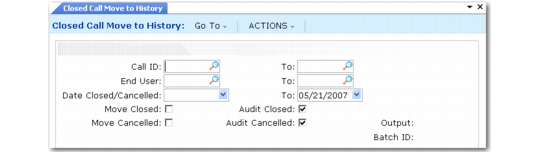
Select calls to be moved by range of call ID, by range of end user associated with the call, or by the close date. You can move only closed calls, only canceled calls, or both closed and canceled calls matching the other criteria by changing the Move Closed and Move Canceled field values.
You can also produce a report of calls that would be affected by setting both Move fields to No and both Audit fields to Yes. The report is generated to the specified output device.
Closed Call Move to History (11.1.1.21)
Executing Closed Call Move to History (11.1.1.21) copies closed or canceled calls within the specified date range from the call master (ca_mstr) table to the call history (chm_mstr) table, then deletes the call from the call master. You can keep or delete and archive this history with Call/Quote History Delete/Archive (11.1.1.23).
Note: Canceling a call sets the close date in the same way closing it does.