Load System Data
You can use Pending Call Field Maintenance (11.1.3.13) to create information about the fields you are going to place on frames for display in Pending Call Maintenance. However, since a call record includes many fields and also updates fields in related tables, this process can be very tedious.
A utility is provided to make setting up and maintaining profiles easier. Use Pending Call Setup Utility (11.1.3.23) to:
• Load or delete data about fields that can be added to pending call profiles.
• Load or remove demonstration profiles.
• Renumber records in a profile.
Loading data includes information about fields in the following tables:
• Call master (ca_mstr)
• Call lines (itm_det)
• Call fault codes (ccd_mstr)
Some other fields from tables related to calls also are available, such as fields from pt_mstr, isb_mstr, sa_mstr, and ad_mstr. In addition to database fields, records for some local variables that affect processing of calls are also loaded.
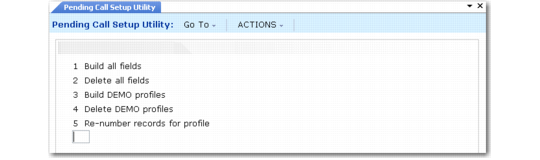
Pending Call Setup Utility (11.1.3.23)
Load Field Data
Enter 1 to load the default information about fields that can be used for building pending call profiles. The load includes information for fields from ca_mstr, itm_det, and ccd_mstr, as well as some local variables that affect processing of calls. You can review this information using Pending Call Field Maintenance.
Note: Reloading field data after you loaded it previously and made changes replaces the changed records with the default system data. However, any user-created fields are not affected.
Most of the information that you load this way cannot be modified, since it reflects the underlying definition of the database tables that store call data, as well as the requirements of the business logic that is part of Call Maintenance.
Delete All Fields
Enter 2 to delete all the information about fields currently in the database. Use this option to clear out old information if you decide not to use pending calls. You might also use this function during a testing sequence when you have added new fields and do not want to retain them. You can then use option 1 to reload system data.
Important: This function deletes all fields related to pending calls, both those loaded by this utility and those you create in Pending Call Field Maintenance.
Load Demonstration Profiles
Enter 3 to load system-supplied demonstration profiles. You can use these profiles as the basis for creating your own by copying and then modifying them. Using demonstration profiles as templates may speed up the development of your own call-entry profiles. You can also use them for training and learning.
Use this option both for an initial load or after you have changed demo profiles and now want to revert to the system default information. Reloading demo profiles deletes any records found and then refreshes them. Normally, you should use this option if you want to continue testing with demo profiles.
Currently, two demo profiles are provided:
• DEMO includes all of the fields that display in Call Maintenance.
• DEMOMIN includes a minimum subset of Call Maintenance fields.
Note: To use the demo profiles, you must also load the default field information since the demo profiles depend on this data. If you delete fields (option 2) and do not delete demo profiles (option 4), the demos will be unusable until you reload fields (option 1).
Delete Demonstration Profiles
Enter 4 to remove the demonstration profile data from your database. Typically you would only use this option if you no longer wanted to use the pending call system.
Note: Option 4 updates any users or roles that currently have the demo profiles associated in Pending Call User/Role Default (11.1.3.19) and sets the profile to blank. See
Create Profiles.
Renumber Records
Enter 5 to renumber the sequences in a specified profile. This function affects the sequence numbers associated with frames, fields, condition sets, and conditions that you define in Pending Call Frame Sequence Maintenance.
Executing this function resequences these numbers in increments of 10. This makes it easy to add new records between existing records. When you enter option 5, you must supply a valid profile ID.
Note: Executing option 5 has no effect on the way a profile functions; it simply updates sequence numbers in the specified profile and in other profiles that refer to it.