QAD 2017 Enterprise Edition
>
User Guides
>
Service/Support Management
>
Call Activity Recording
>
Call Activity Recording in Depot Orders
Call Activity Recording in Depot Orders
Depot orders use two programs to record different types of information for service calls:
• Call Labor Recording
• Call Parts Recording
Call Labor Recording for Depot Orders
To record labor activity for inspection and repair against a depot order call, use Call Labor Recording (11.1.1.17). Typically an engineer records labor after evaluating a returned item, and then again when repairs to the item are complete. Labor activity may be recorded by call/call line or effective date.
Labor activity for existing records can be modified as long as the record is not closed. You can modify duration, start time, and end time, but cannot change the date of an existing labor activity record. For example, the duration may need to be modified if it was overestimated and needs correcting. A second line can be entered for the same Operation ID as the first line, using a negative value for the new line in the Duration field; the start time or end time must also be adjusted accordingly.
Note: If the call labor record is associated with a call report that has already been invoiced, but the invoice has not yet been posted and printed, the system issues a warning that the invoice has been generated, and prompts you to continue to edit the call record. Responding Yes causes the Ready to Invoice field to be set to No in Call Invoice Recording (11.1.1.15).
Call Labor Recording does not support recording activity for service items. Instead, use Call Activity Recording (11.1.1.13).
Call Labor Recording is available from the Labor browse in the Depot Order collection and from the application menu.
Use the Call Labor Browse (11.1.1.18) to view existing call labor activity records.
Header Frame
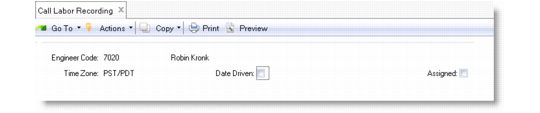
Use the header frame to select the engineer, whether the labor activity recording is date- or call-driven, and the scope of records to display for data entry.
Call Labor Recording (11.1.1.17) - Header Frame
Engineer Code
Enter a valid code for the engineer whose labor is to be recorded.
Time Zone
This read-only field displays the time zone associated with the specified engineer.
Date Driven
If Yes, record labor using an effective date. Date-driven labor recording allows labor for multiple calls and call lines to be entered. Leave this field blank to use the current date. If No, record labor for multiple dates for a single call/call line.
Assigned
Set this field to Yes to view calls/depot orders where the selected engineer is assigned to at least one call line. Set this field to No to view all calls/depot orders. If Call Labor Recording is accessed from within the Labor browse of the Depot Order collection, this field defaults to the currently selected engineer.
If there is a repair routing associated with the call/visit and if Date Driven is No, the system asks if the routing should be exploded. Responding Yes explodes the routing, and the Standard Operation values and Duration times are populated from the routing values; these values can be updated if required. Responding No causes the routing not to explode.
If there is a BOM associated with the routing, the system issues a message to the effect that the BOM will not be exploded in call labor recording (but will continue to be done so in call activity recording).
Call Info Frame
Use the Call Info frame to select a call and call line for labor recording when the Date Driven field is set to No. Only open calls are available for selection.
Call Info Frame
Call Number
Enter a valid call number to record labor for. The system displays an error if the call number or call line entered is closed, on hold, or cancelled. Complete calls or call lines cause the system to display a warning.
Line
Enter a valid call line to record labor for.
Total Duration
Displays the running total duration of the labor recorded for a call and associated call lines. Total duration is updated when entering the current call line is completed.
Note: This field is for reference only—the value it displays is unsuitable for the purposes of timekeeping or payroll verification.
Effective Date Frame
Use the Effective Date to enter a date on which to record call labor activity when the Date Driven field is set to Yes. You can enter labor activity for multiple calls/call lines when using this frame.
Effective Date Frame
Visits Frame
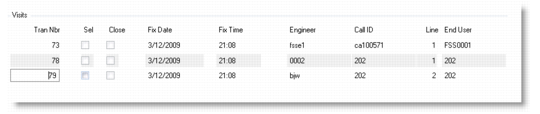
The Visits frame displays all open and unconsumed visits. If there are no visits to consume, this frame does not display.
Visits Frame
Transaction Number
This read-only field displays the transaction number of the open visit and the associated engineer.
Select
Enter Yes to consume the selected visit. Visits selected for consumption are recorded as labor when you respond to the system prompt. Consumed visits are unavailable for selection later. If No, the visit is not consumed and remains available for later consumption.
Close
Enter Yes to close the selected visit. Visits selected for closure are recorded as closed when you respond to the system prompt. Closed visits are unavailable for selection later. If No, the visit is not closed and remains available for later action. This field is enabled when a visit is selected.
Close Date
Enter the date when the labor was completed. This field is for reference only and appears on selected reports and inquiries.
Close Time
Enter the time when the labor was completed. This field is for reference only and appears on selected reports and inquiries.
Labor Details Frame
The Labor Details frame displays all labor records entered for the specified engineer—or for all engineers—with labor recorded for the selected call, or for all calls on the specified date.
Labor Details Frame
Attempting to enter labor activity for calls that are closed, on hold, or cancelled causes an error to display. Entering labor for calls that are open but invoiced results in a warning; if you choose to continue, the call record is changed from invoiced to uninvoiced. Entering labor for a completed call line also causes a warning.
If entering labor for an effective date, you are prompted for the call and call line.
The Labor Details frame contains several fields that default from other fields:
• Specifying a standard operation causes Duration and Service Category to be defaulted from the specified operation. Otherwise, these fields default from the Service Control Labor Service Category. Travel-related labor is defaulted from the Service Control Travel Service Category.
• Work Code defaults from the call line or, if a call line is not available, from the call. If the call does not have a work code, the work code defaults from the Service Control Technical Work Code.
After recording labor, press End to exit the frame and verify that all information is correct before saving the form.
Number
Auto-generated by the system. Displays the number of the labor transaction.
Standard Operation
Specify a standard operation code set up with Service Standard Operation Maintenance (11.19.21) or Standard Operation Maintenance (14.9). Standard operations represent actions common to the service of several products or applicable to different service routings in different operation sequences. When specified, most remaining fields default from the values for the standard operation.
Call ID
Enter a valid call ID for which labor is being recorded.
Call Line
Enter a valid call line ID for which labor is being recorded.
Duration
Enter a duration in hours and minutes for the labor required to close the call. If you do not enter a value, duration defaults from the standard operation. If a standard operation is not provided, the system calculates the duration by subtracting the start time from the end time.
The duration of labor recorded for an existing record can be modified if required. For example, this may occur if the labor duration was overestimated and needs to be modified later to reflect the true duration. To do this, enter a second line for the same Operation ID as the first line, enter a negative value for that line in the Duration field, and adjust the start time or end time.
Start
Enter a time to indicate when the labor for the call commenced. If a value is not entered, the system calculates the start time by subtracting the duration from the end time. For date-driven activity reporting, the start time entered cannot overlap with the start time of another call/call line.
End
Enter a time to indicate when the labor for the call ended. If a value is not entered, the system calculates the end time by adding the start time and duration. For date-driven activity reporting, the end time entered cannot overlap with the end time of another call/call line.
If labor activity is recorded for a call line that has a visit associated with it, the system prompts you to close the visit. Responding Yes sets the close time of the visit to the end time of the last call line entry. Responding No causes the visit to remain open.