QAD 2017 Enterprise Edition
>
User Guides
>
Service/Support Management
>
Call Escalation
>
Escalation Maintenance
Escalation Maintenance
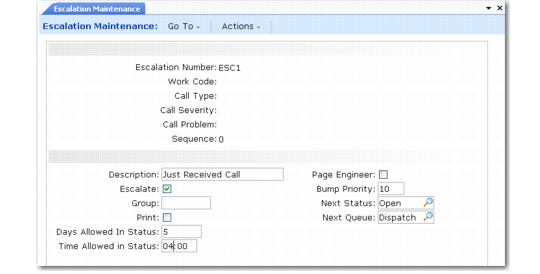
Use Escalation Maintenance (11.1.13.1) to create and update escalation sequences.
Escalation Maintenance (11.1.13.1)
The work code, type, severity, and problem in the top frame of Escalation Maintenance uniquely define the escalation. The system applies this escalation to calls with values that match these fields. You can leave fields blank to end the key, but you cannot skip fields. For example, to base an escalation on call severity, you must specify a work code and call type.
When applying an escalation, the Escalation Monitor searches for the most complete match to the call’s fields. If no escalation matches the call exactly, it applies a more generic escalation. It disregards one field at a time, moving upward from Call Problem until it disregards all key fields.
Escalation
Enter a name for the escalation. If this field is blank, the system creates a number using the prefix and next number in Escalation Control.
Work Code
Enter a value to apply the escalation only to calls with this work code. Define work codes in Work Code Maintenance (11.21.1).The work code indicates the type of work you performed during service activity and affects invoicing and service limits. See
Work Codes.
Call Type
Enter a call type defined in Call Types Maintenance (11.1.21.4). If you enter a call type, you must enter a work code also. The escalation applies only to calls with this work code and call type.
Call Severity
Severity indicates the end user's perception of how serious the problem is. If you enter a call severity, you must also enter a work code and call type. The escalation sequence applies only to calls with this work code, call type, and call severity.
Note: Define call severities in Generalized Codes Maintenance for field ca_severity.
Call Problem
Define call problems codes in Generalized Codes Maintenance (36.2.13) for field fsskill. This field classifies both the call problem and the skill the engineer needs to handle the call. If you enter a call problem code, you must also enter a work code, type, and severity. The escalation sequence applies only to calls with this work code, call type, call severity, and call problem.
Sequence
Enter a number defining the current step in the escalation. Each escalation must begin with a step 0. The system executes sequences from lowest to highest.
Note: Define number sequences in increments of 10 (0, 10, 20, 30), to insert steps more easily later.
Description
Enter a brief description (maximum 24 characters) of the sequence.
Escalate
If Yes, the Escalation Monitor escalates this sequence to the next higher one. Enter No for the last step in the escalation.
Group
Define group codes in Generalized Codes Maintenance (36.2.13) for field fsgroup.
Print
Enter Yes to print calls when the system executes this step. Use this for critical steps or final steps to keep a record of closed calls. Define the printer in Escalation Printer of Escalation Control.
Days Allowed in Status
Determines the number of days a call remains in a step before the Escalation Monitor escalates the call to the next step. Use this field by itself or with Time Allowed in Status.
Note: The value of Use Calendar Days in Escalation can affect the calculation of a call’s next status date and time.
When you create a call with an escalation, the system applies the values of step 0. It adds the days and time allowed in status to the call’s open date and time to determine the call’s Next Status Date and Next Status Time.
The Escalation Monitor applies the next step in the sequence when the call’s Next Status Date and Next Status Time is earlier than the system date and time. For steps after 0, the system adds Days Allowed in Status and Time Allowed in Status to the call’s Event Date and Event Time to determine the Next Status Date and Next Status Time.
Time Allowed in Status
The system uses this value with Days Allowed in Status to determine the next status date and time.
Page Engineer
The default is No. If Yes, the system pages the engineer when the call reaches this escalation sequence. Use this when calls reach a critical or emergency situation.
Bump Priority
Enter the number of points you want the system to subtract from the current call priority when it executes this sequence. Lower numbers indicate higher priority.
Next Status
Determines the call’s status when the system executes this escalation step. The system verifies that this status exists in Call Status Code Maintenance.
When you create a call with an escalation, the system applies the values of step 0 to the call. The system updates the call’s Status field with step 0’s Next Status value. It updates the call’s Next Status field with the next step’s Next Status value.
When the system escalates a call, the call’s Status field reflects the status of the recently executed step and its Next Status field reflects the status of the next step the system will execute.
On an escalation, you cannot specify a status of closed, cancel, or complete from Call Management Control.
Next Queue
When the system executes this step, it moves the call to the queue you specify. If Next Queue is blank, the call remains in the current queue.