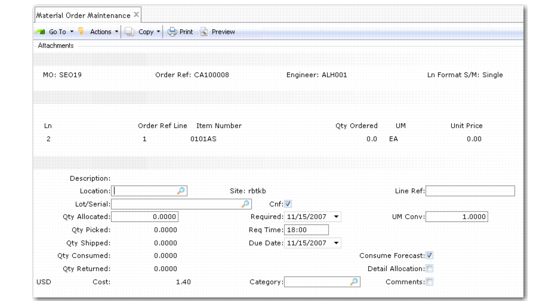
Lower Line Detail Frame
This frame displays information such as the item’s description. You can specify a lot or serial number here if the item is a serialized or lot‑controlled item.
MO Line-Item Detail
Description
Output-only field that displays the inventory description of the item.
Location
This field indicates the location at the associated site where inventory items exist.
Lot/Serial
For lot/serial controlled items, you can specify the particular number for this line item. If you are ordering multiple items on one line, set Detail Alloc to Yes. This displays a pop-up window where you can specify a lot/serial number for each item you order.
Qty Allocated
The total of quantity allocated, plus quantity shipped, plus quantity picked cannot be greater than quantity open on the line item. You can apply field security to this field. Confirmed must be Yes before you can enter a quantity to allocate. For confirmed orders, the system calculates a default based on several fields.
• The Quantity Available to Allocate calculation method in Sales Order Control.
• The value for Limit Allocations to Avail to Allocate in Sales Order Control.
• The setting of Allocate MO Lines Due in Days in the MO header determines the allocation window for orders.
If Allocate MO Lines Due in Days is zero or the due date is beyond the allocation horizon, Qty Allocated defaults to zero. You can use MO Manual or Automatic Allocations to allocate inventory to an MO line due outside the allocation window or when sufficient inventory becomes available.
See
Allocating Material Orders for more information.
Confirmed
This field defaults from the Confirmed field on the header. Yes or No in this field indicates whether or not the item is ready to ship. If Confirmed is No, you must execute a separate confirmation step before items can be allocated and shipped.
Required Date and Due Date
The required and due dates default from the header. You can modify either date for each line.
Req Time
Enter the time at which the material order is required. When you create new lines, the default value is the time defined in the material order header.
The required date and time can also indicate when the ordered items will arrive at the customer’s site. Therefore, the scheduler will know at what time to plan an engineer on-site visit to a customer, using the ordered spare parts for repairs or service.
Note: When ATP Enforcement is Yes in Sales Order Control (7.1.24) and ATP Enforce in the item or item-site record is Warning or Error, the system determines whether inventory will be available to promise (ATP) on the due date. If it is not, the system displays a frame with ATP information and options. See
QAD Sales User Guide for information on ATP.
Category
This field can be used to assign optional categories to material order line items. For example, you can generate some reports based on categories in the Shipment Performance module.
Entries are validated against values defined in Generalized Codes Maintenance (36.2.13) for field line_category.
See
QAD Sales User Guide for information on Shipment Performance.
Line Ref
This field can be used for custom programming as a reference for customized reports giving line-by-line information. Use this field to insert an eight-character label or reference that is later displayed by the report.
UM Conversion
Displays appropriate unit of measure conversion based on the unit of measure for the item.
Consume Forecast
Defaults from the Consume Forecast field in the MO header. If Yes, the quantity on this line consumes forecast in the same way as sales orders. When you enter the MO line, the system decreases available quantity in the sales forecast for the item by the MO quantity.
Detail Allocation
Defaults from the Detail Allocation field on the MO header, which in turn defaulted from Material Order Control. You can modify this for each line item. If you specify a quantity to allocate and the order is confirmed, Yes displays a pop-up window so that you can specify the information required for detail allocation, including lot/serial, location, and lot reference.
Allocations for EMT transship items are performed automatically when the items are received from the supplier. You cannot detail allocate these items in Material Order Maintenance.
Comments
Specify Yes or No to enter comments for this specific MO line item. Defaults from the MO Line Comments setting in Material Order Control. Include line comments on MO documents such as the Material Delivery Note when Print on Packing List is Yes.
After you enter a line, the system returns to the beginning of line entry to start another line item. To order more material, continue and repeat the same line entry process. When you finish, click Back to initiate shipment, if Ship Immed is Yes, or to return to the menu.