Transferring RTS Inventory
In the first option, inventory remains within view in your application database, even though it is not physically present. You specify a supplier inventory site and locate the RTS item there. This approach gives you the advantage of knowing at all times how many units of the item are being repaired. Since the system supports costing by site, you can assign any cost or no cost to these RTS items while they are at your supplier’s site.
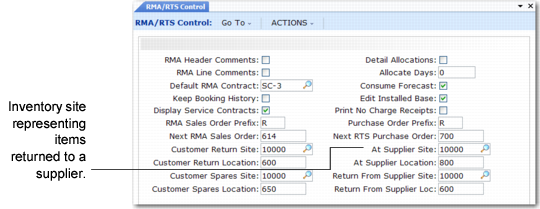
The supplier site for inventory is set up in RMA/RTS Control (11.7.24).
RMA/RTS Control (11.7.24)
At Supplier Site represents all your suppliers. To track the RTS when you have multiple suppliers, set up one at supplier site and define a different location for each supplier.
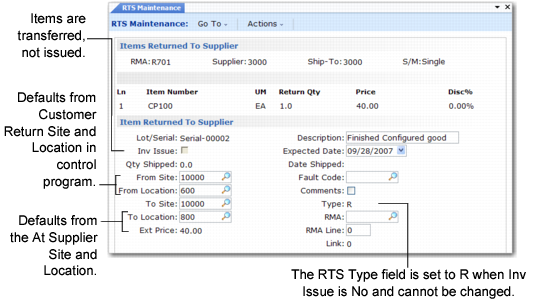
To track RTS items as inventory, set Inventory Issue to No in RTS Maintenance (11.7.3.1). When inventory issue is No, the system creates the RTS with a ship type of R.
Note: You can use this feature only for inventory items. For memo items, inventory issue is Yes and you cannot change it.
A non-blank ship type normally indicates a memo item. Even though ship type is non-blank for an RTS, the system enforces required inventory edits and compliance features. You are moving inventory during the transaction. The R indicates inventory is being transferred rather than issued and received.
RTS Maintenance (11.7.3.1)
When Inventory Issue is No, the destination site defaults from the At Supplier Site value. Inventory is transferred from the customer return site to the supplier site and displays in inventory inquiries and reports as on‑hand at the supplier site.
Inventory Transactions Generated with Inv Issue = No
Transaction | Description | Debit Account | Credit Account |
ISS-TR | Ship from site | Goods in transit | Inventory |
RCT-TR | At supplier site | Inventory | Goods in transit |