QAD 2017 Enterprise Edition
>
User Guides
>
Service/Support Management
>
Control Programs
>
Call Management Control
Call Management Control
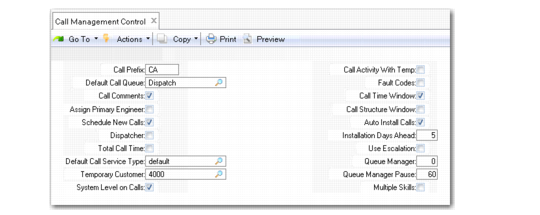
Call Management Control (11.1.24) manages many aspects of calls, including call statuses, defaults for call creation, call activity recording and invoicing, and call quotes.
Call Management Control (11.1.24)
Call Prefix
Used with the Next Call ID in a later frame to assign a default call ID number for new calls. Use prefixes to distinguish calls, quotes, RMA, service requests, and contracts. You must specify different prefixes for calls and call quotes.
Default Call Queue
Default queue for grouping service calls for dispatch and review with the Call Queue Manager. Define queues in Call Queue Maintenance (11.1.21.7). The system searches for a call queue default as follows. If escalations are in effect, it determines call queue by the escalation step; next, call defaults defined with Call Default Maintenance; then the call queue in Service/Support User Preferences, and, finally, the call queue in the control program.
Call Comments
Specify Yes if you normally enter transaction comments during Call Maintenance (11.1.1.1). You can enter up to 99 pages of information on a call. This field determines the default that displays in the Call Info frame of Call Maintenance when you create a call.
Assign Primary Engineer
If Yes, the system assigns the primary engineer for the end user to new calls and call quotes. You can change this value. If this field is Yes, Schedule New Calls is normally set to No.
Schedule New Calls
Specify whether to execute the engineer scheduling sequence in Call Maintenance. If Yes, the Schedule field in the Call Info frame defaults to Yes. This initiates the engineer scheduling sequence upon completion of the Call Info frame. Set this to No if you do not use engineer scheduling.
Dispatcher
The default is No. Sets the default for the Page Engineer field in the Call Update frame of Call Maintenance when you create a call. If the call’s engineer has Field Engineer set to Yes in Engineer Maintenance and Dispatcher is Yes, the Engineer Paging frame appears so that paging can be initiated. Use Yes if a call dispatcher routes incoming calls to engineers.
Total Call Time
Indicate whether the system calculates the time spent on a call. Telephone support organizations may want the system to calculate time spent. This field determines the value for Time Spent in the Call Update frame of Call Maintenance (11.1.1.1). If this field is Yes, the system keeps track of the elapsed time in decimal hours spent maintaining the call. The system begins calculating time when you enter the Call Info frame and stops when you reach the Call Update frame. Each time you modify a call, the additional time spent displays.
If you spend time on the call outside of Call Maintenance, you must adjust the time spent manually.
When this field is No, the time spent defaults to zero and must be entered manually.
Default Call Service Type
Specify the default contract type for terms and conditions when a call item has no contract or warranty. Define contract types with Contract Type Maintenance (11.5.10). This service type determines the response time, hours of coverage, and priority. Normally, the call default has no coverage levels.
Temporary Customer
Enter a valid, active customer defined in Customer Create. Use this customer in Call Maintenance when taking calls from end users who are not in the system. Use this feature if you service items sold through distributors or retailers and end users contact your company directly for service. If your company sells only to end users, you may not need a temporary customer number.
System Level on Calls
Use this setting if you take calls only for certain items, or to ensure that calls are taken only for the parent item in a configured product structure. Default is No. Before you can enter Yes, specify a code for the System Level field in Service Management Control. Define these codes in Generalized Codes Maintenance for field pt_sys_type. Setting this field to Yes affects next/previous processing in the Item Number field in Call Maintenance. Only items designated as system level display.
Call Activity With Temp
Used with the Temporary Customer setting. Set this field to No to prevent update of a call in Call Activity Recording or Call Invoice Recording until the customer is changed. You cannot close calls recorded for the temporary customer number. You must create a valid customer/end-user record, then update the call.
Fault Codes
Sets the default for the Fault Codes field in Call Maintenance, Call Quote Maintenance, and Call Activity Recording. If Yes, the Fault Codes field defaults to Yes and the Fault Codes frame appears. In this frame, enter information about the reasons for the call and its resolution.
Call Time Window
The default is No. Determines whether the Travel and Estimated Time frame appears in Call Maintenance. Enter Yes if you normally record estimated call length, travel distance, and travel time. User preferences in Service/Support User Preferences (11.21.23) can override the control program.
Use the estimated call length to calculate engineer availability during call scheduling if Display by Calls is No in Engineer Schedule Control. Estimated call length defaults from Call Management Control settings for the various work codes.
Call Structure Window
The default is No. Determines whether the Item Service Structure Detail frame appears in Call Maintenance. If Yes, you can enter or modify the service BOM and routing for the call’s first item. The BOM and routing, in turn, can determine the items and operations loaded into Call Activity Recording detail frames. User preferences in Service/Support User Preferences (11.21.23) can override this value. The service BOM and routing can also be specified later in the Call Item frame.
Auto Install Calls
Indicate whether the system generates installation calls. You can mark each item as customer installable in Service Item Maintenance (11.3.7). Schedule an engineer for items that the customer cannot install. When Auto Install Calls is Yes and an item requires installation, Invoice Post and Print generates a call to schedule the installation.
Installation Days Ahead
Specify the number of days after an item’s ship date that you want to schedule an installation call. When an item requiring an installation call is loaded into the installed base, the system calculates the call’s next activity date based on the ship date plus the value of Installation Days Ahead.
Use Escalation
Enter Yes to use escalations. Set this value to Yes before you can set up other escalation parameters in Call Escalation Control. When using escalations, the first step of the escalation (sequence 0) determines the defaults in Call Maintenance for Priority, Queue, Status, Next Queue, Next Status, Next Status Date, and Next Status Time.
Queue Manager (0, 1, 2, 3)
Controls the sort criteria for calls in the Call Queue Manager (11.1.6). User preferences set up in Service/Support User Preferences (11.21.23) can override this value.
0 (zero): Displays calls by Next Date and Next Time. Use Pivot to toggle the sort order by end user.
1: Groups calls by the Assigned field, then response priority. Use Pivot to toggle the sort order by queue.
2: Sorts by the Assigned field. Use Pivot to toggle the sort order by end user.
3: Sorts by the Area field. Use Pivot to toggle the sort order by customer.
Queue Manager Pause
Specify the number of seconds that the Call Queue Manager (11.1.6) waits before it refreshes the screen. When the screen refreshes, new calls are included. If this field is 0 (zero), the screen does not refresh.
Multiple Skills
Indicate the default value for the Multiple Skills field in Call Maintenance (11.1.1.1). The Multiple Skills field controls the option to define the list of skills an engineer requires to solve a call.
If you set this field to Yes, the Multiple Skills field in Call Maintenance will always be set to Yes. If you set this field to No, the system checks whether multiple skills are specified for the call. If the call has multiple skills, the system sets the Multiple Skills field in Call Maintenance to Yes; otherwise, it is set to No.