Control Programs
With its inherent flexibility, the Service/Support Management (SSM) module meets the needs of users with diverse business requirements. Settings in the eleven SSM control programs support this flexibility. This chapter discusses each control program and describes each setting and its impact on service activity.
Service Management ControlOutlines the basic uses and functions of Service Management Control (11.24).
Call Management ControlDescribes how Call Management Control (11.1.24) can be used to manage call statuses, call creation, call activity recording, call invoicing, and call quotes.
Call Escalation ControlDescribes how and when to use Call Escalation Control (11.1.13.24).
Service Request ControlDescribes how to use Service Request Control (11.1.15.24).
Contract ControlDescribes how to use Contract Control (11.5.24).
RMA/RTS ControlDescribes how and when to use RMA/RTS Control (11.7.24) and manage default information.
End User ControlDescribes how to use End User Control (11.9.24).
Material Order ControlDescribes how to use Material Order Control (11.11.24).
Engineer Schedule ControlExplains why Engineer Schedule Control (11.13.15.24) is used.
Paging ControlDescribes how and when to use Paging Control (11.13.17.24).
SSM Accounting ControlDescribes how and when to use SSM Accounting Control (36.9.10).
Service Management Control
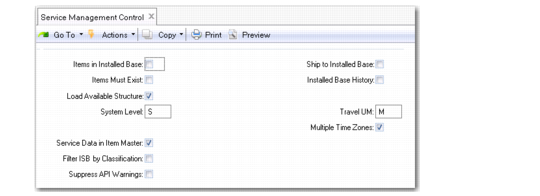
Service Management Control (11.24) contains general settings that affect more than one kind of service activity. Most of these settings are used to manage the installed base.
Service Management Control (11.24)
Items in Installed Base
If Yes, you can record service contracts and service calls only for items in the installed base. If No, you can take calls in Call Maintenance for items not in the installed base. You can add a record for the item and end user to the installed base when you record activity in Call Activity Recording.
Use this field with Items Must Exist to define the degree of control you want over the item specified on service contracts and calls.
The four ways to combine these two fields are listed in
Item Control Field Combinations.
Item Control Field Combinations
Items in Installed Base | Items Must Exist | Effect |
No | No | You can add any item to a call or service contract. The installed base does not have to contain the item and it does not have to exist in the item master. With this pairing, you can take calls and generate service contracts for any item, even those your company does not sell. |
No | Yes | You can take calls and generate service contracts only for items in the item master. However, the customer’s installed base record does not have to contain the item. Use this pairing if you do not need an accurate installed base, but you do support only products you manufacture and sell. |
Yes | Yes | You can take calls or issue service contracts only for items that are in the installed base and in the item master. This combination gives you the most control. |
Yes | No | You can take calls or issue service contracts for any item in the installed base; you may not have made or sold the item. Use this to keep accurate installed base records and if you service items you do not manufacture. |
Items Must Exist
If Yes, an item must be in the item master before you can create a service contract or call for it. If your company services only products that you have manufactured and shipped, set this field to Yes. If you service products from other manufacturer or operate a walk-in type repair service, set this field to No.
Load Available Structure
The field determines whether the system adds product structures to the installed base during invoice post and in Call Activity Recording. Setting this field to Yes has an effect only if other conditions are true:
• The item is one you manufacture or configure.
• Ship to Installed Base is Yes.
• The parent and each component are service items defined with Service Item Maintenance (11.3.7), and the Installed Base field is Yes.
• The item can be added with a quantity of 1. The shipment quantity for configured items is 1, and the work order quantity for serial- or lot-controlled items is 1 for the system to identify the as-built structure. Since you seldom create lots with a quantity of 1, Load Available Structure usually has no effect on lot-controlled items.
• The parent item is serial number controlled or is a configured product. A configured product shipped on a final assembly work order can be identified without a serial number as long as it is shipped with a quantity of one.
If the situation meets these conditions, the system attempts to add components of the parent item to the installed base as derived from the sales order BOM or the work orders used to build it and its components. The system derives this information from transaction history records.
If Load Available Structure is No and Ship to Installed Base is Yes, the system creates an ISB record only for the parent and includes no component details.
System Level
This field enables you to specify a code indicating a system-level item. Set up values in Generalized Codes Maintenance for field pt_sys_type. Associate system-level codes with installed base items in the System Type field of Service Item Maintenance (11.3.7).
The system uses the code defined in Service Management Control with the System Level On Calls field in Call Management Control. Before you can set System Level On Calls to Yes, specify a value for System Level. The system checks this code in two places:
• In Call Management, it is checked during next/previous processing on the Item field.
• In the Installed Base Report (11.3.3), selecting the System Level Only option restricts the report to items with a system type that matches the System Level value in the control program.
Service Data in Item Master
If Yes, you can edit the service attributes of an inventory item in Item Master Maintenance (1.4.1). These are the same frames as in Service Item Maintenance (11.3.7). If No, you can edit these attributes only in Service Item Maintenance.
Filter ISB by Classification
Specify whether you want to filter ISB records based on classification codes before displaying ISB lookups.
No: All ISB records are displayed.
Yes: You can select a classification code to limit records included before an ISB lookup displays.
This field defaults to Service/Support User Preferences (11.21.23) where you can specify a different value for individual users as needed.
The value of this setting affects all programs that have a field with an associated installed base lookup.
If you want to use filtering by classification, you must set up classification codes in Classification Maintenance and associate them with items in Service Item Maintenance.
Ship to Installed Base
Controls the integration between sales and service. If Yes, the system updates the installed base during Invoice Post and Print (7.13.4) of sales orders for service items. If you use the Sales Orders/Invoices module and ship to end users, set this field to Yes, since it can streamline recording installation information. If you sell through distributors or retailers, this may not be appropriate.
Installed Base History
Determines whether the system creates transaction history records for manual updates to the installed base. When Yes, a history record is created whenever a user manually creates an ISB record, deletes a record, or changes the serial number on an existing record. Review these transactions with the ISB History Report (11.3.22.3). Tracking history provides an additional level of security in managing an installed base.
Travel UM (M, KM)
M indicates travel distances are in miles; KM indicates kilometers. This setting determines the default for the travel distance unit of measure in the Service Office Detail frame of End User Data Maintenance (11.9.1). This value in Call Maintenance (11.1.1.1) designates distance between the end-user installation and service office.
Multiple Time Zones
This field indicates whether MTZ is active. You can update it in the control program only when its value is Yes. To activate MTZ, use the Multiple Time Zones Startup Utility (11.21.22.24), which changes the value in the control program from No to Yes.
When MTZ is active, you can associate time zones with customers, end users, and engineers. Most call-related dates and times are displayed relative to the end-user time zone.
Warning You can turn MTZ on and off, but it is not recommended. If you turn it off, you must enter call dates relative to the end-user time zone. Otherwise, data is not consistent when MTZ is reactivated.