QAD 2017 Enterprise Edition
>
User Guides
>
Service/Support Management
>
Control Programs
>
RMA/RTS Control
RMA/RTS Control
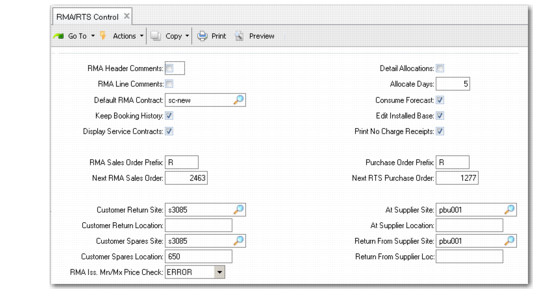
Set up RMA/RTS Control (11.7.24) to match how you normally enter RMA and RTS transactions. This is also where you designate default shipping and receiving sites and locations for returns and spares.
RMA/RTS Control (11.7.24)
RMA Header Comments
Indicate whether you normally enter comments on an RMA or RTS header. If Yes, the Comments field on the RMA and RTS header defaults to Yes. You can change this setting.
RMA Line Comments
Indicate whether you normally enter comments on each RMA or RTS line. If Yes, the Comments field on each RMA and RTS line defaults to Yes. You can change this setting.
Default RMA Contract
This service contract type supplies default coverage information for items on RMAs without other coverage. The system also uses this service type if you change the charge type suggested for an RMA line item to the service contract charge type (S). The service type defines the default level of coverage for RMA line items, restocking charges for returns, the credit price list, and determines whether or not you can issue a replacement item before you receive an item from the customer. Set up contract types with Contract Type Maintenance (11.5.10).
Keep Booking History
Indicate whether to maintain booking history. If Yes, the system keeps an audit trail of changes to RMAs by creating transaction history records, identified as type ORD-SO. The record includes the item, order quantity, price, cost, date, user ID, and other information. You can review this information using booking inquiries and reports. Use Transactions Detail Inquiry (3.21.1) to review detailed transaction history.
Display Service Contracts
This field determines if the Service Contract pop-up window appears when you create an RMA not referencing a call. Coverage for an RMA referencing a call defaults from the call. For RMAs without a call, the contract pop-up enables you to select coverage from available service contracts for the current end user. If this field is No, the pop-up does not display and the contract defaults from Default RMA Contract in the control program.
RMA Sales Order Prefix
Defines the prefix for new RMAs that you create with a blank Order field. Because the system stores RMAs and sales orders in the same table, you use the prefix to distinguish RMAs from other types of sales orders.
Next RMA Sales Order
Used with the RMA Sales Order Prefix to determine the next RMA number when the Order field is blank on a new RMA. The prefix is not required. The system increments this RMA number each time you enter an RMA.
Customer Return Site/Location
This site and location display as defaults for RMA receipt lines, but you can change them. When you receive the items back from the customer, the system increases the inventory balance at this site and location. For an RTS, this site and location provides the default for items being returned to the supplier.
Customer Spares Site/Location
Site/location from which you ship replacement parts on RMAs. This site and location are the defaults for RMA issue lines, but you can change them. When you ship the items to the customer, the system decreases the inventory balance at this site and location.
Detail Allocations
Enter Yes if you usually make detail allocations during RMA issue line entry, No if you do not. Detail allocations assign specific inventory lot/serial numbers and locations to be shipped on an RMA. You can change this value on each line item.
Allocate Days
Specifies the number of days into the future to use as a cutoff for allocating items on RMA issue lines. This value defaults to the corresponding field in the RMA header, which in turn defaults to each line.
Allocations reserve inventory so it is not allocated to other sales orders, RMA issue lines, intersite requests, or work orders. The system only tries to allocate available inventory to RMA issue line items due within the specified number of days, giving you more control over the allocation process. Two other control program settings affect allocations in RMAs:
• The Quantity Available to Allocate calculation method in Sales Order Control controls how the system determines the number of items available to allocate. The calculation is the same for all items and sites.
• The value for Limit Allocations to Avail to Allocate in Sales Order Control determines how the system handles shortage situations. If this field is No, Quantity Allocated defaults from Quantity Ordered even if a sufficient quantity to allocate does not exist. If this is Yes, Quantity Allocated never exceeds the quantity available. If there is no quantity available to allocate, Quantity Allocated defaults to 0.
Consume Forecast
Determines the default in the Consume Forecast field on the RMA header, which determines the default for each line item. If Consume Forecast is Yes for an RMA issue line item, it consumes forecast the same way that sales order lines do. When you enter an RMA issue line, the system decrements the available quantity in the sales forecast for the item by the RMA quantity.
Edit Installed Base
Determines the default for the Edit Installed Base field in RMA Maintenance, which controls the appearance of the Installed Base Detail frame. Use this frame to modify the defaults for the installed base for RMA issues. This setting has no effect if Ship to Installed Base is No in Service Management Control.
Print No Charge Receipts
This field indicates if the system generates and prints invoice lines for RMA receipt lines that have no invoiceable amount. This field also affects the printing of the invoice itself if none of its lines involve a financial transaction.
• If Yes, the system generates invoices lines even if no financial transaction occurs. The system prints an invoice even if none of the lines on the RMA generate a financial transaction.
• If No, the system does not generate an invoice line for RMA receipt lines that do not involve a financial transaction. The system does not print an invoice if none of the lines create financial transactions.
RMAs normally involve two events: receiving damaged or defective goods from an end user and shipping replacements. The shipment of an item produces an invoice line even if no financial transaction occurs. For the receipt portion of the RMA, you can use this field to control whether or not the system creates invoice lines for no-charge transactions.
If you typically use RMA receipts only to ensure that an item is returned from the end user and do not give credits or add restocking charges, set Print No Charge Receipts to No to simplify invoicing. If a receipt without financial impact is an exception, set Print No Charge Receipts to Yes to ensure visibility over the invoicing process.
Purchase Order Prefix
Defines the prefix for new RTSs that you create with a blank Order field. Since the system stores RTSs and purchase orders in the same table, use the prefix to distinguish RTSs from other types of purchase orders.
Next RTS Purchase Order
Used with Purchase Order Prefix to determine the next RTS number when the RTS field is blank in RTS Maintenance.
At Supplier Site/Location
This site and location display as the default To Site and To Location for RTS issue lines and From Site and From Location on RTS receipts when Inventory Issue/Receive is No.
In this case, RTS Shipments performs an inventory transfer. Rather than issuing the returned items from inventory, they are transferred to the designated At Supplier Site and Location. You still own the items and see them on your inventory. When you receive the items back from the supplier, the system transfers them from the At Supplier Site and Location to the Return From Supplier Site/Location.
If Inventory Issue/Receive is Yes on an RTS, shipping the items back to the supplier removes them from stock. The system decreases inventory at the site and location specified on the RMA. When you receive them back, the system returns them into inventory at the site and location specified on the RMA.
Return From Supplier Site/Location
Identifies the site/location into which the system transfers items received back from a supplier. This site and location display as the default To Site and To Location on the Receipts section of an RTS, but you can change them.
RMA Iss. Mn/Mx Price Check
Specify the way in which RMA Maintenance manages RMA issue lines when both of the following are true:
• Because of a manually entered discount or a discount type price list, the Net Price of the item on the RMA issue line falls either below the minimum or above the maximum price in the item price list.
• There is no warranty or contract set, or the covered amount is zero.
Valid values are:
ERROR. For a below-minimum or above-maximum net price on the RMA issue line, the system displays an error message and directs focus to the Net Price field.
WARNING. For a below-minimum or above-maximum net price on the RMA issue line, the system displays a warning message and advances focus to the next frame.
This field has no effect if there is a non-zero coverage percentage on a warranty or contract defined in RMA Maintenance.
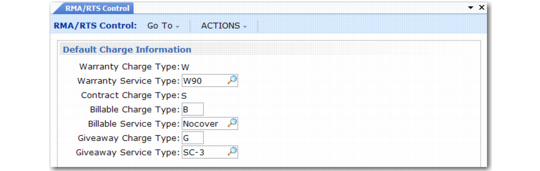
Default Charge Information
RMA/RTS Control (11.7.24)
Warranty Charge Type
This display-only value is always W. This charge type is the default on an RMA line item when the service type is a warranty. If you change another charge type to W, the system displays the terms and conditions for Warranty Service Type in the control program.
Warranty Service Type
Identifies the service type defined with Warranty Type Maintenance to use when you change the charge type (CT) value to W on an RMA issue line item. The system uses the level of coverage and price list for this service type instead of the default service type on the RMA header.
Contract Charge Type
This display-only value is always S. This charge type is the default on an RMA issue line when the service type in effect is a contract. If you change the charge type to S, the system displays the terms and conditions for the Default RMA Contract type specified on the previous frame of the control program.
Billable Charge Type
Specify any value other than W or C. Enter this charge type on an RMA issue line to apply the terms and conditions for the Billable Service Type defined in the control program.
Billable Service Type
Identifies the service type defined with Contract Type or Warranty Type Maintenance to use when you change the charge type (CT) field to the Billable Charge Type on an RMA issue line. The system uses this service type’s level of coverage and price list instead of the service type on the RMA header. Normally, the service type provides no coverage and you bill the customer for the entire amount on this line item.
Giveaway Charge Type
Specify any value other than W or C. Enter this charge type on an RMA issue line to apply the terms and conditions for the Giveaway Service Type defined in the control program.
Giveaway Service Type
Identifies the service type defined with Contract Type or Warranty Type Maintenance to use when you change the charge type (CT) field to the Giveaway Charge Type on an RMA issue line. The system uses this service type’s level of coverage and price list instead of the service type on the RMA header.
Normally, the service type provides 100 percent coverage and you do not invoice the customer for this line item.