QAD 2017 Enterprise Edition
>
User Guides
>
Service/Support Management
>
Control Programs
>
Material Order Control
Material Order Control
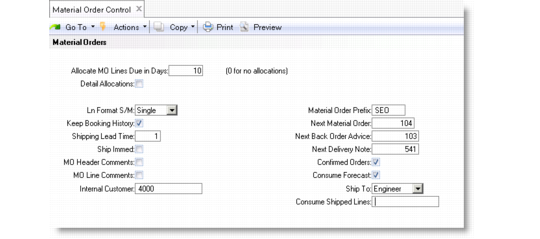
Use Material Order Control (11.11.24) to define defaults for many MO input fields and establish values that affect MO processing.
Material Order Control (11.11.24)
Allocate MO Lines Due in Days
Specifies the number of days into the future to allocate MOs. Use allocations to control shipments, especially in shortage situations. Set this value to 0 (zero) to prevent automatic allocations. When you enter an MO, the system compares the order quantity to the quantity available to allocate. If a shortage exists, the order cannot be filled. The system tries to allocate available inventory only to line items due within the number of days specified here, giving you more control over the process.
If you use automatic allocations, set Confirmed Orders to Yes to allocate only confirmed orders.
Detail Allocations
Determines the default in the Detail Allocations field of the MO header, which determines the default for each MO line. Detail allocations assign specific lot/serial numbers and locations for shipping on an MO. Enter Yes if you normally make detail allocations during Material Order Maintenance. Otherwise, enter No.
Ln Format (S/M)
Indicate the normal mode for entering material order line items. Use S, single-line mode, to display and maintain detailed information for each line item. Use M, multiline mode, to enter information such as item, quantity, and price for up to 12 lines on one screen. Dates, site, location, confirmed orders, comments, and other values default. Use single-line format to access and change the defaults. You can change the line format at any time during order entry, and alternate between single and multiline format.
Keep Booking History
Indicate whether to maintain booking history. If Yes, the system keeps an audit trail of changes to MOs by creating transaction history records, identified as type ORD-MO. The record includes the item, order quantity, price, cost, date, user ID, and other information. You can review this information using booking inquiries and reports. Review detailed transaction history using Transactions Detail Inquiry (3.21.1).
Shipping Lead Time
The usual number of calendar days between the date you enter an MO and the date you ship the items. If you ship orders immediately, use zero. When you create an MO, the required and due dates default to the system date plus the shipping lead time, indicating the normal delivery date. You can change this date.
Ship Immediately
If Yes, a frame appears when you leave line entry so you can initiate the shipment process from Material Order Maintenance. If Ship Immediately is No, you are finished with the material order when you accept your input.
MO Header Comments
Indicate if you normally enter header comments for MOs. If Yes, the Comments field on the MO header defaults to Yes.
MO Line Comments
Indicate if you normally enter comments for MO line items. If Yes, the Comments field on each MO line defaults to Yes.
Internal Customer
Enter a valid, active customer defined in Customer Create. Values associated with the Internal Customer are used whenever an MO is created without an associated call.
When an MO has a call, the customer number and currency default from the customer associated with the call’s end user. For an MO without a call, the system uses the number and currency associated with the customer specified in this field. Normally, this customer should have the domain base currency.
Material Order Prefix
Defines the prefix for automatic numbering of MOs when the MO field is blank in Material Order Maintenance. Because the system stores MOs, RMAs, and sales orders in the same table, use the prefix to distinguish MOs from other types of sales orders.
Next Material Order
The system uses this value with the Material Order Prefix to create the next MO number. The prefix is optional. The system increments the MO number each time you enter an MO.
Next Back Order Advice
The system uses this value when a Back Order Advice is created during MO shipments. The system increments this number each time a Back Order Advice is created.
Next Delivery Note
The system uses this value when an Material Delivery Note is generated during MO shipments. The system increments this number each time a Delivery Note is created.
Confirmed Orders
Indicate whether you normally enter MOs as confirmed. This field determines the default in Material Order Maintenance. Enter Yes if you normally enter MOs as confirmed orders. Enter No if they are not confirmed when entered, but require a separate confirmation step.
Confirmed orders are allocated, consume forecast, and create demands for material planning. Unconfirmed orders are not allocated, do not consume forecast, and do not create demands for material planning until you process a separate Material Order Confirmation function.
Consume Forecast
Determines the default in the Consume Forecast field on the MO header, which determines the default for each line item. If Consume Forecast is Yes for an MO item, it consumes forecast the same way that sales order lines do. When you enter an MO, the system decrements the available quantity in the sales forecast for the item by the MO quantity.
Ship To
Possible values are user or engineer. The value for Ship To determines the value for Ship-To on a new MO associated with a call.
• If user, the MO Ship-To defaults from the end user who called.
• If engineer, the MO Ship‑To defaults from the address of the engineer assigned to the call.
Use this field to tailor the Ship-To default according to your business practices. You can change the Ship-To entry on a particular MO.
Note: For MOs without a call, Ship-To is the engineer’s address, and cannot be changed.
Consume Shipped Lines
Set this field to control the consumption of items.
Yes. Enables the automatic MO shipment/CAR consumption for all material orders.
Only DOM. Enables the automatic MO shipment/CAR consumption for depot material orders only (that is, for orders associated with calls that have a work code with the Repair Center check box set to Yes.)
No. Do not auto-consume items; instead, use the standard MO shipment/CAR consumption.