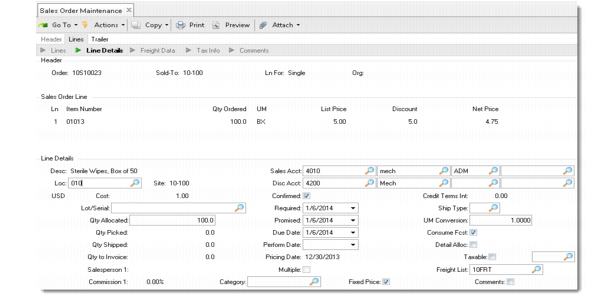
Sales Order Line Items
Enter line items in single or multiple entry format. Single entry lets you customize due dates, sites, tax statuses, and other information for each line item. Multiple entry lets you enter basic information such as item number, quantity, and price for several lines on a single screen. The default format is specified in Sales Order Control (7.1.24).
Important: If you are entering a sales order for an EMT item, you must use single-line mode. Otherwise, EMT Type defaults to non-EMT and the system does not automatically generate a PO for the supplier.
Sales Order Maintenance (7.1.1), Sales Order Line Frame
.Location
Enter the location where this sales order line item is stored in inventory. See
QAD Master Data User Guide for information on reserved locations
You can leave Location blank during order entry and let the system determine an inventory location during allocation or when the packing list is printed. To make detailed allocations during order entry, you must specify a location. Enter Yes in Detail Allocation to specify multiple locations.
Location defaults from Item-Site Inventory Data Maintenance (1.4.16) for the order line site; if a site-specific record does not exist; location defaults from Item Master Maintenance (1.4.1).
Note: If this is a consigned order or reserved locations have been defined for the sold-to, ship-to, or bill-to customer on this order, different defaulting logic is used.
• If this is a consigned order, location defaults from Ship-To/Item Controls Maintenance (7.18.1).
• If a reserved-location record is found with Primary set to Yes, this location displays by default.
• If reserved locations are defined for one of the sales order address records but none is designated as primary, the first reserved location found alphabetically within the site displays by default.
Lot/Serial
Use Lot/Serial to specify detailed information. If location and lot/serial are left blank, the system allocates inventory from the item’s default site/location. This is general allocation.
Qty Allocated
Specify the quantity allocated to this order line. You can change this quantity.
Qty Picked
The quantity printed on a picklist for this line item. When a picklist prints, the system updates the quantity picked, ensuring that the same quantity is not printed again on the next picklist printed for this order.
Qty Shipped
A system-maintained field recording the total quantity shipped against this order line item.
Qty to Invoice
Displays how much has already been shipped on this order. When invoices print, quantity to invoice is multiplied by net price to determine invoice amount. The total of the allocated, picked, and shipped fields shows how much remains to be invoiced.
Ship Type
Indicate whether shipments of this item are to affect inventory balances. Type defaults from Memo Order Type in Item-Site Inventory Data Maintenance (1.4.16), if defined for the order line site; otherwise, it defaults from Item Master Maintenance (1.4.1). If the item is not defined, type defaults to M (memo).
Blank: This line item ships from inventory. When the shipment is processed, inventory balances are decreased, a general ledger (GL) transaction credits the Inventory account, and forecast is consumed.
Non-blank: This shipment does not affect inventory, does not create a GL Inventory transaction, and does not consume forecast.
While a non-blank ship type prevents the update of the Inventory account, Accounts Receivable (AR) balances are updated regardless of the ship type.
This field is validated against codes defined in Generalized Codes Maintenance (36.2.13) for field sod_type.
You cannot modify this field after a quantity has been shipped or invoiced.
Date fields
Some line-item dates default directly from the header; others may be calculated based on header date values and control settings.
• Required: This defaults from the header only if it is different from the header due date. Otherwise, the line-item default is blank. If you do not enter a required date for the line, the system sets it to the line due date after you complete line-item entry.
• Performance: This field defaults from the header only when the header Due Date and Performance Date fields are different. If the header dates are the same, the line-item Performance Date field is blank. If you do not enter a value for the line, the system sets it to the line due date after you complete line-item entry.
• Pricing: This field displays the header pricing date. You can modify it in a pop-up frame for individual lines only when Vary Pricing Date by SO Line is Yes in Sales Order Accounting Control.
Note: If you use the Shipment Performance module, you can generate reports that compare a baseline date with the actual ship date. You can specify the line-item required date, due date, or performance date as that baseline date when you generate the reports. See
Shipment Performance.
Category
This field can be used to assign optional categories to material order line items. For example, you can generate some reports based on categories in the Shipment Performance module.
Entries are validated against values defined in Generalized Codes Maintenance (36.2.13) for field line_category.