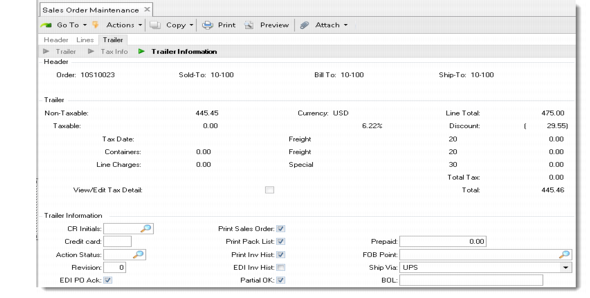
Sales Order Trailer
The trailer section contains financial information for the entire order.
Sales Order Maintenance (7.1.1), Trailer Frame
Major fields include the following:
Non-Taxable, Taxable
If the items on this order are subject to tax, and multiple tax classes apply to different lines, taxable amounts shown in the trailer may be incorrect. When you calculate taxes on a line-by-line basis, set Display Taxable/Non-Taxable on Trailer in Global Tax Management Control (29.24) to No to suppress the display of total amounts. See
QAD Global Tax Management User Guide for information on setting up GTM
View/Edit Tax Detail
Set this field to Yes to update or review tax amounts.
Action Status
Leave blank if this order can be processed immediately. Any nonblank entry indicates that the order is on hold and no action should be taken until it has been approved.
During order entry, the system uses customer-specific parameters, as well as control settings, to perform a credit check. If the system detects that the customer is on credit hold or has exceeded the credit limit, this field is automatically set to a code specified in Sales Order Accounting Control or set to HD when no code is specified. See
Running Credit Checks.
After an order is saved, you cannot modify a non-blank status in Sales Order Maintenance. Remove the hold status using Sales Order Credit Maintenance (7.1.13) or Sales Order Auto Credit Approval (7.1.17).
This field is validated against predefined values entered in Generalized Codes Maintenance for field so_stat, if any. Since credit is not the only reasons for holding an order, standardize reasons by setting up generalized codes.
Revision
Enter the revision level of the sales order. Each time an order is changed, you may want to increase the number by 1. You may also want to add comments describing the change and reasons for making it. A new copy of the order can be printed to document the change. You can also update the revision automatically when the order is printed by setting Increment Order Revision to Yes in Sales Order Print.
EDI PO Ack
If you use EDI eCommerce to import purchase orders from your customers in electronic data interchange (EDI) format to be converted to sales orders, this field controls whether the system creates a PO acknowledgement for export to the customer using Purchase Order Acknowledgement (35.4.5). If the customer has a record defined in Trading Partner Parameter Maintenance (35.13.10), the value defaults from the Send EDI PO Ack parameter. Otherwise, the default is No.
Amount Prepaid
The amount of prepayment applied to this sales order. The amount does not update the GL or customer account balance. Note that a separate cash payment entry must be made to record the payment in Accounts Payable. This can be done by recording a manual non-AP check. A supplier credit note should also be entered to track the prepayment amount. The supplier credit note can be placed on hold and released later when the invoice is received.
FOB Point
Free on Board. Identifies where title passes to the buyer and often is used to indicate who pays shipping charges.
Ship Via
Default carrier name that is set up in Customer Data Maintenance (2.1.1), which identifies the preferred carrier for a customer’s orders. This value can be overridden.