Repricing Sales Orders
Use Sales Order Repricing (7.1.11) to reprice items on sales orders. This program uses the same logic as Sales Order Maintenance (7.1.1) to recalculate the price and tax of eligible lines on selected sales orders.
The system excludes from automatic price recalculations lines that are closed, canceled, or returned. You can also selectively exclude lines by setting Fixed Price for line item to Yes. The customer’s Fixed Price status defaults to the sales order header and ultimately to the line item, but can be overridden at the header or line level. See
QAD Master Data User Guide for more information.
Orders are selected for update based on selection criteria you specify. Leave selection criteria blank to process all orders.
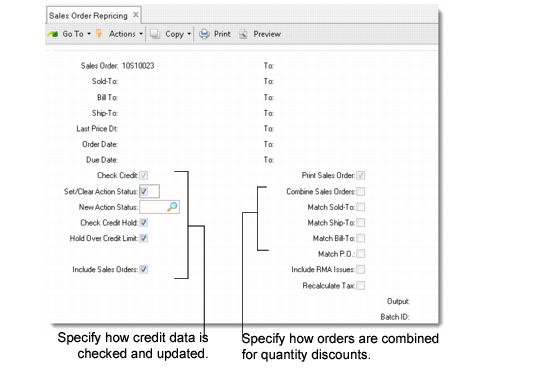
Sales Order Repricing (7.1.11)
When repricing, you can reprint the sales order, perform credit checks, update the order’s credit action status based on the newly calculated prices, and combine sales order quantities to provide better prices.
Print Sales Order
Enter Yes to have the system change Sales Order Print to Yes in Sales Order Maintenance (7.1.1).
Check Credit
Enter Yes to perform credit checks based on values entered in subsequent fields. Credit-related fields can be updated only when Check Credit is Yes. Enter No to skip the credit check.
Set/Clear Action Status
If Yes and the order exceeds the customer credit limit, the sales order action status is updated to the value of New Action Status. If an order that was on hold is now found to be within the customer credit limit, the action status is cleared.
New Action Status
This represents the new action status to be placed on orders that exceed the customer credit limit. If left blank and Set/Clear Action Status is Yes, the system automatically resets the order action status to the corresponding code specified in Sales Order Accounting Control or HD when no code is specified.
Check Credit Hold
Enter Yes for the system to check the hold field in the customer record before removing the order from credit hold. If Credit Hold is Yes, the hold is not removed. If you set this field to No, the sales order can be approved even if the customer is on credit hold.
Hold Over Credit Limit
Enter Yes for the system to compare the customer balance to the customer credit limit before approving the order. The customer balance includes open invoices and, depending on the value of Include Sales Orders, can optionally include open order balances. Enter No to have orders approved even if the customer is over its credit limit.
Include Sales Orders
Enter Yes to have balances of open sales orders falling within the selection criteria for this function included in the customer balance. This is to determine if a customer has exceeded its credit limit.
Combine Sales Orders
Enter Yes to combine sales orders according to specified matching criteria to provide for best pricing based on quantity discounts. Use Match Sold-To, Match Ship-To, Match Bill-To, and Match PO to specify the combining logic. The four Match fields can be updated only when Combine Sales Orders is Yes.
When this field is No, the system reprices each order individually.
Include RMA Issues
If Yes, the system includes RMA issues in sales order repricing.
Recalculate Taxes
Indicate whether tax amounts should be recalculated for the sales orders being repriced. Tax recalculation will overwrite any manually updated tax values.
The update report shows both the old and new price and the discount for all lines changed. The price is determined by the quantity ordered, but the open quantity is printed on the report. The update creates transaction history records for all lines changed.