Inventory Control Programs
Shipping documents can be created from the following inventory control programs:
• Transfer–Single Item (3.4.1) is used to move item inventory from one site and location to another. Transfers can occur within a facility, changing the location or lot reference, or between facilities, changing the site. This program creates ISS-TR transactions.
You can also use Transfer–Single Item to create a shipper for a single memo item, if this is required.
• Transfer–Multi Item (3.4.2) is used to move inventory of multiple items from one site and location to another. Transfers can occur within a facility, changing the location or lot reference, or between facilities, changing the site. This program creates ISS-TR transactions.
• Transfer with Lot/Serial Change (3.4.3) is like Transfer–Single Item, except it lets you change the lot serial and lot reference numbers associated with an item, in addition to changing the site and location. This program creates ISS-TR transactions.
• Issues–Unplanned (3.7) lets you reduce inventory quantity for an item at a designated site and location. Issues not involving any open sales, purchase, manufacturing, or quality order are unplanned issues. This program creates ISS-UNP transactions.
• Issue–Return to Supplier (3.8) also supports shipping functionality. This program creates ISS-RV transactions.
This section illustrates Transfer–Single Item, but creating shipping documents from any of these programs is just the same with the following exceptions:
• You can create shippers for memo items only from Transfer–Single Item. In Transfer–Single Item when a memo item is specified, the system displays a warning. If you proceed, you are prompted to enter the item information required to generate a shipper, such as weight and volume.
• After you enter transaction information and click Next, the system prompts for an inventory movement code in Issues–Unplanned (3.7) and Receipts–Unplanned (3.9). It uses this code to supply default accounts for the transaction.
In all transfer programs that support shippers, the system:
• Checks if the From-Site and location and To-Site and location of the transfer exist in a valid shipping group.
• If so, checks whether the shipping group includes valid inventory movement codes for the appropriate transaction type.
If these conditions are not true, the transaction is completed as usual. If a shipping group exists, you can create a shipper for the transferred item by entering information in a series of frames, described next.
Shipping Information Frame
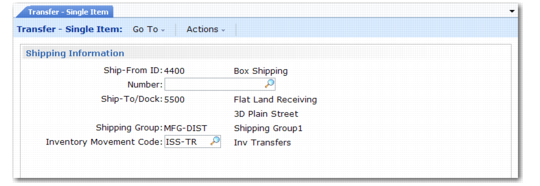
When a valid shipping group exists for the transfer, the Shipping Information frame displays after you click Next to transfer the items.
Transfer–Single Item, Shipping Information Frame
The Shipping Information frame contains the following fields:
Ship-From ID
Displays the source site of the transfer, with the site description displayed beside it. This field cannot be edited.
Number
Enter the identifying number of a new or existing shipper.
• If you specify an existing shipper number, the system adds the transfer item as a new line item.
• If you enter a new shipper number, the system validates it using the NRM sequence, as determined by the shipping group and inventory movement code. If the number is valid, the system creates a new shipper.
• Leave the field blank for internally generated numbers. The system attempts to generate a new shipper number using the NRM sequence, as determined by the shipping group and inventory movement code.
The system displays a warning, but lets you proceed when you:
• Select an existing shipper that has already printed.
• Select an existing shipper that prohibits consolidation.
• Attempt to create a new shipper and either the Ship-From or Ship-To address requires consolidation, and another unprinted shipper exists with the same type, Ship-From, Ship-To, and effective date. You can then either consolidate with the existing shipper or continue creating a new shipper.
Ship-To/Dock
This field displays the destination site of the transfer. The site address name and address line 1 display next to the site. This field cannot be edited.
Shipping Group
This field displays the shipping group code and description for this combination of Ship-From and Ship-To addresses. This field cannot be edited.
Inventory Movement Code
Enter the inventory movement code for the shipment. This field defaults to the value assigned for the transaction type in the shipping group. Ensure that you have access to both the site and inventory movement code.
The description displays next to the code. If you select an existing shipper, the system overwrites any value entered in this field with the value from the selected shipper. You cannot edit an inventory movement code on an existing record.
Note: If you click Back while on this shipment header frame, the system terminates the shipper creation. The item is transferred as usual, without a shipper.
When you accept the input frame, the system selects an existing shipper or creates a new shipper, depending on the value entered in the Number field. Another frame displays that lets you enter additional information. The system records the transfer item as a new line item on the shipper.
Additional Shipment Header Information
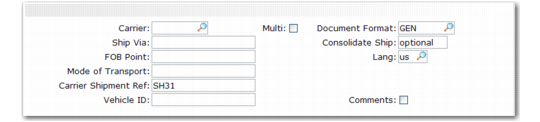
When the Shipment Information frame is accepted, the following frame displays.
Transfer–Single Item, Additional Shipment Header Information
With the exception of the Document Format field, all fields function exactly as they do in Pre-Shipper/Shipper Workbench (7.9.2).
Document Format
Enter a valid document format of a type applicable to shippers. If the document format is edited for a shipper marked as having been printed, the system displays a warning message, but lets you continue.
Shippers with blank document formats cannot be printed and do not have available any additional format-specific processing services provided by service encapsulation procedures associated with document formats. Although they are not printable, shippers with blank formats can be maintained, deleted, archived, and otherwise processed as usual.
Note: If you click Back from this frame, the system reverses any modifications made to any field on the frame. If you are editing an existing shipper, the previous field values are restored. If you are creating a new shipper, any modifications made to the default field values are reversed; however, the new shipper itself remains.
After you accept the input frame, the Trailer Information frame displays.
Trailer Information
The Trailer Information fields function as they do in Pre-Shipper/Shipper Workbench, except that you cannot cancel the shipper. You can add trailer comments.
The Status field is set to C, indicating that the shipper is created as confirmed. It cannot be confirmed using Pre-Shipper/Shipper Confirm.
After you accept the Trailer Information frame, if the shipper has an assigned document format, the system prompts you to print a shipping document. If the document format is blank, you cannot print the shipper.
Transfer–Single Item, Trailer Information
Print Shipper Frame
If you choose to print the shipper, the Print Shipper frame displays.
Transfer–Single Item, Print Shipper
Include Shipper Comments
This field determines whether shipper comments display on the printed shipping document. Enter Yes to include the shipper comments; enter No to omit the comments. The default is Yes.
Print Lot/Serial Numbers
Specify whether a complete list of each of the lot/serial and lot reference numbers shipped is to print on the shipping document.
Yes: Each line item shipped is followed by a list of the lot/serial and lot reference numbers shipped.
No: Only the total quantity shipped prints for each line item.
Note: If you click Back from this frame, the shipper is not printed. However, you can print or reprint it later using Pre-Shipper/Shipper Print (7.9.4).