Making Inventory Transfers and Adjustments
You can make inventory transfers either manually or through importing EDI eCommerce transactions.
Consignment Inventory Transfer
Use Consignment Inventory Transfer (7.18.7) to manually select inventory for transfer (CN-ISSTR/CN-RCTTR). For example, this program lets you move only in-transit inventory to a consigned location. If you need to move inventory from one location to another, use this program to retain the consigned status of the inventory.
Use this program when you receive an acknowledgment that the consigned inventory has arrived at the customer facility. For example, you can use this program when you need to manually show an inventory transfer from a third-party distribution warehouse to a customer facility.
A transfer represents the movement, not use, of inventory. It reduces inventory quantity for items at a designated site and location and increases it at another.
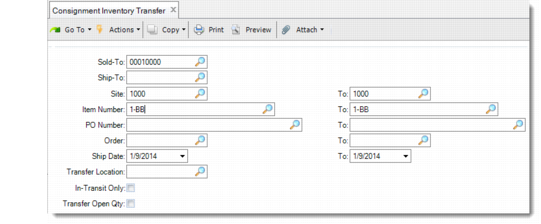
Consignment Inventory Transfer (7.18.7)
Enter criteria for selecting consigned inventory to transfer. You must enter either a ship-to or sold-to address. You can enter a range of sites, items, customer POs, sales orders, and ship dates.
Transfer Location
Enter the new location where you want to transfer the in-transit or consigned inventory. This value sets the default for all items selected for transfer. You can change this for individual records, as needed.
If this location does not exist at the site containing the transfer-from location, the system creates it automatically or displays an error message, depending on the setting of Automatic Locations at the current site. If this is No for the site, the location must be predefined using Location Maintenance.
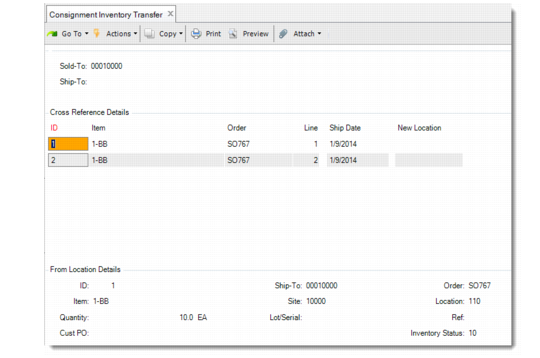
Cross Reference and From Location Details Frames in Consignment Inventory Transfer
The system displays cross-reference and from location details for the records that match your selection criteria. Choose the record you want to modify. You can specify a new location, quantity to transfer, and GL effective date in the To Location Details frame.
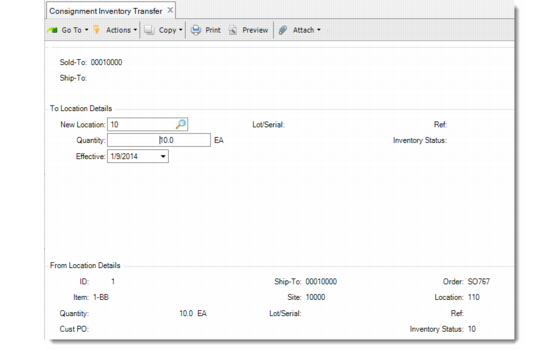
From and To Location Details in Consignment Inventory Transfer
New Location
Enter the new location where you want to transfer the in-transit or consigned inventory. This field defaults from the first frame if you specified a transfer location.
Quantity
Enter the quantity of the item to be transferred to the new location.
Effective Date
Enter the GL effective date for this transaction. The default is the system date. The effective date determines when this transaction affects GL balances.
If Verify GL Accounts is Yes in Domain/Account Control, the system checks that the transaction effective date is within an open fiscal period.
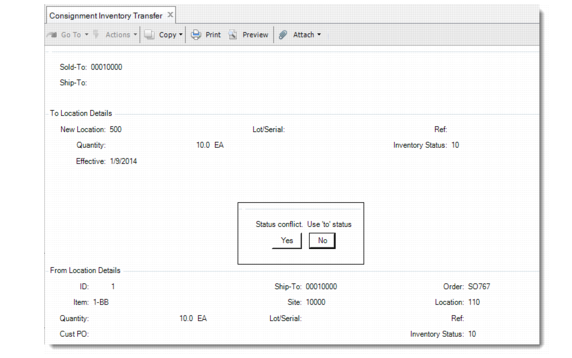
Status Conflict Message in Consignment Inventory Transfer
When the inventory status of the items being transferred differs from the default inventory status at the transfer-to location, the system prompts you to change the inventory status of the transferred items.
• Respond Yes to have the items automatically assume the default inventory status of the transfer-to location.
• Respond No to have items retain their current inventory status.
When you have finished specifying details, press End. A summary frame displays the items about to be transferred. When prompted, enter Yes to complete the update.
Imported EDI Messages
When inventory arrives at the customer receiving dock, some customers send an acknowledgment of receipt in electronic data interchange (EDI) format. Using Document Import (35.1) to import an acknowledgment message has the same effect as manually transferring the consigned inventory. It signals the movement of inventory from the in-transit location to the consignment location identified on the sales order line. No transfer of ownership occurs while the inventory is in-transit or when it is received.
Consignment Inventory Adjustment
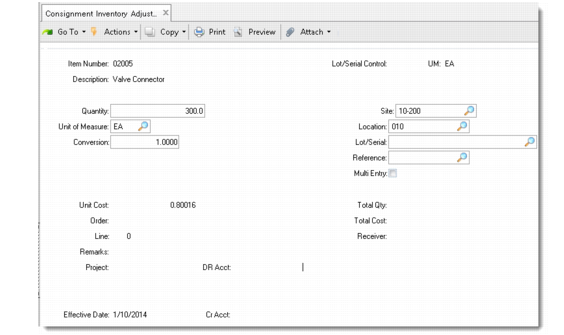
Use Consignment Inventory Adjustment (7.18.25.1) to manually modify consigned inventory information such as quantities and locations. Adjustment generates records of type CN-ADJ to record consignment adjustment.
Order and line are required. The system validates that the items on the order line were consigned. A warning displays if non-consigned items exist in the location specified.
Consignment Inventory Adjustment (7.18.25.1)
You might use this program after doing a physical inventory to indicate that surplus items are consigned. In this case, the customer would not be invoiced for the adjustment transaction.
You can select inventory by serial number, reference number, sequence number, or authorization. For example, you can debit an in-transit account and credit a consigned offset (consumption) account.
Note: Consignment Inventory Adjustment is designed only to update the consignment quantity. It does not make any changes to the quantity on hand. This can lead to possible discrepancies between inventory valuation reports and the inventory GL balance. You should make appropriate adjustments to quantity-on-hand balances, as needed.