EMT and EDI eCommerce
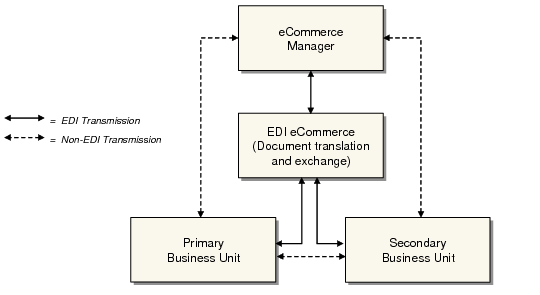
When you use EDI eCommerce to communicate EMT documents with your trading partners, eCommerce Manager (35.22.13) lets you control processing of various types of EDI transmissions.
EMT Document Transmissions
Exporting
When the system creates an EMT document such as a purchase order to be exported, it generates a record in the trq_mstr database table to indicate that the associated document is queued for export. When you run eCommerce Manager or one of the individual export programs on the Document Export menu (35.4), the system scans the trq_mstr table for these records. Each export field set to Yes in eCommerce Manager instructs the system to look for a different message type among existing trq_mstr records.
Several message types can be present in the trq_mstr table at the same time. Data is only exported if you specify Yes in the related field in eCommerce Manager or run the associated program from the Document Export menu.
Use of Export Transmission Records lists the kinds of message types stored in trq_mstr records. The system searches for sequences in a logical order designed to minimize potential conflicts in EMT processing. The Seq column indicates the order in which data is exported.
Use of Export Transmission Records
Seq | Type | Message | Site |
1 | ORDRSP-I | PO Acknowledgment | SBU |
2 | ORDRSP-C | PO Change Acknowledgment (customer initiated) | SBU |
3 | ORDRSP-S | PO Change Acknowledgment (supplier initiated) | SBU |
4 | ORDERS | Initial PO | PBU |
5 | ORDCHG | PO Change | PBU |
6 | ASN | Advance Ship Notice | SBU |
7 | SCHREL | Supplier Schedule | N/A |
Importing
When you set Import Documents to Yes in eCommerce Manager, the system scans the specified import directory for files with appropriate extensions and then imports them in the sequence shown in
Import Sequence. This sequence is logically designed to minimize potential conflicts during EMT processing.
Import Sequence
Seq | Message |
1 | Initial PO |
2 | PO Acknowledgment |
3 | PO Change Acknowledgment (customer initiated) |
4 | PO Change Acknowledgment (supplier initiated) |
5 | PO Change |
6 | Advance Ship Notice |
Using eCommerce Manager
When you use eCommerce Manager (35.22.13) to specify the types of EMT documents to export, the system looks for transmission records in the trq_mstr table to determine which documents are queued for transmission. It then selects the documents and performs the standard eCommerce load/transform/transfer process to create the EMT document in the export directory specified in Transmission Group Maint (35.13.13) for this trading partner.
Note: You can have any number of export fields, as well as Import Files, set to Yes at the same time.
If you want to export only selected documents instead of all the documents of a specific type that have a transmission record in trq_mstr, several eCommerce programs let you specify selection criteria for EMT-related document types:
• Purchase orders: Purchase Order Export (35.4.9)
• Purchase order acknowledgments: PO Ack Export (35.4.5)
• Purchase order changes: PO Change Export (35.22.16)
• Purchase order change acknowledgments: PO Change Ack Export (35.22.15)
• Advance ship notices (ASNs): Shipment ASN Export (35.4.1)
Message types stored in trq_mstr are listed in
Use of Export Transmission Records.
After a document has successfully completed the transformation process, the system automatically deletes the associated record from trq_mstr so that the document cannot be accidentally selected again by eCommerce Manager.
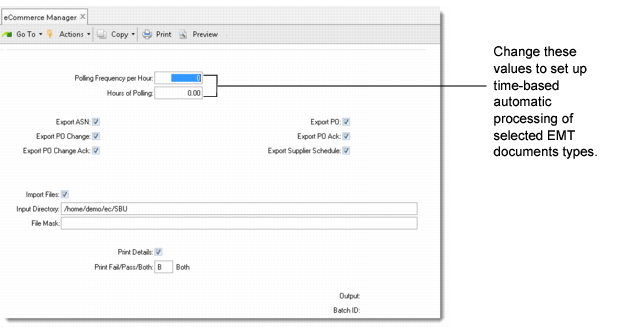
eCommerce Manager also includes the timed-polling features offered by another eCommerce program—Export/Import Controller. By entering values in Polling Frequency per Hour and Hours of Polling, you can have the system automatically poll the import directory and the trq_mstr table for records or files to process.
To begin processing as soon as you execute the program, leave the two fields set to zero.
eCommerce Manager (35.22.13)
To import files containing EMT documents, set Import Files to Yes. When the program runs either in real time or in timed-polling mode, the system looks in the import directory specified in eCommerce Control and begins processing any files it finds.
To select specific files from the import directory, use Document Import (35.1) from the EDI eCommerce menu.