QAD 2017 Enterprise Edition
>
User Guides
>
Sales
>
Configured Products
>
Ordering a Configured Product
Ordering a Configured Product
Enter sales order information in Sales Order Maintenance (7.1.1) just as you would for a regular product. When you enter a configured line item—one with a Purchase/Manufacture code of C in Item Master Maintenance—a pop-up window appears.
See
Creating Sales Orders for more information.
Configured Item Pop-Up
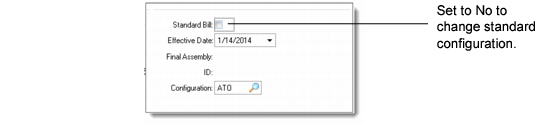
Standard Bill
Enter Yes to have the system automatically configure the item with all its mandatory, default options. Enter No to define a bill of material.
Effective Date
Configured product structures are further qualified by an effective date. The default is the sales order due date. The date specified must be within the configured product structure’s effective start and end dates. Enter a question mark to have the system not consider effective dates. Enter start and end effective dates in Configured Structure Maintenance (8.1).
Final Assembly and ID
System-maintained fields recording the work order information for final assembly of ATO configured products only. The product configuration options are specified on the sales order and a work order is released from that sales order to build that specific assembly. To tie them together, the work order number and lot are recorded on the sales order.
Configuration
Enter the type of configuration—either ATO or KIT. The default is set in Item Master Maintenance. See
Set Up the Parent Item.
When Standard Bill is Yes, normal sales order entry continues. When it is No, the Features pop-up displays so you can select a feature group.
Feature Group Pop‑up
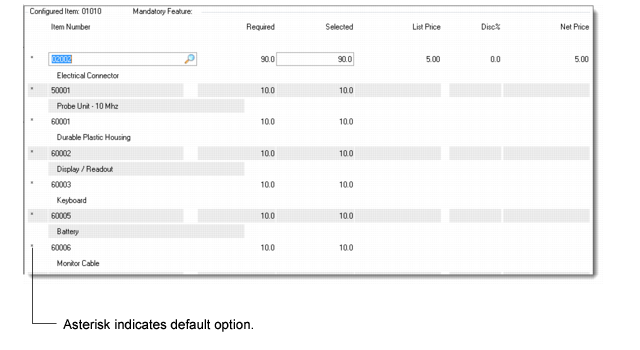
The system next displays all the options available in the selected feature group. An option defined in Configured Structure Maintenance as the default is marked with an asterisk.
Option Selection Pop-up
The value entered for Selected can be any positive or negative quantity. For example, you can enter a negative value to delete a standard option, such as an automobile radio.
Important: The default option of a mandatory feature group has an initial positive value. If you choose another option, you must enter a value in Selected for the option you chose and change the default option to zero.
At this time there is no expert configurator that verifies whether a particular combination of options is valid. It is possible to configure an order that cannot be manufactured—for instance, an automobile with both a 1.6-liter and 2-liter engine.