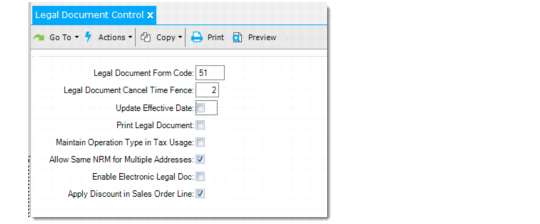
Configuring Legal Documents Control Settings
Use Legal Document Control (7.10.24) to configure settings that affect the generation and printing of legal documents as well as other legal documents-related features.
Legal Document Control (7.10.24)
Legal Document Form Code
Specify the default legal document form code used in Document Format Maintenance (2.18.13).
Enter a two-digit numeric form code that uniquely identifies a country-specific legal document type. When you enter a valid form code, the legal document type description is displayed next to the form code.
Some countries have legal requirements to print legal documents with specific numbering rules, information, formats, and layouts when issuing, receiving, and/or moving goods. The form code identifies the appropriate printing procedure.
A valid form code is supported by a legal document generation program file installed in your system. If the file is not found, an error message displays.
Currently, the system supports the following form codes: 11, 21, 31, 41, 51, and 61. While these form codes primarily address the legal document formatting requirements of Poland, Chile, Argentina, Turkey, Brazil, and Russia respectively, they can also be used in other countries where applicable.
Days to Retain Sales Order After Invoicing
Specify the number of days after invoice post a fully shipped sales order can be deleted in Completed Sales Order Delete. Completed sales orders within this time frame cannot be deleted.
If 0, completed sales orders are automatically deleted.
Update Effective Date
Specify whether the effective date can be updated in Pre-Shipper/Shipper Confirm. Enter Yes to allow update; otherwise, enter No.
Print Legal Document
Specify whether you want to print legal documents along with shippers by default.
This value defaults to the Print Legal Document option in the functions that create confirmed shippers.
A legal document is typically generated when a shipper is created and assigned a document number when the shipper is confirmed. When a shipper is confirmed, the system provides you with the option to immediately print the legal document along with the shipper.
Maintain Operation Type in Tax Usage
This field is specific for Brazil legal documents.
Enter Yes to enable the following legal documents features specific for Brazil:
• Display the Legal Information frame in Tax Usage Maintenance (29.1.9).
• Enforce that the tax usages specified in Simultaneous Operation Maintenance (7.10.13) must have the operation type of 11 Sales or 12 Other. For information on Simultaneous Operation Maintenance, see
Printing Two Legal Documents for a Single Shipment.
• Dictate the mandatory use of tax usage with operation type set to 11 Sales or 12 Other when you process retrobilling in Retrobill Report (7.13.3). For information on retrobilling, see
Retrobilling.
Allow Same NRM for Multiple Addresses
Specify whether it is allowed to assign the same NRM sequence to multiple addresses with different Federal Tax IDs.
Yes: You can assign the same NRM sequence to multiple addresses in Legal Document NRM (36.2.21.9).
No: The same NRM sequence can be assigned to multiple addresses only when these addresses are associated with the same Federal Tax ID. When you assign an NRM sequence to an address in Legal Document NRM (36.2.21.9), the system checks whether the sequence has already been assigned to another address with a different Federal Tax ID. If so, the system displays an error message and prevents you from proceeding.
The default is Yes.
Enable Electronic Legal Doc
Specify whether to enable the electronic legal document. This option is used for customized functions.
Apply Discount in Sales Order Line
Specify the price to display on the legal document—list price or net price.
Yes: When there is a discount applied to the sales order line, the printed legal document shows the list price, that is the price without discount, of the line item. The Line Total amount is calculated with the net price of the line item.
No: When there is a discount applied to the sales order line, the printed legal document shows the net price—that is, the discounted price—of the line item.