QAD 2017 Enterprise Edition
>
User Guides
>
Sales
>
Legal Documents
>
Country-Specific Legal Documents
Country-Specific Legal Documents
Brazil Legal Documents
Brazil Legal Document Life Cycle
Nota Fiscal is the legal document in Brazil. In sales transactions, it is used in lieu of the invoice. Because of this, the Brazil legal document has special processing requirements when you are dealing with sales:
• The legal document is posted through invoice post.
• You must refrain from consolidating invoices to ensure each shipment is associated with one legal document.
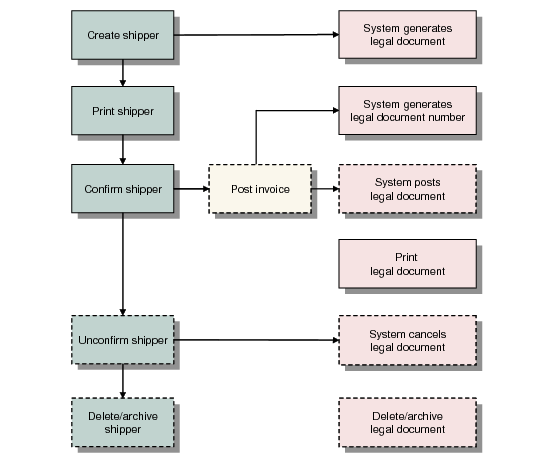
The following diagram illustrates the Brazil legal document life cycle in relation with the shipper and the invoice.
Note: There is no invoice processing in non-sales transactions.
Brazil Legal Document Life Cycle
Legal Documents Best Practices for Brazil
Use the following steps to process Brazil legal documents:
1 Set Print Legal Document to No in Legal Document Control (7.10.24). This prevents you from printing legal documents immediately after printing shippers by default.
2 Set Auto Invoice Post to Yes in Cust Sched/Shipper Acct Control (36.9.7). This sets the default value for both the Auto Invoice Post field in Customer Scheduled Order Maintenance and the Post Invoice field in Pre-Shipper/Shipper Confirm to Yes.
3 Create a sales order.
4 Create and print the shipper. The system creates a legal document during this process.
5 Confirm the shipper and have the system automatically post and print the legal document immediately.
Specifying Item Fiscal Classes
In Item Master Maintenance (1.4.1), enter a mandatory tax code defined by the Brazilian government to help identify materials and determine their corresponding tax rates. Currently, this Brazil-specific field is used as supplementary information of an item for reference only and does not affect tax calculation in GTM.
Fiscal classes are defined in Generalized Codes Maintenance (36.2.13).
Preventing Invoice Consolidation
In Brazil, legal documents are used as invoices and in QAD Enterprise Edition, each legal document must correspond to an invoice. Since legal documents are created separately along with each shipper, invoices must also be kept separate for each shipment.
To prevent consolidation of invoices in Brazil shipping practices, you must set Consolidate Invoices to No in Invoice Post and Print (7.13.4), and set Separate Invoices for Each Shipment to Yes in Container/Shipper Control (7.9.24). Under these settings, when you try to confirm a shipper with a pending invoice, the system displays an error message and prompts you to post the outstanding invoice before you can proceed.
Posting Legal Documents
In Brazil, the Nota Fiscal legal document virtually replaces the invoice as a debt instrument in the shipping process and is used to calculate related taxes. To address this requirement, the system posts Brazil legal documents along with invoices.
Note: For this feature to work, the legal document form code must be 51.
Whenever an invoice is posted using the following functions, the system automatically posts its corresponding legal document:
• Pending Invoice Maintenance (7.13.1)
• Invoice Post and Print (7.13.4)
• Pre-Shipper/Shipper Confirm (7.9.5)
• Pre-Shipper/Shipper Auto Confirm (7.9.7)
• Sales Order Shipments (7.9.15)
After a legal document is posted, you can see its status is changed to Posted in Legal Document Report (7.10.2).
Printing Two Legal Documents for a Single Shipment
Use Simultaneous Maintenance (7.10.13) to create two legal documents for a single shipment—one sales legal document for invoicing the customer and one shipping legal document for proving the legality and possession of the inventory being shipped. You define different tax usages for determining the tax rate in the two legal documents respectively. Use the following steps to set up the system for this feature:
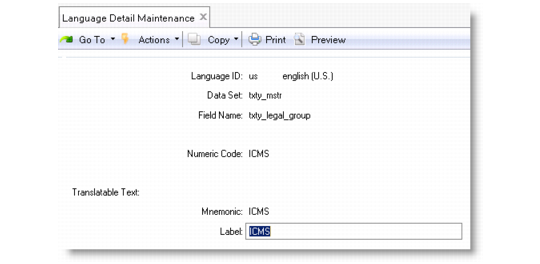
1 Define tax legal groups in Language Detail Maintenance (36.4.25.5). Set Data Set to txty_mstr and Field Name to txty_legal_group; then specify values in the Numeric Code, Mnemonic, and Label fields.
Language Detail Maintenance (36.4.25.5)
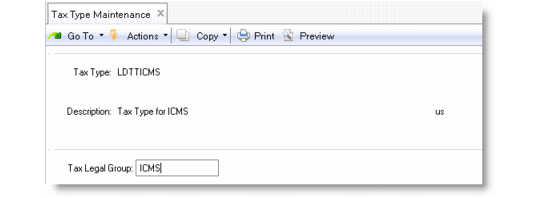
2 In Tax Type Maintenance (29.1.1), link tax types you want to use on legal documents to a tax legal group.
Tax Type Maintenance (7.10.13)
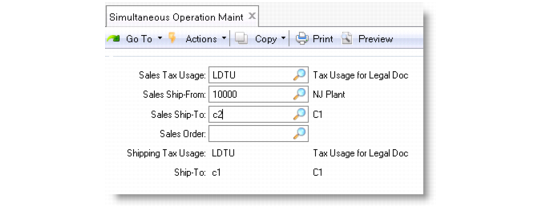
3 In Simultaneous Operation Maintenance (7.10.13), define ship-from/ship-to pairs and assign tax legal groups, which link to tax types, to the source/destination combinations.
Simultaneous Operation Maintenance (7.10.13)
Sales Tax Usage
Enter a valid tax usage code to be used for selecting the tax rate in the sales legal document. Generally, this is the same tax usage code specified for the sales order.
When Maintain Operation Type in Tax Usage is Yes in Legal Document Control (7.10.36), the operation type defined for the tax usage must be 11 Sales or 12 Other.
Sales Ship-From
Enter the ship-from site in the sales order.
Sales Ship-To
Enter the address for invoicing the customer. Generally, this is the ship-to address in the sales order rather than the actual ship-to address.
Sales Order
Optionally, enter an existing sales order number.
Shipping Tax Usage
Enter a valid tax usage code. The system does not use this tax usage to select the tax rate, but rather uses it to supply CFOP and other information in the shipping legal document.
When Maintain Operation Type in Tax Usage is Yes in Legal Document Control, the operation type defined for the tax usage must be 11 Sales or 12 Other.
Ship-To
Enter the actual address that the inventory is shipped to. This is an additional address that is not displayed on the sales order.
Retrobilling
Retrobilling in the Brazil environment requires some additional steps to generate legal documents for retrobills.
Usually, pricing is negotiated for specific items when a customer schedule is opened. When price changes occur due to cost fluctuations in your materials or processes, follow these steps to perform retrobilling in the Brazil environment:
1 Enter the price changes in Retrobill Maintenance (7.13.13.1) as a new or changed item price.
2 When the customer authorizes the price changes, run Retrobill Report (7.13.13.3) to calculate the new debit or credit amount for invoices billed during the retrobill’s effective dates.
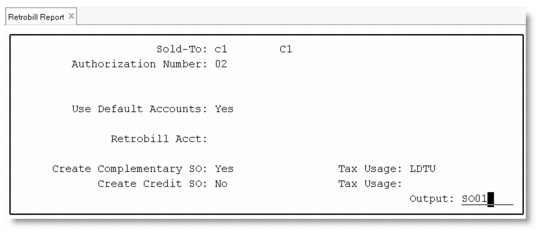
Retrobill Report (7.13.13.3)
• Choose to create either a complementary SO or a credit SO.
You create a complementary SO when you undercharge a customer and want to create an additional invoice to bill the customer; You create a credit SO when you overcharge a customer such as in the case of sales order returns and want to create a credit note for the customer.
• When Maintain Operation Type in Tax Usage is Yes in Legal Document Control (7.10.24), you must specify a tax usage with operation type set to 11 Sales or 12 Other.
3 Ship the newly created sales order and create a shipper using Sales Order Shipments (7.9.15). The system automatically generates a legal document as well as a pending invoice along with the shipper.
4 Post and print the pending invoice using Invoice Post and Print (7.13.4). The system automatically posts and prints the legal document.
Note: You can also have the system create retrobills automatically using Retrobill Auto Create (7.13.13.5). If you use this method and Maintain Operation Type in Tax Usage is Yes, you can create complementary or credit SOs. See
QAD Scheduled Order Management User Guide for more information about Retrobilling.
PO Import
Use PO Import to create legal documents when performing PO receipts from international suppliers who do not provide legal documents.
The PO import process is as follows:
1 Perform fiscal receiving.
2 Create legal documents.
3 Print legal documents.
4 Transport goods from harbor to site.
5 Perform physical receiving.
6 Confirm fiscal receiving.
Generating Separate Legal Documents for Containers
In sales and in DRP flow, it is common to issue separate legal documents for the material and the container because different taxes may apply to them. In addition, containers are sometimes unplanned issues and the customer is not charged for them. Therefore, you also need to be able to specify whether a container legal document has an impact on AR.
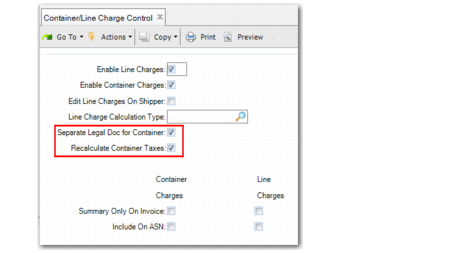
To treat the container separately from the material and to create separate legal documents and GTM usage, you must perform the necessary setup. In Container/Line Charge Control (7.22.24), select the Separate Legal Doc for Container field, as displayed in
Container Line Charge Control. This value is set at global level and also by default at customer level in Ship-To Control Maintenance (7.22.15). You can change the value for each customer.
To treat the container as an unplanned issue, in Container/Line Charge Control, select the Recalculate Container Taxes field, also displayed in
Container Line Charge Control. This field indicates that you are using a different GTM base for the container, and tax is determined according to the container lines on the shipper. It is not accounted for in AR or displayed on the customer invoice. You can also set this field at customer level in Ship-To/Container Charge Maintenance (7.22.5).
Container Line Charge Control
Creating Separate Legal Documents
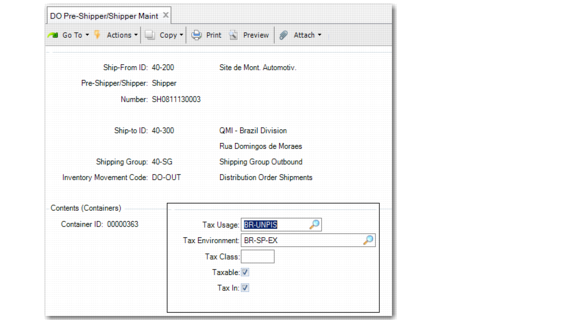
For example, when you specify a container ID during shipper creation, a container-level tax frame appears, as displayed in
Container-Level Tax Frame.
Note: You create a container and assign a container ID in DO Container Maintenance (12.19.7). The tax frame is only displayed when the Separate Legal Doc for Container field is selected in Container/Line Charge Control and Ship-To Control Maintenance.
Container-Level Tax Frame
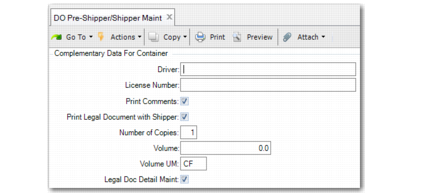
Because two legal documents will be created, you enter complementary data for the container separately from the shipment.
Complementary Container Data
When you confirm the shipper, two legal documents are created. If you unconfirm the shipper, both legal documents are unconfirmed.
Creating a Container Without Affecting AR
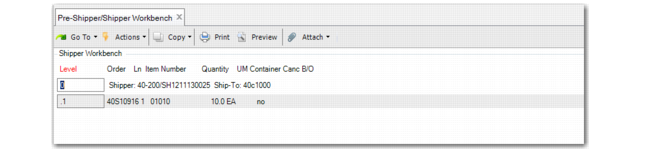
When you set up the container as an unplanned issue and you create a shipper using Sales Order Shipper Maintenance (7.9.8) or Pre-Shipper/Shipper Workbench, you cannot associate the container price with the sales order. It is separate, as shown in
Separate Price Container.
Note: Set up the container as an unplanned issue by selecting the Recalculate Container Taxes field in Container/Line Charge Control and Ship-To/Container Charge Maintenance.
Separate Price Container
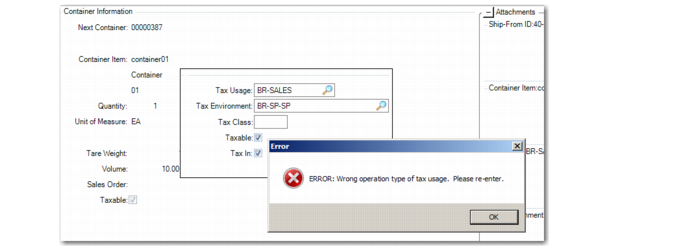
When the container is an unplanned issue, you cannot set the Tax Usage to sales. If you do, you receive an error, as displayed in
Container Tax Usage. You must set the Tax Usage to unplanned issue.
Note: You can include multiple container IDs in the shipper.
Container Tax Usage
When you confirm the shipper in Pre-Shipper/Shipper Confirm, two legal documents are created. The container will incur no charge and there will be no tax charged.