Recording POD
Use POD Maintenance to record the POD details when you get receipt confirmation from a customer. The POD details include the actual received quantity, receipt date, lot/serial numbers, and reference information.
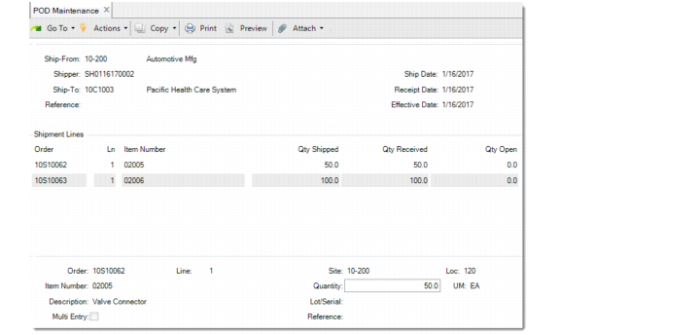
Specify the ship-from address and the shipper number in POD Maintenance to identify the delivery record in the system.
POD Maintenance
Receipt Date
Input the date on which the customer received the shipment. The receipt date defaults to the Ship Date on the shipper and cannot be earlier than the shipment date.
Effective Date
This date defaults to the system date. The effective date is the date assigned to the GL transactions created using POD Maintenance. You can update the date as needed. The system verifies that the date is within an open GL period.
Reference
Optionally enter the reference information associated with the POD. The POD reference is displayed, for information only, in Shipper Detail Status Browse and Shipper Detail Status Report.
Quantity
The quantity defaults to the shipped quantity on the shipper. You can update this field with the actual quantity that the customer received. The variance between the shipped quantity and the received quantity is displayed as the open quantity within the corresponding shipment line.
POD variance quantities in in-transit locations are not displayed in the following functions:
• Inventory Usage Create
• Shipper Usage Create
• Authorization Usage Create
• Sequence Usage Create
• Consignment Inventory Transfer
POD variance quantities cannot be issued in Aging Inventory Update.
POD Recording for Lot/Serial-Controlled Items
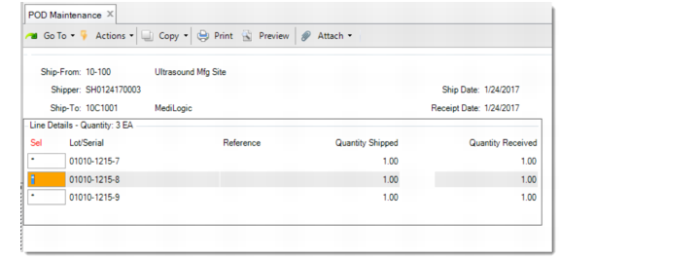
When the shipment line includes multiple lot/serial-controlled items, you are prompted to view or edit the lot/serial information.
• If you choose Yes at the prompt, the line items are displayed with the lot/serial numbers. You can select the items received by lot/serial numbers. The quantity that you select here overrides the quantity that you previously entered in the Quantity field of the shipment line.
• If you choose No at the prompt, the lot/serial numbers are not displayed. You cannot view or select items by lot/serial numbers.
POD Maintenance-View/Edit Lot/Serial
When you have finished entering POD details for the shipper, you are prompted to optionally display the items being issued from the in-transit location. These are the actual quantities received by the customer. The system also prompts you to confirm that this information is correct. Click Yes to process the inventory update. Otherwise, click No to go back and make additional changes.
POD Recording for Non-Consignment Shipments
For non-consignment shipments, recording POD against a shipper issues the inventory from the in-transit location and creates an ISS-SO transaction. Creating POD also updates the quantity to invoice on the order line. The shipment can then be invoiced.
The GL effect is as follows:
• Debit COGS
• Credit inventory
POD Recording for Consignment Shipments
For consignment shipments, recording POD transfers the quantity received from the in-transit location to the consignment location specified on the order line. The system creates the same inventory and GL transactions as Consignment Inventory Transfer. From this point on, the order line is processed using standard consignment functionality.