Confirming Shippers
Use two programs to confirm shipper documents:
• Pre-Shipper/Shipper Confirm (7.9.5) records individual shipments and:
• Converts pre-shippers into shippers
• Creates, posts, and prints invoices based on shipments
• Pre-Shipper/Shipper Auto Confirm (7.9.7) performs similar functions for multiple shipments.
Note: Because Pre-Shipper/Shipper Auto Confirm is a batch program, its features are not identical to those of Pre-Shipper/Shipper Confirm. See
Confirming Multiple Shippers.
You can export a confirmed shipper as an advance ship notice (ASN) to inform your customer that an order has been shipped. Export ASNs using EDI eCommerce.
Confirming Individual Shippers
Use Pre-Shipper/Shipper Confirm to select a single pre-shipper or shipper document to be confirmed.
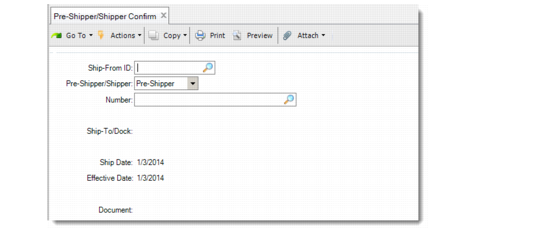
Pre-Shipper/Shipper Confirm (7.9.5)
When you confirm a pre-shipper, the system converts it to a shipper before the confirmation process occurs. The shipper number is assigned based on the NRM sequence ID from the shipping group of the shipment or from Container/Shipper Control.
If the NRM sequence is an internal sequence, the system generates and displays the shipper number. If the sequence is external, the system prompts you for an entry and validates the results. The system propagates the new shipper numbers to all records linked to the converted pre‑shippers, including containers, line items, and carrier detail records.
The following applies when confirming pre-shippers or shippers:
• Canceled shipments (Status is X) cannot be confirmed.
• To select a shipper for confirmation, ensure that you have access, as defined in Inventory Movement Code Security.
• If Cust Sched/Shipper Acct Control specifies that trailer amounts cannot be maintained, the system does not display the trailer amount maintenance frames during confirmation.
Selecting Confirmation Options
The following fields define the shipment selection and the dates the system uses to apply the shipment transactions. The dates to record shipments should be considered in relation to GL period end and the dates used to record invoice posting/printing.
Ship-From
The site code of the site from which the shipment originates.
Pre-Shipper/Shipper
Enter Pre-Shipper or Shipper, depending on the shipping document type you want to confirm.
Number
Enter the identifying number for the pre-shipper/shipper you are confirming. You can only specify sales order shippers for confirmation. The system determines the source of demand for a shipper by checking the transaction type of the assigned inventory movement code.
Ship-To/Dock
Enter the ship-to or dock address code assigned to the selected shipping document.
Ship Date
The system displays the last date a shipment was processed for the order underlying this shipping document. The default is the system date.
Effective Date
The date of this shipment. The default is the system date. The effective date determines the date of the GL transaction to inventory. The effective date has no effect on the inventory balance update, which is updated immediately.
Managing Shipments at Period End
While the ship date and effective date are usually the same, you can assign shipment effective dates that occur earlier or later than the actual date of the shipment, provided that the entered effective date falls in an open GL period.
For example, if the accounting period ends on a Friday, but you cannot get all of the shipping and invoicing activity entered into the system until Monday, you can leave the GL period open and process the remaining shipment and invoice documents with Friday’s date as the effective date.
Matching Dates on Corresponding Transactions
The Effective Date specified in Pre-Shipper/ Shipper Confirm should be the same date in Invoice Post and Print. Otherwise, your shipment history for the period does not correspond to your accounts receivable and GL balances.
Entering Reference Data
Optionally, you can use the second frame to enter reference data associated with the pre-shipper/shipper, including an identifier for the carrier’s vehicle, the time of the shipment, and the arrival date and time.
Pre-Shipper/Shipper Confirm, Reference Data Frame
Selecting Invoice Options
The fields in the third frame of Pre-Shipper/Shipper Confirm determine how the system processes the invoices generated by this function.
Pre-Shipper/Shipper Confirm, Invoice Options Frame
Post Invoice
Use this field to indicate whether to post an invoice for the selected shipment during confirmation.
No: The invoice is not posted. You can post it later using Invoice Post and Print (7.13.4).
Yes: The invoice is automatically posted.
Print ISB Details
Specify whether the invoice post report includes information about additions, deletions, or modifications that affect installed base records.
The default is No.
Print Invoice
Specify whether an additional frame displays to let you print the invoice at the end of processing.
Note: This field can be Yes only when Post Invoice is Yes. You cannot print an invoice unless it has been posted.
The following document formats are provided for printing invoices:
• The standard invoice format is form code 1.
• To print a Brazilian Nota Fiscal, use form code 11.
Other forms used by your company can be assigned different form codes. Only predefined form codes can be referenced.
Daybook Set
Enter the code for the set of daybooks that the system will use during invoice post. This defaults from the sales order. You can change it to a valid value defined in Daybook Set Maintenance (25.8.7) or Daybook Set by Site Maintenance (25.8.10). If daybooks have been set up by site—based on a setting in Sales Order Accounting Control (36.9.6)—the system verifies that the specified daybook set matches the sales order site.
Consolidate Invoices
This field indicates whether the system combines data for multiple sales orders into one invoice or generates a separate invoice for each sales order on the selected shipper. When Separate Invoices for Each Shipment is Yes in Container/Shipper Control (7.9.24), this field is not displayed.
Calculate Freight
Enter Yes to indicate that the system should recalculate freight charges for all sales orders attached to the shipper being processed. Otherwise, enter No.
If you enter Yes, any previous, manually entered freight charges will be recalculated.
Posting Invoices at Confirmation
If you invoice cumulatively or want to post invoices during shipper confirm for other reasons, set the following fields to Yes Cust Sched/Shipper Acct Control (36.9.7) to determine default values in Pre-Shipper/Shipper Confirm:
• Auto Invoice Post
• Consolidate Invoices
When Consolidate Invoices is Yes in Pre-Shipper/Shipper Confirm, the system generates a single consolidated invoice for sales orders with the following identical values:
• Sold-to address | • Trailer codes |
• Bill-to address | • Tax environment |
• Currency | • Sales entity |
• Exchange rates | • Salespersons |
• Credit terms | • Daybook set |
Note: The sales entity associated with an order is determined by the site specified in the order header. When the header site is blank, the domain’s primary entity is used.
Maintaining Sales Order Trailer Amounts
You can enter trailer amounts for each sales order associated with the shipment.
Pre-Shipper/ Shipper Confirm, Sales Order Trailer Amounts
1 The Sales Order field contains the sales order number for the trailer amounts entered.
2 Trailer descriptions fields display in the left portion of the frame and contain a description for the adjacent sales order trailer code.
3 Trailer codes fields display to the right of the trailer descriptions and contain the sales order trailer code associated with the adjacent description.
4 Trailer amount fields display to the right of the trailer codes and contain the trailer amount for each adjacent code. Trailer amounts display on invoice documents. You can enter the same amounts during or after shipment confirmation using Pending Invoice Maintenance.
Confirming Multiple Shippers
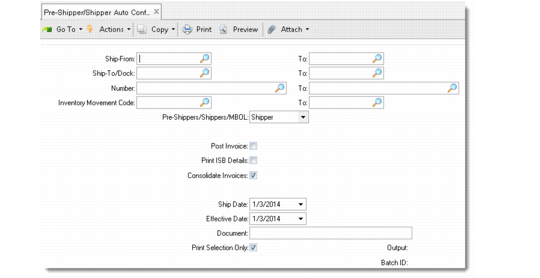
Use Pre-Shipper/Shipper Auto Confirm (7.9.7) to select pre-shippers or shippers based on ranges of ship-from sites, ship-to addresses, shipper numbers, or inventory movement codes.
Pre-Shipper/Shipper Auto Confirm (7.9.7)
This program functions much like Pre-Shipper/Shipper Confirm (7.9.5). However, because it is a batch process, the program’s features are limited in these areas:
• You post invoices, but do not print them. Instead, use Invoice Print or Reprint (7.13.12).
• You cannot update trailer charges during confirmation regardless of the setting of Maintain Trailer Amounts in Cust Sched/Shipper Acct Control. Instead, use Sales Order Maintenance (7.1.1).
• Error reporting related to freight charges is not as detailed as in Pre‑Shipper/Shipper Confirm.
Set Print Selection Only to Yes to review the effects of the selection criteria before updating the shippers in the database. When the field is No, the system confirms all shippers meeting the selection criteria before generating the report.