Viewing Schedule Information
The system supplies a number of reports for viewing schedule information. Each displays the source of the requirement—ship or plan schedule—received through loading EDI schedules.
• Schedule Inquiry (7.5.8)
• Schedule History Inquiry (7.5.9)
• Schedule Report (7.5.10)
Schedule Comparison Extract
Use Schedule Comparison Extract to view multiple releases simultaneously and analyze customer schedule release fluctuations.
When you extract customer release information, the system compares multiple customer schedule order releases. The system calculates the following per date:
• Average requirement quantity (sum of quantity per date/ number of releases)
• Minimum requirement quantity
• Maximum requirement quantity
• Variance % between minimum requirement and maximum requirement
• Actual shipped quantity
The comparison provides visibility to multiple release data as well as spreadsheet or Web documentation for customer interaction when examining, for example, additional expenses.
The system displays the data in:
• Daily buckets for shipping schedules
• Weekly buckets for planning schedule
You can set various reporting criteria to gain visibility over widespread or specific information received from the customer. For example, you can set the number of customer plan or ship schedule releases to be compared and set the variance percentage that displays between the first and last customer schedule release.
The report displays a row of data that shows the following:
• Total ship quantity by item/date
• Requirement averages per date
• Minimum/maximum requirement per date
• Total variance % between the minimum and maximum schedule release for the same day
Note: You can modify settings to display only rows of the data that are of interest to you.
Setting Report Criteria
You can set the following criteria for the comparison report:
|
• Ship-from
|
• Ship-to
|
• Item number
|
• Order
|
• Release ID
|
|
• Create date
|
• Buyer/planner
|
• ABC Class
|
• Effective order lines
|
• Generate planning release data
|
|
• Plan schedule variance %
|
• Generate shipping release data
|
• Ship schedule variance %
|
• Display quantities
|
• Number of planning releases
|
|
• Send email
|
• Number of shipping releases
|
• email address
|
• Report file name
|
• Output format (html or xls)
|
Set combinations of criteria to view specific schedule data. For example, select order releases using filter criteria for Release ID, Create Date, and the Number of Releases.
The Number of Releases criterion selects the most recent releases to compare. When you enter either specific Release IDs or Release Create dates, the data supersedes the Number of Releases criterion. Also, when you enter Release IDs or Release Create dates, the system selects all releases associated with the entered criteria, regardless of the value in Number of Releases.
Set Effective Order Lines criteria to select only current order lines, based on the end effective date on the scheduled order line. To include order lines that are no longer in effect, set Effective Order Lines Only to No.
The Plan Variance % and Ship Variance % criteria let the system use different thresholds for the report. Exceeding the variance % triggers the following text color changes of the requirement quantity for the date:
• Blue: Quantity increase from the previous release
• Green: Quantity decrease from the previous release
• Red: Exceeding the variance between the minimum and maximum value for the date interval
To change text colors for formatted .html or .xls report output, edit the QAD_CustomerScheduleReleaseComparisonExtract.p. file.
Search for fontColor; then, change the value of the existing condition color. You can change the cell background color, too. To do this, search for cellColor; then, modify the color value. Colors can be any HTML-supported value. You must compile the program after you make changes.
Output
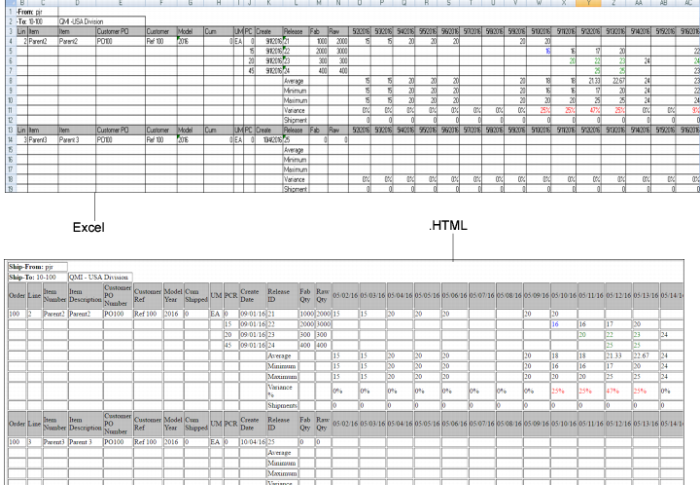
You can export a number of row and column data that covers dates and items that span multiple schedule releases. You can generate the following type of output files (see
Example Schedule Comparison Extract):
• Formatted or raw .xls for MS Excel (raw data does not contain colors).
• .html for Web browsers
Specify a file name for the report. The default is:
cs + current date and time in seconds + _ship or _plan + file extension
For example, cs11041654578_plan.xls is the output file for Nov 4, 2016, with the time of day in seconds after midnight for planning schedule data output to an Excel file. The system stores the files in your working directory.
You can specify an email address to which the system attaches the report output. The default email is the user's email in User Maintenance (36.3.1). To use the e-mail attachment feature, you must create an entry in E-mail Definition Maintenance (36.4.20) with the
emailatt ID; then, in User Maintenance (36.3.1), you specify an e-mail definition and address for each user. For more information on using E-mail Definition Maintenance, refer to the section on building an e-mail system interface in
QAD System Administration User Guide.
Example Schedule Comparison Extract