Creating Retrobills Automatically
Make pricing changes with automatically created retrobills using the following steps:
1 Set preferences and specify a numbering sequence ID for retrobills in Retrobill Control.
2 As needed, use Retrobill Include/Exclude Invoices to exclude specific invoices from retrobill processing.
3 Use Cust Schedule Price List Maint (1.10.3.1) to create or modify a list that reflects adjusted prices. See
QAD Master Data User Guide for information on price lists.
4 In Retrobill Auto Create, use selection criteria to determine the invoices to have retrobills created, and specify the price list that the system uses to determine price adjustments.
5 Optionally, set Create Amendment to No to run the program in simulation mode. Review the effects of the selection criteria and adjust as needed before running the program in update mode.
6 Use the Create Memos field to determine the next step in the process:
• If Yes, process the pending retrobill invoices using Invoice Post and Print.
• If No, create the pending invoices first in Retrobill Report before posting and printing them.
Note: If Maintain Operation Type in Tax Usage is Yes in Legal Document Control, Create Memos does not display. Instead, the system displays Create Complementary SO and Create Credit SO.
7 Use Invoice Post and Print to post and optionally print the invoices.
8 Communicate retrobill invoices to customers.
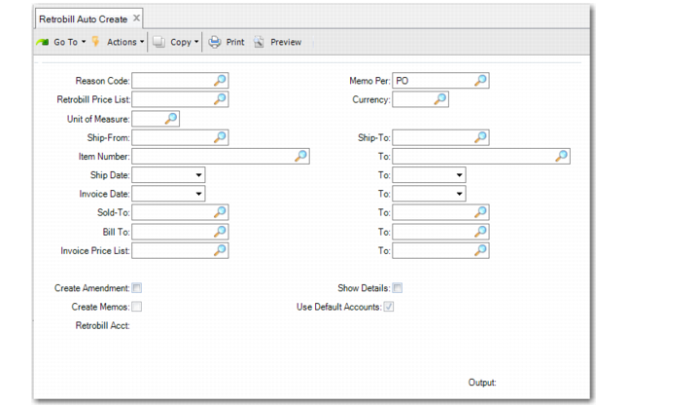
Retrobill Auto Create
Use Retrobill Auto Create (7.13.13.5) to create retrobills that amend invoice lines based on the current values in a specified price list.
Based on the selection criteria, the system adjusts invoice history records to match the current prices on the specified price list.
Validations
The following fields are mandatory. They must include valid values.
• Retrobill Price List
• Currency
• Unit of Measure
• Ship Date range
• Memo Per
Note: Retrobill Auto Create cannot run if any outstanding auto retrobill amendment orders require processing.
Additionally, if there are any unprocessed manual retrobill amendment orders with an effective date that is earlier than the system date, the system displays a warning message.
Skipped Records
If any of the following are true, an invoice detail record that matches the selection criteria is skipped:
• The invoice detail line is marked to be excluded from amendment in Retrobill Include/Exclude Invoice.
• The order is not a customer scheduled order.
• The sales order database is not the same as the current database.
• A matching Retrobill Price List is not found, based on the setting of Retrobill Price List Required in Retrobill Control. When that field is Yes, a price list can be used only if it matches the scheduled order line item, unit of measure, and currency.
• The user does not have access to the ship-from site.
• The ship-to does not belong to the sold-to of the order.
• The scheduled order is not effective.
Retrobill Auto Create (7.13.13.5)
In addition to selection criteria, use the following fields to control how the system automatically creates and processes retrobills.
Reason Code
Indicates the purpose of the retrobill. Available for setup using Generalized Codes Maintenance for field rbm_rsn.
This field is for reference only. It appears on selected reports and inquiries.
Memo Per
Specify how the system creates pending invoice lines for retrobill amendments. This value defaults from Retrobill Control.
PO: A single consolidated line is created. A separate invoice line is not created for each item retrobilled. The line item will be RETROBILL; the quantity will be 1.0 and the item price will be the total amount retrobilled for all lines selected.
Item: A separate line item is created on the invoice for each line item entered. The line item quantity will be the original quantity invoiced and the item price will be the Retrobill Amount.
Inv: A separate line item is created for each invoice selected.
All invoice lines created are of the type Memo. These lines represent price adjustments rather than additional shipments of inventory.
Retrobill Price List
Specify a scheduled order price list to be used in determining prices for this amendment.
The Retrobill Price List must be a valid, effective customer schedule price list with the specified currency. If Retrobill Price List Required in Retrobill Control is set to Yes, the price list must have the item and UM specified.
Unit of Measure
Specify the unit of measure that applies to invoice history records to be selected for the retrobill amendment.
If Retrobill Price List Required in Retrobill Control is set to Yes, the specified Retrobill Price List must include the item and this unit of measure.
Consider End Effective
Specify whether the system should consider scheduled orders that have an end effective date set in Customer Scheduled Order Maint.
Yes: The system only considers scheduled orders that are active and have an end effective date greater than today.
No: The system does not consider the end effective date.
Create Amendment
Specify whether the system creates retrobills based on the selected invoice lines.
When the field is No, the program runs in simulation mode. Review the resulting report and adjust the selection criteria as needed, then run the program again with Create Amendment set to Yes.
Note: When Create Amendment is Yes, the system verifies that Retrobill Control has been set up and includes a valid Amendment Sequence ID.
Show Details
Specify the amount of detail to be displayed on the output report.
Yes: The report includes complete details of each invoice history record included in the amendment.
No: The report is limited to summary information.
Create Memos
Determines whether debit/credit memos are created for the invoices selected by this retrobill.
Note: If Maintain Operation Type in Tax Usage is Yes in Legal Document Control, Create Memos does not display. Instead, the system displays Create Complementary SO and Create Credit SO to support legal document requirements in some countries.
If Yes, a debit/credit memo is created. If No, a debit/credit memo is not created. In both cases, a report is generated.
When Create Memos is No, use Retrobill Report to create the pending invoice lines at a later time.
When this field is Yes, the system creates memos based on the setting of Memo Per.
Use Default Accounts
Indicate whether the system records transactions using the default account, sub-account, and cost center.
Set this field to No to display fields that let you enter account information manually.