Setting Ship Delivery Time (SDT) Windows
Use Ship Delivery Time Maintenance (5.5.1.3) to define ship delivery time (SDT) codes and associate one or more delivery times with them.
SDT codes specify exact delivery times on supplier shipping schedules. Daily item requirements are divided into hour and minute buckets based on these delivery times.
Note: SDT codes are not used on supplier planning schedules. You can specify an interval code, as needed.
You associate SDT codes with individual scheduled orders to avoid having to manually enter delivery times on supplier shipping schedules. The sum of allocation percentages across the defined time windows must add up to 100%.
Example: A scheduled order line has a time window for two deliveries per day, one at 10 AM and another at 2 PM. You want a larger percentage for the morning delivery, so you set the first time window for 10:00, then allocate 70% for it. You set a second time window for 14:00, and allocate 30% for that window.
For detailed steps on creating the SDT code, see
Procedure.
Custom Ship Delivery Time Program
In some cases, fixed allocation percentages are not sufficient, so you can create and specify a custom allocation calculation program in the SDT Calculation Program field in Supplier Time Window Maintenance.
When you create the SDT code by specifying time windows and allocating delivery percentages, you can also create the custom program, defined as part of the SDT code.
The custom program determines the actual times and percentages used in Schedule Update from MRP to create the supplier shipping schedules; see
Schedule Update from MRP Time Window Processing.
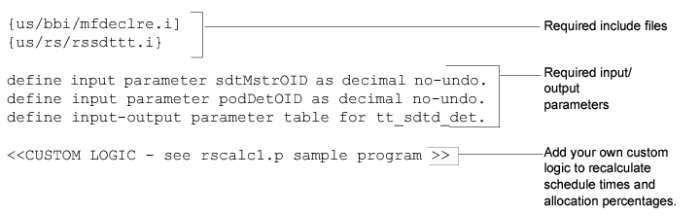
The custom program should have certain features associated with it. The following example depicts an empty custom program and the program features required for it.
Custom Program Example
Custom Program Procedure
1 Use the Progress programming language to write the custom program.
QAD code automatically passes the following to the custom program:
• A link to the ship delivery time code (sdt_mstr) table
• A link to the purchase order line (pod_det) table
• A temp-table containing the current ship delivery times and allocation percentages
2 Add any custom logic, calculations, or other adjustments to the program.
a Use the links and temp-table to access other records in the database to assist with creating custom logic.
b Once the logic is completed, update the ship delivery temp-table to contain the new schedule times/allocation percentages.
The system automatically passes the temp-table back to Enterprise Edition.
3 Compile the custom program and place it in the Progress Propath that is used for other QAD Progress programs.
4 To associate a custom program to an SDT code, register the program name in Generalized Codes Maintenance (36.2.13) for the sdt_program field.
Setting Default SDT Codes
You can also use Supplier Controls Maintenance (5.5.1.6) to associate default SDT codes with individual suppliers; see
Defining Scheduled Order Defaults for Specific Suppliers.
Setting SDT Code in Scheduled Orders
The SDT code you set in Supplier Controls Maintenance defaults to Supplier Scheduled Order Maintenance headers (5.5.1.13) for orders that match the supplier. In the Ship Delivery Data frame of Scheduled Order Maintenance, you can enter an SDT code or accept the default at the header level. You can change the code at the line level in Supplier Scheduled Order Maintenance. See
Creating Scheduled Orders.
Schedule Update from MRP Time Window Processing
Schedule Update from MRP (5.5.3.1) uses the delivery times associated with SDT codes on scheduled orders to bucket daily item requirements on supplier shipping schedules; see
Supplier Time Window Processing.
Procedure
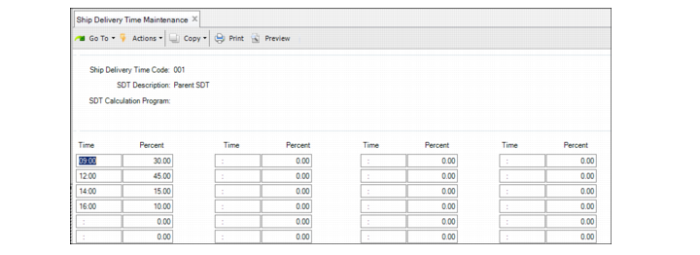
To define the ship delivery time code in Ship Delivery Time Maintenance, use the following procedure.
1 Enter the ship delivery time code, then optionally, enter a description of the code; press Enter.
2 Optionally, specify a custom program for the ship delivery time windows and percentages.
3 Click Next to proceed to the next frame to set up time windows, specifying each window on a 24-hour clock.
You do not have to enter time in sequential order; however, when you save and re-enter the program, the system puts the windows in sequential order by time.
When you are modifying an existing SDT code, this frame displays the delivery times already associated with the SDT code
4 Specify the percentage of purchased material supply to be delivered in each window, ensuring that totals must add up to 100%.
Note: When you only have one delivery per day and you typically have a set time for deliveries, you can still set up a time for a single window at 100% allocation.
Ship Delivery Time Maintenance (5.5.1.3)
Ship Delivery Time Code
Specify the code for the ship delivery time pattern that you specify.
SDT Description
Optionally, specify a description of the ship delivery time code.
SDT Calculation Program
Enter the name of a custom ship delivery time calculation program to use in lieu of time windows and allocations set by this program.
Note: You should register the custom program name in Generalized Codes Maintenance (36.2.13); see
Custom Program Procedure.
Time
Specify a delivery time to associate with this SDT code using the 24-hour time format. For example, 9:00 AM is 09:00, 3:00 PM is 15:00, and 9:00 PM is 21:00.
Percent
Specify the allocation percentage of supply to be delivered in the time window. All allocations must add up to 100%.
View Results
Use the View Order Ship Delivery Time browse collection (.NET UI only) to view the SDT time codes that MRP used for orders and order lines. A supporting browse displays the SDT code and percentages used by order number. You can drill down into a supporting browse that displays all scheduled order lines referencing the selected SDT code. The supporting browse displays the SDT code on the line as well as on the scheduled order header, should the time codes be different.