Output
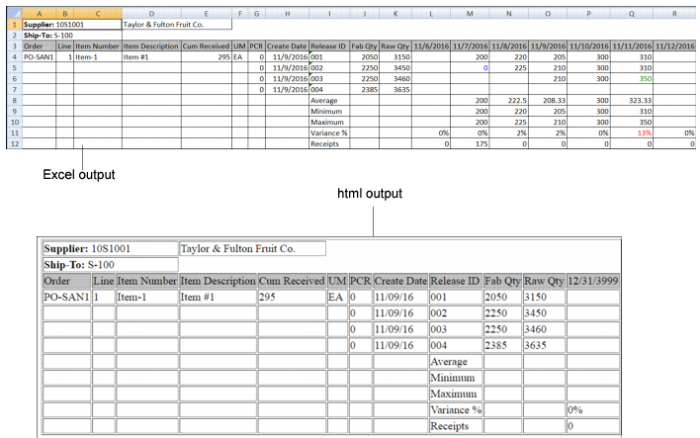
The output to the Schedule Comparative Report contains the following information per schedule order line
:
|
Order Information:
|
|
• Supplier
|
|
• Ship-to code and name
|
|
• Order number
|
|
• Line number
|
|
• Item number and description
|
|
To-Date Information:
|
|
• CUM received quantity
|
|
Release Information per each release:
|
|
• Release ID
|
|
• Release create date
|
|
• Prior CUM received quantity
|
|
• Raw quantity
|
|
• Fab quantity
|
|
• Requirement quantity (discrete or cumulative)
|
The Plan Variance % and Ship Variance % criteria let the system use different thresholds for the report. Exceeding the variance % triggers the following text color changes of the requirement quantity for the date:
• Blue: Quantity increase from the previous release,
• Green: Quantity decrease from the previous release
• Red: Exceeding the variance between the minimum and maximum value for the date interval
To change text colors for formatted .html or .xls report output, edit the QAD_SupplierScheduleReleaseComparisonExtract.p file.
Search for fontColor; then, change the value of the existing condition color. You can change the cell background color, too. To do this, search for cellColor; then, modify the color value. Colors can be any HTML-supported value. You must compile the program after you make changes.
You can export a number of row and column data that covers dates and items that span multiple schedule releases. You can generate the following type of output files (see
Example Supplier Schedule Comparison Extract):
• Formatted or raw .xls for MS Excel (raw data does not contain colors).
• .html for Web browsers
Specify a file name for the report. The default is:
ss + current date and time in seconds + _ship or _plan + file extension
For example, ss11041654578_plan.xls is the output file for Nov 4, 2016, with the time of day in seconds after midnight for planning schedule data output to an Excel file. The system stores the files in your working directory.
You can specify an email address to which the system attaches the report output. The default email is the user's email in User Maintenance (36.3.1).
Example Supplier Schedule Comparison Extract