Creating Pickup Sheets Automatically
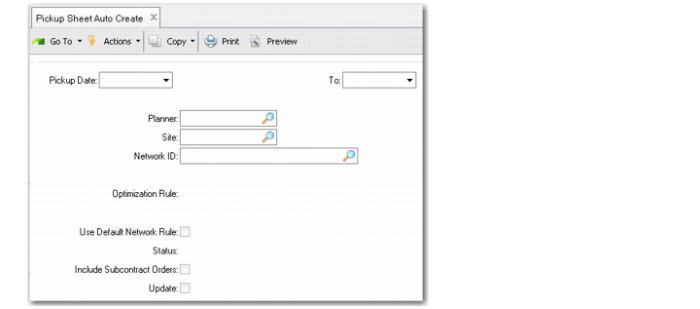
Use Pickup Sheet Auto Create (5.5.3.19) to bulk-generate pickup sheets for supplier milk runs based on selection criteria.
Pickup Sheet Auto Create (5.5.3.19)
Pickup Date, To
Enter a range of dates on which items to be included on pickup sheets are scheduled to be picked up for delivery to your site.
Planner
Enter the identifier for the planner associated with supplier networks that will have pickup sheets generated. Planners are associated with networks in Supplier Network Maintenance.
Site
Enter the site that will have pickup sheets created.
Network ID
Enter the supplier source network that will have pickup sheets created.
Source networks are defined in Supplier Network Maintenance.
Optimization Rule
Optionally, enter a code representing a QAD-provided or custom-developed business rule for the system to use in optimizing pickup sheets to ensure full truck loads. Use the lookup browse to view the list of available rules. See
Optimization Rules.
When you enter values in both Site and Network ID, the system applies the default value (if any) specified for the network in Supplier Network Maintenance. Otherwise, the default is blank.
Leave this field blank and set Use Network Default Rule to Yes to have the system use the optimization rule specified for each individual supplier network in Supplier Network Maintenance.
When they do not find an optimization rule, pickup sheet creation functions use default logic, which may not result in completely optimized loads.
Use Network Default Rule
Specify whether the system uses the default optimization rule associated with the supplier network rule if the Optimization Rule field is left blank. This lets you apply optimization rules on a network-by-network basis, if different rules are specified in Supplier Network Maintenance.
The default is Yes. If you enter a value in Optimization Rule, the system sets Use Network Default Rule to No. You cannot change it.
When Optimization Rule is blank and Use Network Default Rule is No, the system does not apply any optimization rules to the pickup sheets being created.
Status
Specify the status code that the system assigns to auto-created pickup sheets. Valid values are:
Draft (default). The system creates all pickup sheets in Draft status.
Important: You must confirm Draft sheets in Pickup Sheet Maintenance before they can be used.
Confirm. The system creates all pickup sheets in Confirmed status. Supplier schedules are updated and new schedule releases are created as part of the auto-create process. You do not have an opportunity to make manual adjustments in Pickup Sheet Maintenance.
See
here for more information on pickup sheet status.
Include Subcontract Orders
Specify whether order lines for subcontract orders (Type S) should be included in the selection.
Update
Specify whether order lines selected by the program will have pickup sheets created.
When this is No, the system runs in simulation mode. It generates a report that you can review before running the program in update mode.
When you run the program in update mode, the system creates pickup sheets as described in
Pickup Sheet Creation Process.
After the system creates the pickup sheets, confirm them in Pickup Sheet Maintenance (if they are in Draft status) and generate copies for the transport drivers in Pickup Sheet Print.