Manually Creating or Modifying Pickup Sheets
Use Pickup Sheet Maintenance (5.5.3.20) to create or update pickup sheets for supplier milk runs.
Additionally, the program lets you view the capacity and schedule requirements for one or more pickup sheets so that you can optimize milk run vehicle loads by updating quantities or moving requirements to a different pickup sheet.
Important: This program is required when you have used the Pickup Sheet Auto Create function with Status set to Draft. Even if you do not need to make manual adjustments to the draft sheets, you must finalize them by changing the status to Confirm.
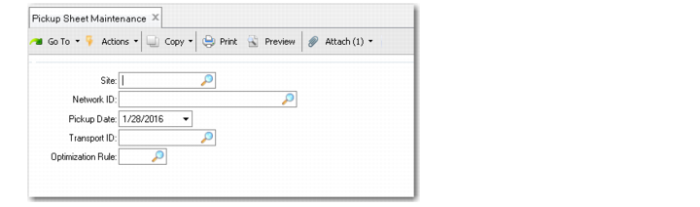
Pickup Sheet Maintenance (5.5.3.20)
Use the first frame to enter selection criteria.
Site
Enter the site associated with the supplier network to be included on the pickup sheet. This is a required field.
Network ID
Enter the network ID associated with the supplier network to be included on the pickup sheet. This is a required field.
Network IDs are defined in Supplier Network Maintenance.
Pickup Date
Enter the date used for selecting supplier schedule requirements for the pickup sheet. The default is today's date. This is a required field.
Transport ID
When you are selecting pickup sheets to be created or maintained, enter the transport ID of the vehicle to be used on the milk run defined by the pickup sheet. This field can be blank.
• If this field is filled in, the system only creates or displays pickup sheets for the site/network/date/transport combination.
• If this field is left blank, the system creates pickup sheets for the primary transport mode on the network and displays all pickup sheets for the site/network/date combination.
When you are viewing the Pickup Sheet Header frame, update Transport ID to reassign the pickup sheet to a different vehicle on the same supplier network.
Optimization Rule
Optionally, enter a code representing a QAD-provided or custom-developed business rule for the system to use in optimizing pickup sheets to ensure full truck loads. Use the lookup browse to view the list of available rules.
Using the values in Site and Network ID, the system applies the default optimization rule (if any) specified for the network in Supplier Network Maintenance. Otherwise, the default is blank.
When they do not find an optimization rule, pickup sheet creation functions use default logic, which may not result in completely optimized loads.
When you click Next, the system performs the tasks described in
Pickup Sheet Creation Process. The created sheets are displayed in the Pickup Sheet Summary frame. Additionally, the system displays any existing pickup sheets in status Draft for the site/network/date/transport ID combination.
The Pickup Sheet Summary frame includes the pickup sheet number (assigned by Number Range Management) for each sheet, as well the pickup date.
The frame also displays read-only capacity utilization percentages for each pickup sheet, which you can use to help optimize truck loads:
• Weight and volume utilization, calculated as the percentage of total weight/volume capacity represented by the current weight/volume
• Pallet utilization, calculated as the percentage of total available pallet locations represented by currently used pallet locations
Pickup Sheet Maintenance, Pickup Sheet Summary Frame
In the Pickup Sheet Summary frame, click Next to edit the following fields.
Pickup Sheet ID
The system displays the generated ID number for the pickup sheet. This field cannot be updated after the pickup sheet has been created.
Detail
Select this option to display a frame with editable fields that let you move or change quantities, or bring in future requirements to help in load optimization.
Header
Select this option to display a frame with editable fields in the next frame that let you update the Network ID and Transport ID.
Pickup
The system displays the date for which the pickup sheet was generated. To move the sheet to a different date, select a new date.
You can also delete pickup sheets from this frame. After you choose Delete, choose Current to delete just the selected sheet, or All to delete all the sheets displayed.
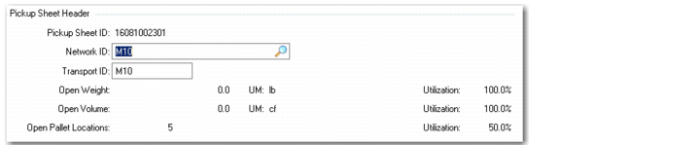
Pickup Sheet Maintenance, Pickup Sheet Header
Note: This frame displays only when Header is Yes in the Pickup Sheet Summary frame.
Network ID
Optionally move the pickup sheet to an alternate supplier transport network by specifying a valid network ID. To be a valid alternate, the network must be for the same site and pickup date as the current pickup sheet, and include the same suppliers.
Transport ID
Optionally move the pickup sheet to an alternate transport mode. This must be listed as a valid transport ID for the specified supplier network.
The header frame also summarizes capacity information, including available weight, volume, and pallet information, as well as utilization percentages for each.
When you select Detail in the Pickup Sheet Summary frame and click Back, the system displays the Pickup Sheet Detail frames.
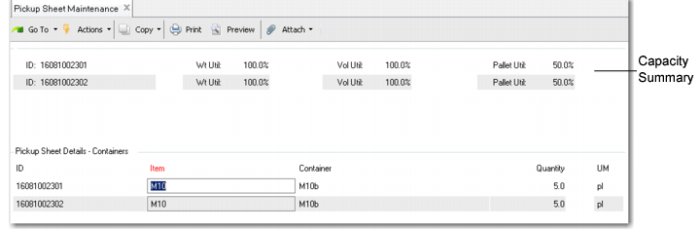
If the items are containerized, the first detail-level frame shows the top-level container; otherwise, the system displays item details. For information on containers, see
Set Up and Use Containers on Pickup Sheets.
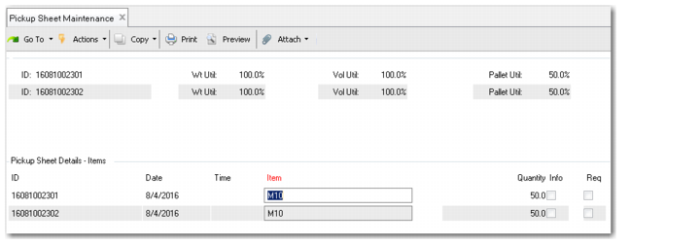
Note: You cannot make changes in the containers frame—only in the item detail frame.
Pickup Sheet Maintenance, Pickup Sheet Details - Containers
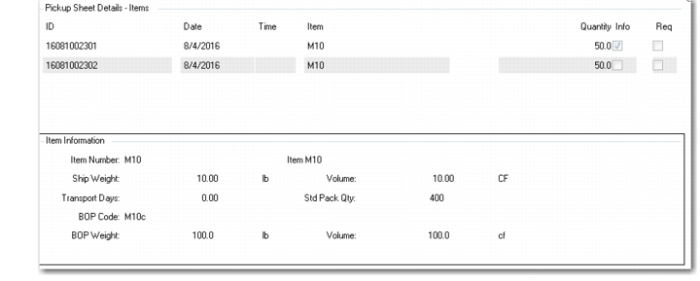
Pickup Sheet Maintenance, Pickup Sheet Details - Items
The Pickup Sheet Details frame lets you update the following fields:
ID
Update this field to move this requirement to a different draft pickup sheet that you have chosen for editing.
Important: You can only move requirements to sheets that have Detail selected in the Pickup Sheet Summary frame.
If you enter an ID that does not exist, the system creates a new pickup sheet and moves the requirement to it.
Quantity
Update this field to increase or decrease the quantity of the requirement on the pickup sheet. The default is the quantity from the current schedule release.
Note: You cannot update the quantity for a discrete PO line.
If the order line specifies a standard pack quantity, any quantity change you make should be a multiple of the pack quantity. Otherwise, the system displays a warning. However, you can override the warning to enter any quantity you want.
If you reduce the quantity, you can split the requirement by moving the remainder to another pickup sheet.
• If you respond with Yes at the “split” prompt, you can then either select another pickup sheet in the same session, or leave the ID field blank to create a new pickup sheet containing the remaining requirement.
• If you choose not to split, you can decrease the quantity without creating a new requirement for the difference.
If you increase the quantity:
• When future requirements are available, the system deducts the amount of the increase from a future requirement when the pickup sheet is confirmed.
• When there are no future requirements, the system displays a warning message. You can override it.
Item Info
Select this option to display an additional frame with detailed information about the item.
Pickup Sheet Maintenance, Item Information Frame
Req
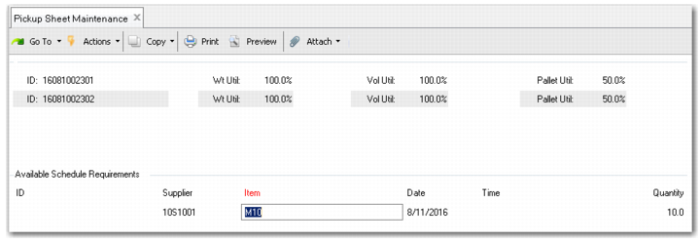
Select this option to view additional future schedule requirements that can be added to this pickup sheet.
The Available Schedule Requirements frame lists additional future schedule requirements for the item. You can use it to move additional future requirements onto a pickup sheet by specifying a value in ID. The lookup browse on ID shows the available pickup sheets that are in Draft status and being edited for the site/network in the current Pickup Sheet Maintenance session.
Note: Press Insert while in the Pickup Sheet Details frame to see a comprehensive view of future schedule data for all suppliers in the network. You can pull in any of these future requirements into any of the pickup sheets that are being edited in the Pickup Sheet Maintenance session. You do not have to be in Detail mode on any of the schedule requirements in the details frame to access this view.
Pickup Sheet Maintenance, Available Schedule Requirements Frame
ID
To move a future requirement onto a current pickup sheet, use the lookup to assign a pickup sheet ID.
You can also remove requirements from the Pickup Sheet Details frame by pressing Delete. When you delete a requirement from a pickup sheet, the requirement is available to be added to future pickup sheets created in the auto create or maintenance programs.
When you click Next after making changes in the Pickup Sheet Details frame, the system prompts you to update status. If you choose Yes, it displays the Pickup Sheet Status frame. Use this frame to confirm or cancel pickup sheets.
Optionally, you can confirm or cancel all the displayed pickup sheets at the same time. When you change the status of the selected sheet, the system prompts you to make the same change to all the sheets.
Pickup Sheet Maintenance, Pickup Sheet Status Frame
Status
Use this field to either confirm or cancel the pickup sheets in the current session. For information on the effects of pickup sheet status, see
here.
The Pickup Sheet Status frame also includes a capacity utilization summary.
Once you have completed status updates, use Print Pickup Sheet to output the detailed instructions for the vehicle driver.
Pickup Sheet Status
Pickup sheets are assigned to one of three statuses:
• Draft. This is the default status for new pickup created in Pickup Sheet Maintenance. It also applies to new pickup sheets when you run Pickup Sheet Auto Create with Status set to Draft. You can maintain, confirm, or cancel sheets in when they are in this status. Pickup Sheet Maintenance only allows you to maintain sheets that are in Draft status. You can change them to either Confirmed or Canceled.
• Confirm. Pickup Sheet Auto Create applies this status to new pickup sheets only when Status is set to Confirm. You cannot update a Confirmed pickup sheet or change its status. When a pickup sheet is Confirmed, the system:
• Creates a new supplier schedule release for the appropriate scheduled orders. Based on a setting in Supplier Schedule Control, the new release ID may have a prefix identifier added to it. See
Pickup Sheet Release ID Prefix.
• Any pickup sheet modifications are pushed to the new schedule release, including:
• Quantity changes
• Addition of Pickup Sheet ID to Reference field
• Uses your standard Supplier Schedules work flow to communicate the schedule release to the supplier; for example, with EDI eCommerce.
• Cancel. When you change the status to Cancel in Pickup Sheet Maintenance, the system removes all requirements and makes them available to other sheets, and deletes sheet details. However, the header record, including the Pickup Sheet ID, remain in the database. This allows you to track IDs; for example, to account for gaps in sequence numbers. You cannot update a Canceled pickup sheet or change its status.