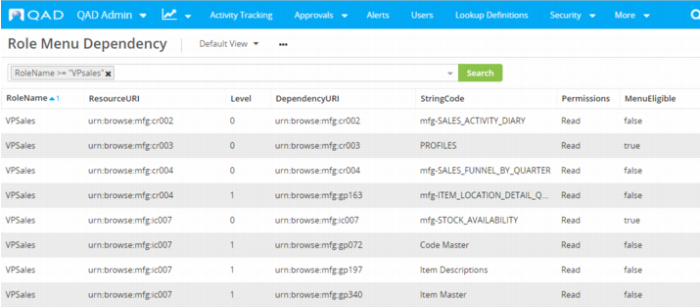
Role Menu Dependency
The Role Menu Dependency browse displays every role’s resources and resource dependencies. You can use the browse to determine resource dependencies and identify missing permissions for resources in your system.
Role Menu Dependency
RoleName
The name of the role.
ResourceURI
The URI associated with each label item.
Level
The level of the resource within the permission tree. Either 0 or 1. A level 0 is dependent on itself. Level 1 resources are dependent on the associated ResourceURI.
DependencyURI
The URI of the dependent resource. If the level for the ResourceURI is 0, this value is the same as ResourceURI.
StringCode
The translatable value associated with this ResourceURI.
Permissions
The permissions that are currently set for the associated resource. If this column is blank, the resource has not been secured. Use this column to determine which resources are missing permissions and need to be secured.
MenuEligible
Does this resource appear as a selectable item on a menu. True or false.
Use the search options to narrow your results. If a user has been denied access to a screen, ensure that you have the user’s role before beginning your search.
Using the Information on Role Menu Dependency
1 Identify which resources have not been properly secured and are missing permissions. In particular, look for resources in the Permissions column that do not have adequate permissions.
2 Copy the URI of the resource requiring permission.
Note: Because the Search field on Role Permissions has, by default, a 48-character limit, copy the end of the URI to ensure your search returns the most relevant resources. If you try to paste more than 48 characters, only the first 48 will appear in the field and be searched.
3 Go to Role Permissions.
4 Edit the role that requires access to the denied resource.
5 In the Search field, paste the URI of the resource requiring permission.
6 Select the resource.
7 Grant the necessary permission in the permission tree and save.