Pending PO Shipper Unload
Use Pending PO Shipper Unload (5.13.12.13) to capture information of physically received goods by packing slip or by PO shipper ID.
Note: It is possible for multiple users to unload at the same time for the same packing slip or PO shipper ID; however, only one user can confirm the shipper. The system displays an error when a user attempts to confirm the shipper and other users are unloading goods.
When an ASN is in use, you can compare actual received goods information with the ASN. You can compare at the following levels:
• Item
• Item/lot
• Master pack
• Unit pack
• Unit pack/item
• Entire pack
When the system successfully matches the ASN, you can confirm the shipper using Pending PO Shipper Unload.
Note: The system does not capture item serialization data during unloading. If the unloaded item is mandatorily serial controlled, the system generates item serial IDs automatically during the transaction.
Returns
You can use this program to return serialized packs to suppliers by entering negative quantities in Pending PO Shipper Unload. You enter the serial IDs to be returned for the shipper/packing slip. You can also enter a unit pack, assembly pack, and item serial ID. The pack to be returned must be Active; see
PO Returns—Programs and Processing.
Navigation
This program contains several frames.
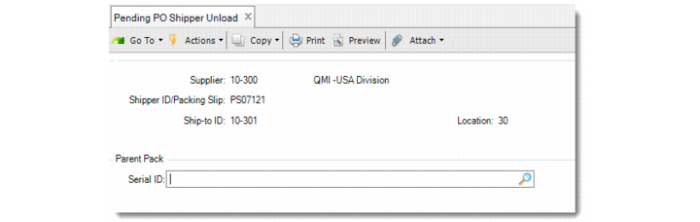
In the PO Shipper frame, you enter PO shipper information or packing slip. When you enter a valid PO shipper ID, the system displays the default match level. When you enter a packing slip number, the matching process does not happen for this shipment.
In the Parent/Child Pack frame, you enter the serial ID of the unloaded pack. The ID can be an existing or new ID.
In the Purchase Order Line frame, you enter the PO (or supplier scheduled order) line and pack quantity. This frame displays only when you have inventory data. When the system copies ASN inventory data, the copied data displays in this frame.
When you enter a shipper that does not have an ASN, you are required to build the entire serial hierarchy.
When the serial ID has been printed, you can only enter the quantity. All other fields are display only once you print the serial ID.
In the Match Level frame, you can select another match level besides the default value before you confirm.
Pending PO Shipper Unload (5.13.12.13)
Supplier
Enter the ID of the supplier who sent the shipment. The ID defaults from the last record the system accessed.
Shipper ID/Packing Slip
Enter the PO Shipper ID of this shipment. If the value entered is not a valid shipper in PO Shipper Maintenance, the system treats the ID as a packing slip number and does no matching for this shipment. This number defaults from the last record the system accessed.
Since multiple users can enter the same shipper ID (packing slip) at the same time and generate unloading transactions, you can leave the unloading process and return to it later to finish the transaction. That is, when you unload some packs, then leave this function without confirming the shipper, the system does not undo the unloading. When you return to this function, you can continue unloading; however, you do not repeat scanning the previous unloading packs.
Ship-to ID
Enter the address code to which this shipment is delivered. Blank is not allowed.
Location
Enter the location where you receive the goods. Depending on the defined match level, you are required to follow specific steps:
Match Level = 1 (item)/2 (item, lot)/6 (entire pack): Manually enter all information of the unloaded pack, including the parent pack, child pack, inventory, and PO (or supplier scheduled order) line information.
Match Level = 3 (unit pack, item): Enter the unit case serial ID and the item and PO line information. When there is a parent serial ID of the unit case in the ASN and the system selects this match level, the system does not copy parent information from the ASN.
Match Level = 4 (unit pack) or 5 (master pack): Scan the serial ID of the related level; the system copies content from the ASN.
Serial ID
Enter the serial ID of the parent pack.
You can scan the serial IDs that are not included in the ASN.
Item Number
Enter the item number contained in the unit case. The value defaults from the item number of the specified serial ID.
Quantity
Enter the quantity of the item contained in the unit case. If the specified serial ID is in the ASN, the value defaults from its inventory quantity. If the specified serial ID is in the New stage, the value defaults from the defined pack quantity of the serial ID.
Site
Enter the site where you receive the pack. The default is the site you enter in the PO Shipper frame. You can specify another value when you store packs in multiple sites; however, serial IDs belong to one master pack and you must have the same site/location.
Location
Enter the location where you receive the pack. The default is the location you enter in the PO Shipper frame. You can specify another value when you store packs in multiple locations; however, serial IDs belong to one master pack when you have the same location.
Printed
This field indicates whether the label of the scanned serial ID printed or not. When the label scanned printed correctly, the inventory data item, site, lot/serial, and reference print, and you cannot change this field. When you decommission a serial ID, the system resets this field to No.
Gen Item Serial
Specify Yes to have the system automatically create item serial IDs.
Lot/Serial
Enter the lot/serial number for the item.
Ref
Enter the reference number for the item.
Supplier Lot
This field indicates the supplier lot of the inventory. When this field is editable, you can enter the supplier lot during receipt.
Purchase Order/Line
Enter the PO (or supplier scheduled order) and line for which the serial ID ships. The default displays from the ASN. You can enter either a discrete PO or a supplier scheduled order. Make sure that the specified PO line has the same ship-to ID as the current PO shipper.
Item Number
This field is display only and defaults from the PO line.
Qty to Pack
Enter the number of items in the serial ID that packed for the entered PO line. The default is the quantity from the ASN.
Match Level
Select from the following match levels. The system performs validations. The default value is determined from the matching level records as defined in Match Level Maintenance.
Item: Match is successful when the unloaded item number is consistent with ASN data and the quantity of each PO line is equal to the ASN data. Whether you pack in the expected pallet does not affect the matching.
Item/Lot: Match is successful when the unloaded item number is consistent with ASN data and the lot quantity of each PO line is equal to the ASN data, regardless of whether you pack in the expected pallet.
Master Pack: Match is successful when the master serial ID scanned during unload is consistent with the one in the ASN. When the system matches at this level, the system only considers the master pack level. When you scan a Master Pack ID and the system matches data in the ASN, the system assumes that all lower-level packaging and inventory data is correct, and therefore, considered as unloaded. You cannot select this option when the received ASN does not contain pack information.
Unit Pack: Match is successful when all serial IDs of the unit pack are consistent with the ones in the ASN. The system considers the content of the unit pack to be correct when it matches the serial ID of the unit case. You cannot select this option when the received ASN does not contain pack information.
Unit Pack/Item: Match is successful when the unit pack serial ID scanned during unloading is consistent with the one in the ASN and the number of the items/lot for each PO line in the unit pack is the same. You cannot select this option when the received ASN does not contain pack information.
Entire Pack: Match is successful when all the unloaded data is the same as the ASN, including the quantity of each unit pack, quantity of each lot, serial ID of each pack, and the relationship of each parent-child pack. You cannot select this option when the received ASN does not contain pack information.
Note: If the imported ASN does not include pack information, only the Item and Item/Lot options are available. In this scenario, the system matches the receipt only at item or item/lot level.
When matching is successful, you can confirm the shipper using this unload program. The system displays a message indicating that the shipper is matched and prompts you to confirm to receive.
When matching fails, the system displays a message indicating that a discrepancy exists and prompts you to print a report. Once the report displays, the system displays a warning and prompts you to continue to receive. When you respond with Yes, you can receive the shipper/packing slip, according to the unloaded data.