QAD 2017 Enterprise Edition > User Guides > Serialization > Serialization Processing > Inventory > Pack Build
  
Pack Build
Use Pack Build (3.17.3) to load inventory into a pack or add lower-level packs on an existing pack.
The system assumes that inventory is always available in stock, but not serialized. If otherwise, you are required to use Pack Receipts.
The system builds only one level pack each time. If the existing pack serial ID links to a specific SO and booking serial IDs exist for the SO, the system verifies that all lower-level serial IDs to be built on it are for the same master SO. All newly created serial IDs for this master pack are picked from booking IDs for that master SO.
Navigation
In the Parent Data frame, enter the serial ID of the parent pack. It can be a unit pack or an assembly pack. When blank, the system creates a new serial ID.
In the Child Pack frame, enter the serial ID of the pack or item that you want to build into the parent pack. Or, leave the Serial ID field blank and enter information of non-serialized inventory to build into the parent pack.
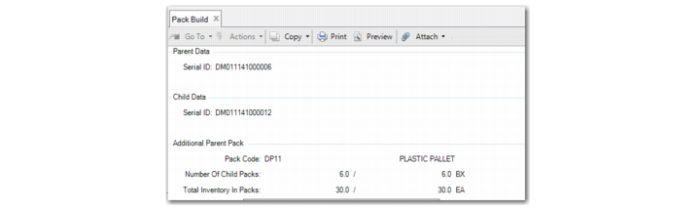
When the parent pack is not an existing pack, you can enter data in the Additional Parent Pack Data frame; see Additional Parent Pack Frame.
When the parent pack serial ID is blank, the system displays the Origin Address frame after displaying the Child Pack frame. In this frame, you can enter the address to determine the BOP code and serial sequence ID.
Use the information in the following table to help you navigate through the Pack Build frames under different pack-build scenarios.

Pack Build Scenarios
 
 
Scenario
Parent Serial ID Field
Child Pack Frame
Frame Sequence to Follow
1
Create and build a new unit pack
Blank or non-existent unit pack serial ID
Serialized item: Enter the item serial ID. The system displays the inventory data.
Non-serialized item: Leave Serial ID blank and enter inventory data.
Parent Data | Child Pack | Origin Address | Additional Parent Pack Data
2
Load inventory into an existing New unit pack
New unit pack serial ID
Serialized item: Enter the item serial ID. The system displays the inventory data.
Non-serialized item: Enter inventory data only.
Parent Data | Child Pack | Additional Parent Pack Data
3
Load inventory into Booked or Decommed unit pack
Booked or Decommed unit pack serial ID
Serialized Item: Enter the item serial ID. The system displays the inventory data.
Non-serialized item: Leave Serial ID blank. The system displays the item number. Enter inventory data.
If the parent serial ID is booked, make sure that the item serial ID is booked for the same master SO line.
Parent Data | Child Pack | Additional Parent Pack Data
4
Create and build a new assembly pack
Blank or non-existent serial ID
Enter child pack serial ID. The system displays the inventory data.
Parent Data | Child Pack | Origin Address | Additional Parent Pack Data
5
Load lower-level pack into an existing assembly pack
Assembly pack serial ID
Enter child pack serial ID. The system displays the inventory data.
Parent Data | Child Pack | Additional Parent Pack Data
 
6
Load inventory into an Active unit pack
Active unit pack serial ID
Serialized item: Enter the item serial ID. The system displays the inventory data.
Non-serialized item: Leave Serial ID blank and enter inventory data.
When the unit pack code allows multiple items or lots, you can load multiple items or multiple lots of items into the same unit pack.
Parent Data | Child Pack | Additional Parent Pack Data
7
Load a lower-level pack into an Active unit pack
Active unit pack serial ID
Enter the lower-level pack serial ID. The system displays the inventory data.
After pack building, the original unit pack upgrades to an assembly pack, which holds items not in a unit pack and the added lower-level pack.
Parent Data | Child Pack | Additional Parent Pack Data
8
Load inventory into an Active assembly pack
Active assembly pack serial ID
Serialized item: Enter the item serial ID. The system displays the inventory data.
Non-serialized item: Leave Serial ID blank and enter inventory data.
After pack building, the added items are directly held in the assembly pack with the original lower-level packs.
Parent Data | Child Pack | Additional Parent Pack Data
 
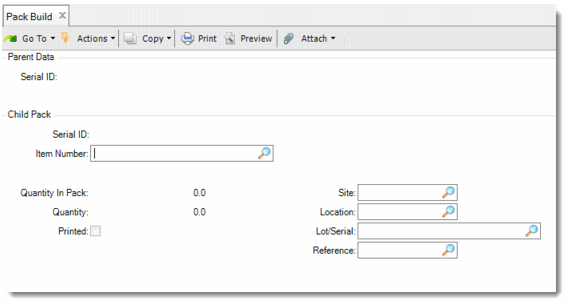
The following depicts the Pack Build program. Field descriptions follow the figure.

Pack Build (3.17.3)
Serial ID
Enter a valid serial ID of the parent pack or leave blank. The serial ID can be of a unit pack or an assembly pack. When blank, the system generates a new serial ID.
Serial ID
Enter the child serial ID to load into the parent pack or leave it blank. The serial ID can be of a unit pack, assembly pack, or item.
Item Number
When enabled, enter the item to be loaded into its parent pack. This field is display only when you have entered a child serial ID. You cannot leave this field blank.
Site
Enter the site at which the item is stored. This field is display only when you have entered a child serial ID. You cannot leave this field blank. The default is the global site.
Location
Enter the location at which the item is stored. This field is display only when you have entered a child serial ID. If the parent pack serial ID is in the New stage, this field value defaults from the primary location at global site of the item to be loaded into the pack.
Lot/Serial
Enter the lot/serial number associated with the item to be loaded into its parent pack. This field is display only when you have entered a child serial ID.
Printed
This field indicates whether the label of the scanned serial ID printed or not. When the label scanned printed correctly, the inventory data item, site, lot/serial, and reference print, and you cannot change this field. When you decommission a serial ID, the system resets this field to No.
Ref
Enter the reference number associated with the item to be loaded into its parent pack. This field is display only when you have entered a child serial ID.
Quantity
Enter the quantity of the item to be loaded into its parent pack. You cannot enter a negative number.
Address
Enter an address or site. The system uses it to find the BOP code.
Additional Parent Pack Frame
When the parent pack is an existing pack, the Additional Parent Pack Data frame is display only; otherwise, you can enter the pack code and specify the standard pack quantity.

Additional Parent Pack Frame
Pack Code
This field displays the pack code when the parent pack is an existing pack. You can modify this field only when you create a pack serial ID.
When serial control of the unit pack is set to Never in Pack Code Maintenance, the system tries to find the higher level with serial control that is not set to Never, and the system multiplies the quantity per of the parent level with the quantity per of current level.
If this pack is a new unit pack or assembly pack, the system determines the BOP code from Item Packaging Maintenance, based on item, site, and address. It then defaults the unit pack code in the packaging structure to this field.
Number of Child Packs
This field is editable when you create a new assembly pack. There are two values:
The first is the actual number of child packs.
The second is the standard capacity of the parent pack.
For newly created unit packs, the two fields are display only and always have a value of 1. For newly created assembly packs, you can enter the second field but you cannot enter a negative number.
Total Inventory in Packs
This field is editable when you create a new unit pack. There are two values:
The first is the actual number of inventory items in the pack.
The second is the standard capacity of the parent pack.
For example, when:
1 Pallet = 5 Cases
1 Case = 100 units
Then the second field is 5*100 = 500 units.
For assembly packs, the two fields are display only. For newly created unit packs, you can edit the second field, but you cannot enter a negative number.