Physical Inventory
You can use the following programs in the Serialized Physical Inventory menu (3.16.3) to create tags for all level packs in the location of your choice:
• Pack Tag Create
• Pack Tag Print (.NET UI)
• Pack Tag Count Entry
• Pack Tag Recount Entry
• Inventory Balance Update by Pack
• Uncounted Pack Tag Report/Update
• Tag Delete/Archive
The menu also includes the following:
• Tag Browse
• Physical Inv Serial Trans Browse
• Physical Inventory Counting Results Browse Collection
Pack Tag Create
Use Pack Tag Create (3.16.3.1) to create:
• Pack tags for all top-level packs (each site, location, master serial ID combination)
• Item tags for non-serialized loose items (non-serialized items that are not contained in a serialized pack) in the selected location
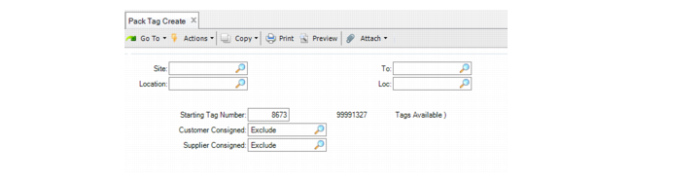
Enter ranges for site and location to filter the pack tag creation; then, enter the starting tag number to create. Finally, decide whether to create pack tags for customer or supplier consignment. The system:
• Generates pack tags for all the top-level packs whose stage is set to Active or Picked within the location you enter
• Creates pack tags for any serialized loose items (not held in any serialized pack)
• Creates item tags based on site, location, lot, or reference when there are non-serialized loose items
• Displays the total pack tags and item tags that it creates
If a top-level pack holds multiple items or lots, as long as any of its contents matches the selection criteria, the system creates a pack tag for it.
Pack Tag Create (3.16.3.1)
Site
Enter a range of sites for the system to create tags.
Location
Enter a range of locations for the system to create tags.
Starting Tag Number
Enter the tag number the system uses as the starting tag number when it creates pack or item tags.
Customer Consigned, Supplier Consigned
These two fields take consigned inventory into account and determine whether the system creates tags for location details that have consigned inventory. Enter Include to create tags for all location details that are within the selection range, regardless of whether the location detail has consigned inventory. Enter Exclude to let the system exclude the location details that only have customer/supplier-consigned inventory. Enter Only to let the system only create tags for location details that contain customer/supplier-consigned inventory; location details that merely have non-consigned inventory are excluded in this case.
Untagged Inventory Tag Create
Use Untagged Inventory Tag Create (3.16.3.9) to automatically create bulk tags for all untagged inventory, both non-serialized inventory and serialized inventory. When you use this function, only bulk tags are considered in preparation for physical inventory for all inventory.
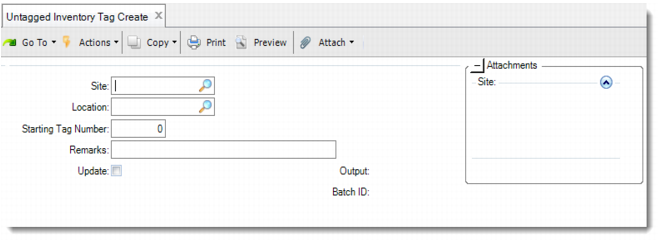
Untagged Inventory Tag Create (3.16.3.9)
Site
Enter the site for the system to create bulk tags.
Location
Enter the location for the system to create bulk tags.
Starting Tag Number
Enter the tag number the system uses as the starting tag number when it creates bulk tags.
Remarks
Optionally, enter remarks associated with created bulk tags.
Update
If you set this field to No, the system only displays the inventory details for your review. The system does not create bulk tags for the inventory. If you set this field to Yes, the system not only displays the inventory details but also creates bulk tags for the inventory at the same time.
Pack Tag Print
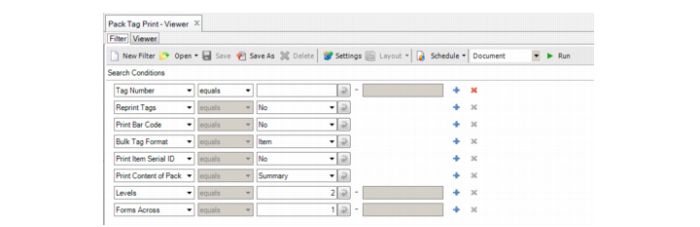
Use the .NET UI Pack Tag Print to print pack tags for the location. The viewer operates like .NET UI browses, letting you set criteria for printing through search operators. You can print single tags or ranges of tags by setting the criteria. Click Run to start the viewer.
Pack Tag Print
Important fields include the following:
Tag Number
Select a range of tags or a single tag to print by the tag number.
Bulk Tag Format
Indicate the format of bulk tags to print. Enter Pack to print bulk tags as a pack tag. Enter Item to print item tags.
Bulk Pack Tag
The labels printed are the same as Pre-Created Pack Tag, except that you are required to fill in the values of Site, Location, Serial ID, and Inventory data, and the Lower Level Serial IDs section will not be listed on the tag.
Print Item Serial ID
Enter Yes to print item serial IDs.
Print Content of Pack
Indicate how the system prints the pack contents. Enter Summary to print the quantity of child packs by pack code or enter Detail to list lower-level packs by serial IDs.
If the pack data cannot be printed on a single tag, print the other information on another page, with the tag number on it.
Levels
Identify the number of levels of serial hierarchy to print on the pack tag. Only enabled when Print Content of Pack is set to Detail. Default value is 2. When 2, the system prints serial IDs of the second level on the pack tag. When set to 1, no lower-level packs print because level 1 is the top level of the serial hierarchy. Set to 0 to print all lower-level serial IDs of the pack.
Pack Tag Count and Recount Entry
Use Pack Tag Count Entry (3.16.3.3) to count inventory by packs.
Use Pack Tag Recount Entry (3.16.3.4) to recount an already-counted pack inventory. This program works in the same way as Pack Tag Count Entry. However, Pack Tag Recount Entry is different in that the system uses the recount result to update the inventory balance when both initial count and recount results exist for a tag.
For the physical counting process, you:
1 Freeze inventory balances for non-serialized loose inventory.
2 Create pack tags for each active or picked master pack.
3 Count packs.
4 Record counting results on existing tags by using this program.
Use bulk tags to record extra packs or to replace a lost pre-created pack tag.
Multiple users can work on the same location. Inventory balances change when you run Inventory Balance Update.
Counting Packs
Pack Tag Count Entry lets you:
• Count the expected closed pack.
An expected closed pack is a pack whose pre-created pack tags for the pack counted exist and the pack is closed physically. You can only count the master pack and assume that its contents are correct.
• Count content of the expected open pack.
You can open a master pack and validate its content. The counting can take place at any level. You can record the content data on bulk tags or master pack tags; however, you cannot count the content of packs that meet any of the following conditions:
• The pack is with stage set to Picked.
• The pack is a unit pack that contains items of multiple combinations of item, lot, and reference.
• The pack is an assembly pack that contains items not in a unit pack.
• Count unexpected pack.
An unexpected pack is a pack without pre-created pack tags. It can have an invalid stage set to New, Booked, Pending, Consumed, or Invalid, and its serial ID does not exist. Unexpected packs can also be those that the system finds in different locations. You can record unexpected packs on bulk tags. When no location detail record exists for the pack, the system creates a location detail record for the pack and links them together.
• Count loose serialized items—items not in packs but with serial IDs.
You can use pre-created pack tags to record the counted data. You can record unexpected loose serialized items on bulk tags. When no location detail record exists for the item, the system creates a location detail record for the counted items.
• Count loose non-serialized items (items not in pack and without their own serial IDs).
You can leave the Serial ID field blank to enter count data of item tags using this program. You can record unexpected loose non-serialized items on bulk tags. When no location detail record exists for the item, the system creates a location detail record for the counted items.
For missing packs, do not scan the serial ID using this program to count it; instead, use Uncounted Pack Tag Report/Update to set the count quantity to zero after you finish physical counting. The system dismisses missing data and balances inventory when you run Inventory Balance Update.
Scanning Serial IDs
When you scan or enter serial IDs, the system validates the entered IDs. When the system has created pack tags for the serial IDs that you scan, the system displays read-only tag numbers.
When there are no matching tags for the master pack, site, or location for the serial ID, you can manually enter the tag number in the Tag Number field. Make sure that the tag you enter is a bulk tag not assigned to a serial ID. You can also leave the Tag Number field blank to have the system create a bulk tag.
When the scanned serial ID has been counted already, the system uncounts it, removes the related serial history, and displays a warning message.
For each serial ID scanned and pack tag created, the system displays inventory data, creates serial history for the pack counted, then returns you to the Serial ID field to count other packs.
Inventory Data Frame
Use the Inventory Data frame to list inventory details of the pack when you scan serial IDs.
Inventory in the pack that you count is accumulated by item/lot.
The inventory data is display only when the pack you count is an assembly pack.
You can edit inventory data when the pack counted is a unit pack and not picked for a sales order. You can specify different item, lot, reference, or quantity when there is a difference between physical data and system data.
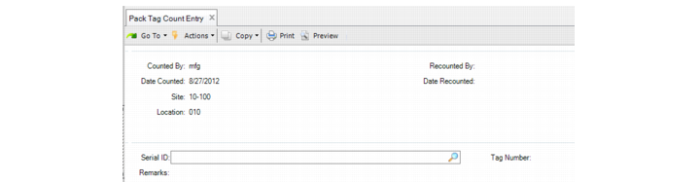
Pack Tag Count Entry (3.16.3.3)
Counted By
Enter a valid user ID as the person who counted the pack. The system displays the logged-in user as the default. This field is for reference only and may appear on some reports. You can leave this field blank.
Date Counted
Enter the date of the count. It can be the date the tag was counted, or the date the count was entered into the system The default is the system date.
Recounted By
Enter a valid user ID as the person who recounted the pack tags.
Date Recounted
Enter the date of the recount. This field and the Recounted By field are disabled until a recount occurs.
Serial ID
Enter or scan the serial ID of the counted pack.
Remarks
Optionally, enter remarks associated with this tag. Reference only.
Tag Number
The system retrieves the tag number associated with the serial ID once you scan or enter the serial ID. This field is editable only when you enter unexpected packs or item tags.
Item Number
The system displays the item number for the inventory.
Lot/Serial
The system displays the lot or serial ID for the inventory.
Reference
The system displays any associated reference data for the inventory.
Qty Counted
The system displays the quantity counted.
Inventory Balance Update by Pack
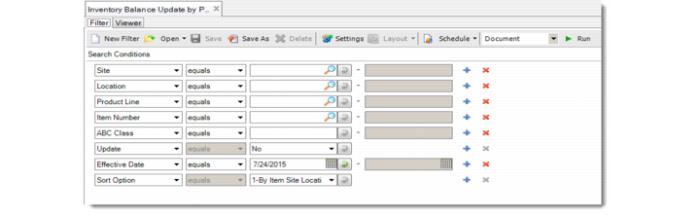
Use Inventory Balance Update by Pack to reflect the inventory you count by serialized packs at a given site and locations. Use search operators to specify criteria before updating, and then click Run.
.
Inventory Balance Update by Pack
In the report, the system displays pack data and loose serialized items for the item, location, or lot.
Note: As long as there are pack tags created for the selected location, the system ignores the item number, product line, and ABC class that are entered as criteria. The system updates inventory balance based on location. And the results in the report are sorted by Site, Location, Item, and Lot/Serial only.
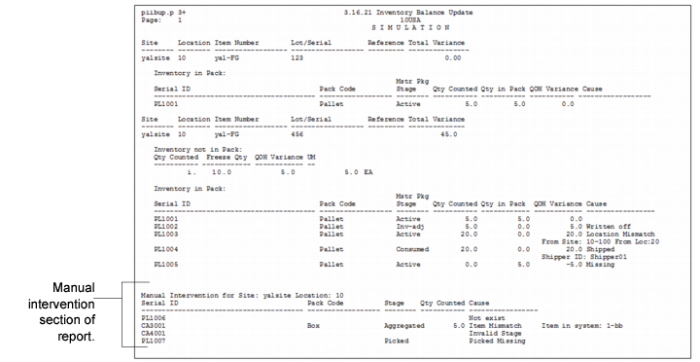
When there are problems required to be fixed manually, the Manual Intervention section is displayed based on location. You can set Update in the criteria to No to print changes for preview. After all the issues requiring manual intervention are fixed, you can set Update to Yes to update the inventory balance.
The system displays the Total Variance as the sum of the QOH variance in inventory both in and not in the pack.
Not in Pack: The system displays the balance of loose items of the item, site, location, lot, reference, quantity counted or frozen, and the QOH variance. The quantity counted shows the count quantity on the related item tag, while the freeze quantity shows frozen inventory of items not in a serialized pack. The QOH variance is the difference between the quantities counted and frozen.
In Pack: The system displays the same type of inventory as that for inventory in the pack. When there are pack problems, the system corrects them automatically during update. The system displays the serial ID, pack code, master pack stage, quantity counted and in the pack, QOH variance, and the cause of the problem. When the cause is a mismatched location or item, you can print the original site, location, or item number that is mismatched. When the cause is due to inventory shipped, you can print the shipper ID. The quantity counted shows the counting data for the pack, while the pack quantity shows the quantity in this pack in the system. The QOH variance is difference between the quantity counted and the quantity in the pack.
For items in the serialized pack, the system adds or subtracts the difference between current QOH and the counted amount. The loose, non-serialized item that uses the item tag still uses the original logic where the system compares the frozen quantity with the counted quantity.
Manual Intervention
When you run the update for the inventory balance, the system prints a report. When there are issues with the inventory, the system prints a Manual Intervention section that lists inventory issues. You are required to fix these issues manually.
The system uses the same mechanism to update inventory balances or suggest that user should manually fix the issue as in Cycle Counting, except when:
• A pre-created pack tag is not counted. The system does not update inventory for the pre-created pack. You are required to manually set the pack count quantity to zero using Uncounted Pack Tag Report/Update.
• You open a master pack and count its content, but not all of the lower-level packs are counted. The system dismisses the uncounted lower-level packs.
• You void a pack tag. The system uncounts the related pack.
• For the inventory contained in a serialized pack, the system compares the count quantity with the current quantity in the pack, and updates the variance between them. But for loose non-serialized items, the system compares the count quantity on the item tag with the freeze quantity, and updates the variance.
• An unexpected unit pack that meets both of the following conditions is counted. The system does not require manual intervention for such unit packs. After you run Inventory Balance Update by Pack, the system activates the pack serial IDs.
• The stage of the counted unit pack is New, Pending, Inv Adj, Decommed, or consumed.
• The unit pack only contains items of a single combination of item, lot, and reference.
• Quantity on Hand is negative, but stock is counted. The system does not require manual intervention. After you run Inventory Balance Update by Pack, the system updates the inventory with the quantity counted.
Report with Manual Intervention Section
Physical Inventory Counting Result Browse Collection
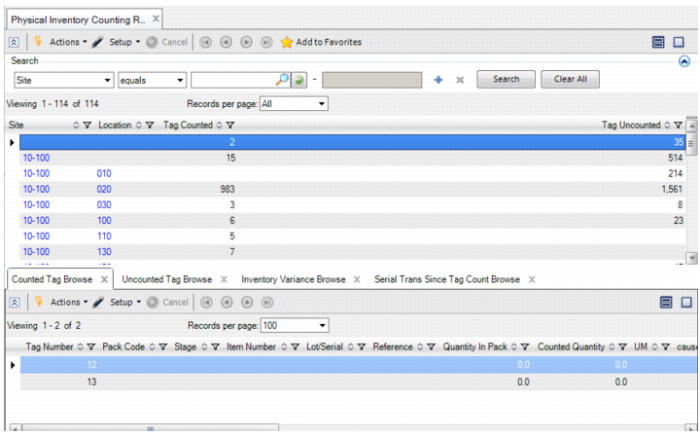
Use the .NET UI Physical Inventory Counting Result Browse Collection to view physical counting results. The browse collection provides:
• Summary information for site and location
• Detailed counting results
• Uncounted tags
• Inventory variance
• Serial transactions since the tag count
The supporting Physical Counting Result Summary Browse lists summary counting data for each location. You can filter by site and location to view the counting result. You can also launch the Uncounted Pack Tag Report/Update to set the quantity of uncounted tags to zero.
The browse collection includes these additional browses:
• Counted Tag Browse
All serial IDs counted and loose items counted for the selected location are listed. The missing packs (both the missing master pack and missing content) are listed after the user sets quantity of uncounted packs to zero.
• Uncounted Tag Browse
Displays all of the uncounted tags of the selected location.
• Inventory Variance Browse
Displays the variance data between counted quantity and quantity on hand for each item/lot/ref.
• Serial Trans Since Tag Count Browse
Displays the serial transactions that happened after the user started to count the tags of the selected location. Only lists those linked with inventory transactions.
Physical Inventory Counting Result Browse Collection
Physical Inventory Variance Browse
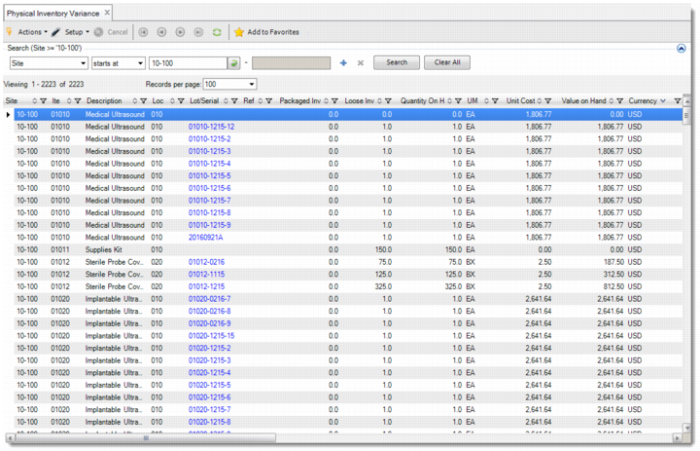
Use Physical Inventory Variance (3.16.19) to have a comprehensive knowledge of the physical inventory variance data and its total impact before updating the inventory. Different from the Inventory Variance Browse in Physical Inventory Counting Result browse collection, the independent Physical Inventory Variance browse retrieves data independently of the existence or status of physical inventory tags. The Physical Inventory Variance browse provides the following data:
• Quantity on Hand including packaged inventory quantity and loose inventory quantity, unit cost, and value on hand
• Pre-count quantity and pre-count value
• Counted quantity including counted packaged quantity and counted loose quantity, and counted value
• Variance quantity and variance value
• Counted tags, uncounted tags, and total tags
• Frozen loose quantity
Physical Inventory Variance (3.16.19)
Uncounted Tag Report/Update
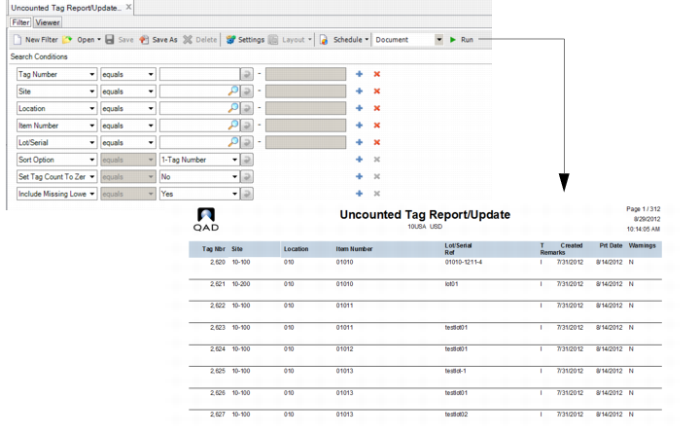
Use the .NET UI Uncounted Tag Report/Update to view uncounted tags and set uncounted packs as missing. You can use search filters and operators to specify the contents to report.
The Include Missing Lower Level Pack filter controls whether the system displays missing content of counted packs in the results. Missing content of the counted pack displays at the end of the report when you set the filter to Include Missing Uncounted Lower Packs to Yes.
The system displays the serial ID when the tag is for a pack; the items contained in the pack display, too. When multiple items are contained, the system displays multiple lines with the same tag number and serial ID.
The system sets the count quantity of uncounted packs and uncounted lower-level packs to zero (0) when you set the Set Tag Count To Zero filter to Yes. The system generates serial history and marks the packs as missing. The system dismisses them when you run an inventory balance update.
Uncounted Tag Report/Update
Tag Delete/Archive
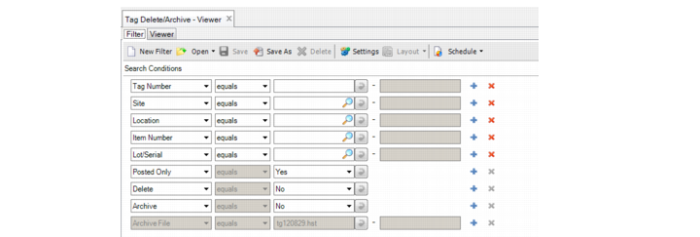
The .NET UI Tag Delete/Archive (3.16.23) feature lets you delete and archive selected tags. You can use this feature to delete and archive pack tags, too. When you do, the system deletes or archives related serial history (TAG-CNT) linked with the tag; however, the records associated with inventory update are not affected.
When there are pack tags created for the selected location, the system ignores the item number or lot/serial that is entered as selection criteria. You can only filter pack tags by the Tag Number or Site/Location filters. See
Tag Delete/Archive.
In the report, when the tag is for a pack, the system displays serial IDs instead of item numbers, lot/serial, or references.
Tag Delete/Archive