Activating Change Tracking
Activate change tracking by selecting Keep Booking History in Sales Order Control (7.1.24).
Specifying Fields to Track
Use Change Tracking Maintenance (36.2.22) to:
• Specify which table contains the fields you want to track.
• Specify which fields to track.
• Delete any records for fields that no longer require tracking.
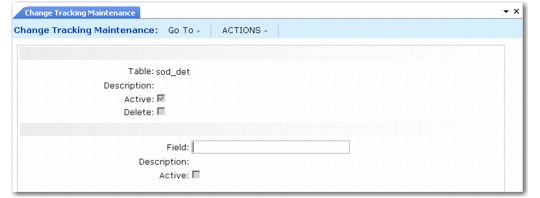
Change Tracking Maintenance (36.2.22)
Table
Enter the database table that contains the field that is being tracked for changes. Currently, Change Tracking Maintenance tracks only the sales order detail (sod_det) table.
Description
Enter a brief description (24 characters) of the database table.
Active
Select to track changes for the database table you specified. Clear to deactivate tracking. The default is clear.
You must select Active for both the table and the field before change tracking begins.
Delete
Select to display the reason code pop-up in Sales Order Maintenance when the user deletes an entire sales order line. Clear if you do not want the reason code pop-up to display. The default is clear.
Note: You must select Active and specify a field to track.
Once you complete these fields and click Next, the following frame appears.
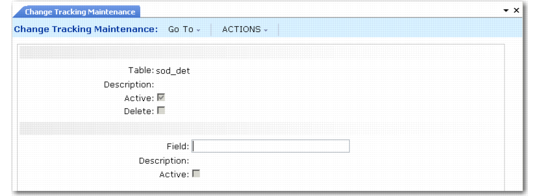
Change Tracking Maintenance, Field Frame
Field
Enter the field to track. Currently, you can only track fields belonging to the sales order detail (sod_det) table.
Note: To find the field name in the character interface, press Ctrl+F while your cursor is located in the field. In the QAD .NET UI, the field name displays as a field tip when your cursor moves over a field.
Description
Enter a brief description (24 characters) of the field.
Active
Select to activate tracking for the field you specified. Deselect to deactivate tracking (the default).
Review the tables and fields you specify and their active or delete status using Change Tracking Browse (36.2.23).
Reason Code Pop-Up
After you activate change tracking and specify a table and field to track, when the user changes or deletes the value of the field, a reason code pop‑up displays. Currently, only the sales order detail table can be tracked; therefore, the reason code pop-up displays in Sales Order Maintenance (7.1.1).
Select a code that indicates the reason you are changing the value of the field or deleting the line. The reason type associated with the code must be ord_chg.
Even though you can track multiple fields, you are only prompted once with the reason code pop-up. Use the comment screen to explain multiple changes you made to the sales order line.
Viewing Changes
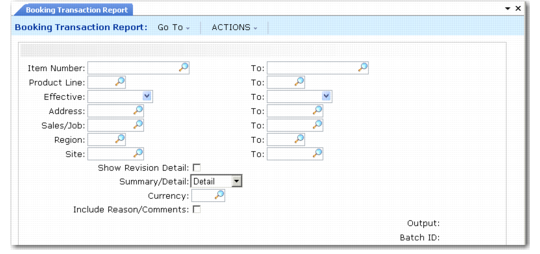
To view changes you tracked, use Booking Transaction Report (7.15.14). The report displays the reason and comments related to a discrete sales order line change.
To display the changes:
• Set Summary/Detail to Detail.
• Select Include Reason/Comments.
Booking Transaction Report (7.15.14)