Maintaining Drill Downs and Lookups
Two types of browses are available in standard Progress programs:
• Lookup browses return the value you select to the active field in the calling program.
• Drill-down browses are more complex. They include more information and can display, filter, graph, or print data.
The field values in the browse can come from a table or a view. A view is a table that has selected values from one table or several joined tables.
Use Drill-Down/Lookup Maintenance (36.4.8.1) to assign drill-downs or lookups to fields that do not have a browse, to replace a browse, or to delete one.
One of the most common uses of this program is to display generalized codes associated with a field. You can also assign lookups to any field that acts as an index to a maintenance screen. You may, however, need to write your own custom browse to find and display the data.
Most programs attached to a function with Drill-Down/Lookup Maintenance display values in a database table. But this is simply a convention. You can attach any Progress function to a field, and this program executes when the user selects Help. For example, you can attach the program calculat.p to field pt_avg_int to display a calculator.
Before you can use Drill-Down/Lookup Maintenance, you need to know:
• The name of the field where you want the browse to display.
• The name of the program using the field.
• The program name of the browse to attach. If a lookup is missing for a particular field but exists for a similar one, use Lookup Browse (36.4.8.3) to determine the program that displays appropriate field values. Then use Drill-Down/Lookup Maintenance to specify the same program for the similar field. See
Creating Browses for details on creating browses.
Determining the name of the program and field depends on the user interface.
• In the character interface, run the program. Note the program name in the upper left corner of the screen. Then place your cursor in the field where you want to attach the browse. Press Ctrl+F and note the field name.
• In the QAD .NET UI, find the program in the Application menu area, right-click on the program name, and select Properties. A screen displays program information, including the program name. To identify the field name, place your cursor over the field where you want to attach the browse on the program screen. The field name displays.
Drill-Down/Lookup Maintenance (36.4.8.1)
You can assign more than one drill-down to the same field. A menu of drill-downs appears when you request the drill-down. Only one lookup can be attached to a given combination of field and program name.
You can attach browses to fields in any program, including another browse. Drill-downs can be nested. A field can call a browse that can call another browse that can call another browse, and so on.
Follow these steps to use Drill-Down/Lookup Maintenance to associate a drill-down with a field or program:
1 Select Drill Down in the Drill Down/Lookup field.
2 Enter a field name to associate with the browse in Field Name. Leave it blank to associate it with all fields.
3 Enter the program containing the field in Calling Procedure. Leave it blank to attach the browse to all programs using the specified field.
4 Enter the browse name in Procedure to Execute.
5 Optionally, enter a label term in Description Term. The long label contained in this term is displayed as the title in the browse. The default is the browse description term defined in Browse Maintenance. See
Creating Browses.
You access drill-downs differently in the two UIs:
• In the character UI, Select Drill Down from the Help menu or use Alt‑Tab.
• In the .NET UI, click the underlined link that indicates a drill-down. When more than one drill-down is associated with a field, right-click to see a menu listing drill-down options or URLs.
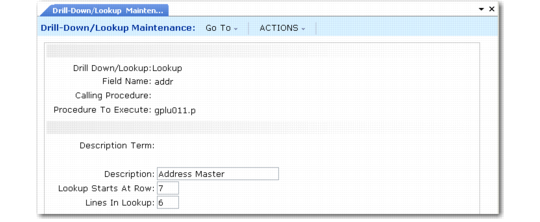
Follow these steps to associate a lookup with a field:
1 Select Lookup in the Drill Down/Lookup field.
2 Enter a field name to associate with the browse in Field Name.
3 Enter the program containing the field in Calling Procedure. Leave it blank to attach the browse to all programs using the specified field.
4 Enter the browse name in Procedure to Execute.
5 Optionally, enter a description for the lookup. This description is for reference only and is not displayed in the lookup.
6 Enter the starting row and the number of lines to display in the lookup.
Wildcards in Drill-Down/Lookup Maintenance
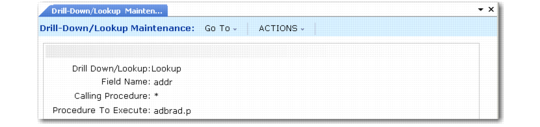
Use wildcards to attach browses to fields in multiple programs. For example, pp*.p attaches the drill down to the specified field in all programs starting with pp and ending with a .p extension.
The table displays the possible entries to Drill-Down/Lookup Maintenance:
Field | ad_addr | ad_addr | ad_addr |
Calling Procedure | * | so* | soivmt.p |
Procedure to Execute | adbrad.p | adbrcs.p | arbrbl.p |
When you drill down on ad_addr in soivmt.p, a menu shows all three browses: adbrad.p, adbrcs.p, arbrbl.p. When you drill down on ad_addr in a program other than soivmt.p but beginning with the letters so, a menu shows two browses: adbrad.p and adbrcs.p. When you drill down on ad_addr anywhere else, the browse adbrad.p opens.
Wildcards in Drill- Down/Lookup Maintenance
Drilling Down on Drill-Downs
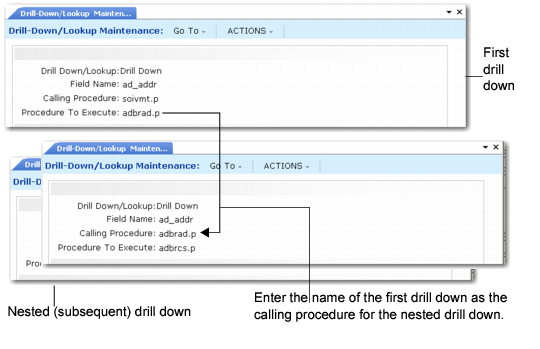
You can nest drill-downs. In other words, one drill-down can call another, which can call another, and so on. After creating the first drill-down, you can assign the others to the same field. Enter the name of the first drill-down as the calling procedure for the nested drill-down.
Nested Drill Downs
Planning for Upgrades
When you update your product version, be careful when loading flh_mstr. This table contains the records created by Drill-Down/Lookup Maintenance. If you have customized it, make sure that the new version does not overwrite your customization.