Creating Access to Other Programs
User Tool Maintenance (36.4.8.5) lets you specify programs that can be run from other programs in the .NET User Interface. This makes it easier for you to run frequently used programs.
Note: The relationships you define in User Tool Maintenance do not apply to any programs in the character interface and they do not apply to browses.
Use the Add Link command on the Go To menu from any HTML program in the .NET UI to access User Tool Maintenance. The links you define also display under the Go To menu. When you click a link, the linked program opens in a new tab.
Note: You can also add links by accessing User Tool Maintenance directly from the menu. When you access it from a program in the .NET UI, the User ID and Program fields are filled in already.
User Tool Maintenance
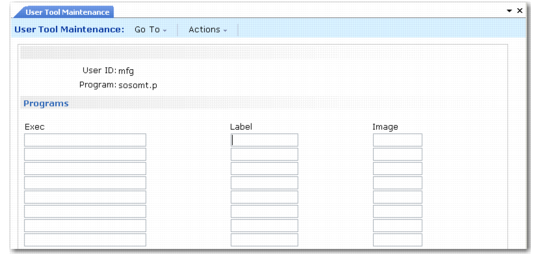
User Tool Maintenance (36.4.8.5) illustrates the User Tool Maintenance screen.
User Tool Maintenance (36.4.8.5)
1 Enter a user ID or leave the field blank to assign the link to all users.
2 Enter the name of the program where you want the link to display. Leave Program blank to add the link to all programs that do not already have a user-specific record. Click Next to continue.
Note: You can also use wildcards to specify where the links appear. Specifying pp* places the links in all programs beginning with pp.
3 In the Exec fields, enter the program names (for example, adbr001) for the links to launch.
4 In the Label field, specify a text string to appear in the link area. If you leave this field blank, the standard menu description from Menu System Maintenance is used.
5 Leave the Image field blank. Images do not apply in the .NET UI.
Displaying Links
You can assign programs to all users (blank user ID) or a specific user. You can also assign programs to a specific program or using wildcards. However, only one set of records displays when a user accesses a program. The system searches for the appropriate links to display in this order:
1 Specific user ID and specific program name
2 Specific user ID and program name with wildcards
3 Blank user ID and specific program name
4 Blank user ID and program name with wildcards