Define the Login Sequence Script Lines
For users to be able to log in to and begin a telnet session on the telnet server, you must provide the sequence of telnet server login prompts and responses. The last value in the sequence specifies the script you created during system installation.
Terminal mode supports either operating-system level or script user credentials based on the setting of TerminalAuthentication in qaduiConfig.xml, located in:
TomcatInstallDir/webapps/qadhome/client/configs
• When this is set to ShellUser (the default), the user ID and password used to login to the .NET UI are used for the terminal login, regardless of what is set in this program.
• When this is set to ScriptUser, the user ID and password defined in User Option Telnet Maintenance is used.
When defining paths for scripts used in the .NET UI, avoid using relative paths since each user’s access may be different.
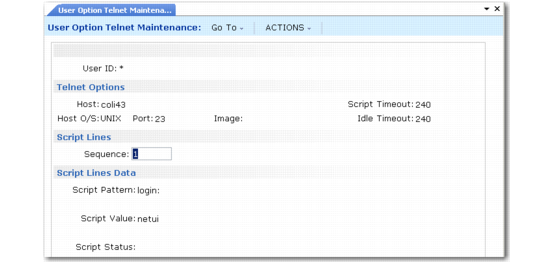
User Option Telnet Maintenance, Login Script Line
1 Specify the telnet login sequence number in the Script Lines frame. For each telnet command, enter a sequence number beginning with 1, and click Next. In the next frame, enter the following:
Script Pattern
Enter the prompt generated by the telnet server when a telnet login occurs. The values in this field must be identical to the prompts the telnet server displays when users log in.
Script Value
Enter the response to the telnet login prompt defined in Script Pattern.
Script Status
Optionally enter a description of the prompt and response; for example, Logging In.
If you have tracing enabled and the Java console is displayed, the description in the Script Status field displays in the Java console on the client when an error occurs during the execution of the prompt and response. You can use these descriptions as an aid in troubleshooting telnet session issues.
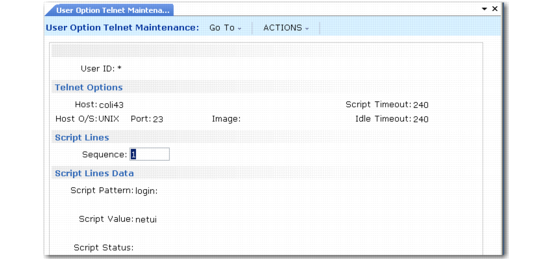
Note: Script sequence 2 has special validation for suppressing password display. When you enter a password as a script value, only blanks display. When you click Next at the end of the sequence, you are asked to confirm the password.
2 Click Next after entering the sequence values. You return to the Sequence field to enter the next sequence number and values.
User Option Telnet Maintenance, Second Login Script Line
3 After entering the final sequence, click Next to return to the Sequence field. Then click Back to move to the Telnet Connections fields.