QAD 2017 Enterprise Edition > User Guides > System Administration > Batch Processing and Daemons > Bulk Data Load
  
Bulk Data Load
The Excel Integration menu activity is available for a number of business components in Enterprise Financials. For more information on Excel integration, see Introduction to QAD Enterprise Applications User Guide. However, when importing very large amounts of data to the system, Bulk Data Load (36.24.8) is a more efficient utility. It is useful when setting up an implementation.
Bulk Data Load lets you import multiple .csv files into the system at once. It processes the contents of these files in batches, so that an error in one batch does not cause the entire import process to fail. You can use Bulk Data Load to import various types of information, as listed in Information Imported by Bulk Data Load.

Information Imported by Bulk Data Load
 
Business relations
Daybooks
Projects
COA cross references
Employees
SAF codes
Cost center masks
End Users
Sub accounts
Cost centers
Exchange Rates
Sub-account masks
Customer bank numbers
GL Accounts
Supplier bank numbers
Customer opening balances
Journal Entry
Supplier opening balances
Customer Ship To addresses
Project Masks
Suppliers
Customers
 
 
The order of files in the grid determines the order in which the files are imported, with the first file in the list processed first. To prevent errors, follow the recommended order for importing shown in Recommended Data Import Sequence.

Recommended Data Import Sequence
 
Import Group
Sequence
File Contents
1
1
SAF Codes
1
2
Business Relations
1
3
Daybooks
1
4
GL Accounts
1
5
Sub-Account  Mask
1
6
Sub-Accounts
1
7
Cost Center Mask
1
8
Cost Centers
1
9
Project Mask
1
10
Projects
1
11
COA Cross Reference
1
12
Exchange Rates
2
1
Customers
2
2
Customer ship-tos
2
3
Customer Bank Number
2
4
End Users
2
5
Customer Opening Balance
3
1
Suppliers
3
2
Supplier Bank Number
3
3
Employee
3
4
Supplier Opening Balance
4
1
Journal Entries
The .csv files for Bulk Data Load have the same column headings as the .csv files used with the Excel integration feature. You can use the Export to Excel for Maintenance option available in the Excel Integration menu options to get a template for the file that you want to add in Bulk Data Load. For more information on Excel integration, see Introduction to QAD Enterprise Applications User Guide. For example, to see the template for Cost Center Mask, open Cost Center Mask Excel Integration (25.3.9.2.6), right-click in the grid, and choose Export to Excel for Maintenance.
Apart from Customer Opening Balance and Supplier Opening Balance, all of the files in Recommended Data Import Sequence have an equivalent Excel integration facility. To save a template of these two files, open Customer Opening Balance Create (27.1.10) and Supplier Balance Create (28.1.15), right-click in the resulting grids, and choose Export to Excel for Maintenance.
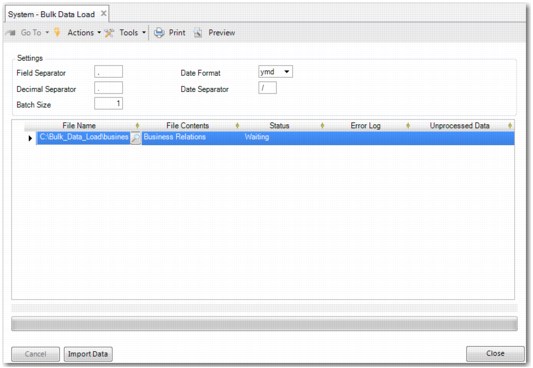
Bulk Data Load consists of a Settings section and a grid that lists the files for importing.

Bulk Data Load
The Settings section contains a number of fields:
Field Separator, Decimal Separator, Date Format, Date Separator
These fields contain information on the formatting of the .csv file contents. The default values for these fields derive from your computer settings. If the values of these fields do not match the formatting of the files in the grid, then an error displays. You can modify the contents of these fields to accommodate the file or files that you want to import.
Note: The field separator and decimal separator cannot be the same character.
Batch Size
Specify the number of rows, between 1 and 1000, to include in each batch processed by Bulk Data Load.
Note: Larger batches may sometimes result in faster processing, but can also result in a connection time-out if the batch size is too large. If an error occurs when processing a batch, then the entire batch is rejected. The recommended batch size is less than 500.
The Grid section displays the files that you wish to load into the system. There are two methods of adding files to the grid:
Drag files from an Explorer window and drop in the grid. This option lets you add multiple files at once.
Right-click on the grid, choose Insert a New Row from the resulting menu, and then select one or more files using the lookup icon in the File Name field.
There are a number of columns in the grid:
File Name
The name of the file that you are importing. Use the lookup to specify the file, or drag the file into the grid from an Explorer window.
File Contents
This field displays the type of data that the file contains. The system automatically detects the type of content in the file and updates this field accordingly.
Status
There are four possible statuses:
Waiting
Cancelled
Complete
Errors
Error Log
If there is an error with the import, then the details of the error are stored in a file called
<FILE-NAME>-errors.txt
where <FILE-NAME> is the name of the file that you added to the grid for import.
To access the file, click the link in this field.
Unprocessed Data
 
If the import does not fully complete, then the lines that are not processed are stored in a file called
<FILE-NAME>-failed.csv
where <FILE-NAME> is the name of the file that was not fully imported.
To access the file, click the link in this field.
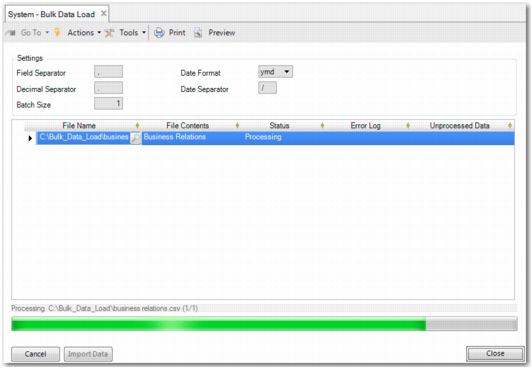
To import the files in the grid, click Import Data. A progress bar appears at the bottom of the screen to show the files being imported. The name of the file being processed, including the full path, appears above the progress bar.

Bulk Data Load with Progress Bar
When the import begins, one or more log files are created with information on the progress of the import. A log file with the name
QAD-Bulk-Data-Load-Logging.txt
is stored in each folder that contains a file to be imported. The file contains information about the import of files stored in the folder, including the batches processed, and whether the import completed successfully.
To cancel the import process, click Cancel. The import process stops after the current batch is processed. Unprocessed lines are stored in a file accessible from the link in the Unprocessed Data column for the corresponding row in the grid.